
iOS:用 UIRefreshControl 實現 UITableView 下拉刷新(Swift 版)
編輯:iOS 開發綜合
在 iOS 中,UIRefreshControl 是實現 UITableView 下拉刷新的標準做法。本文以 Swift 為例,示範如何加入下拉刷新並在放開手勢後重新載入資料。
初始化刷新控制
在 viewDidLoad 中建立並配置 UIRefreshControl,將它加入 TableView:
override func viewDidLoad() {
    super.viewDidLoad()

    // 添加刷新
    refreshControl.addTarget(self, action: "refreshData", forControlEvents: UIControlEvents.ValueChanged)
    refreshControl.attributedTitle = NSAttributedString(string: "松手刷新新聞")
    newsTableView.addSubview(refreshControl)
}
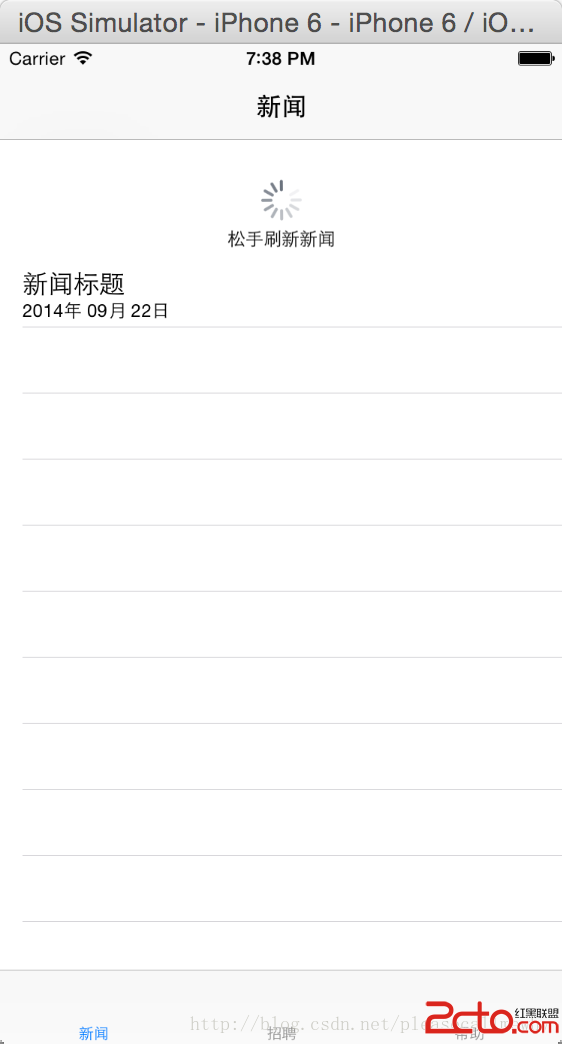
這樣下拉刷新的控制項就看得到了:
刷新資料
實作 refreshData 方法,在資料載入完成後呼叫 endRefreshing 結束刷新動畫:
func refreshData() {
    let bquery = BmobQuery(className: "News")
    bquery.findObjectsInBackgroundWithBlock({ array, error in
        self.dataArray = array
        self.newsTableView.reloadData()
        self.refreshControl.endRefreshing()
    })
}
完整程式碼
以下為完整實作。程式碼中涉及 Bmob API 的呼叫,若使用其他資料來源,只需替換 refreshData 中的取資料邏輯即可,並不影響下拉刷新的基本功能:
import UIKit

class NewsViewController: UIViewController, UITableViewDelegate, UITableViewDataSource {

    @IBOutlet weak var newsTableView: UITableView!
    var refreshControl = UIRefreshControl()
    var dataArray: [AnyObject] = [AnyObject]()

    override func viewDidLoad() {
        super.viewDidLoad()
        self.automaticallyAdjustsScrollViewInsets = false

        // 添加刷新
        refreshControl.addTarget(self, action: "refreshData", forControlEvents: UIControlEvents.ValueChanged)
        refreshControl.attributedTitle = NSAttributedString(string: "松開後自動刷新")
        newsTableView.addSubview(refreshControl)

        refreshData()
    }

    // 刷新資料
    func refreshData() {
        let bquery = BmobQuery(className: "News")
        bquery.findObjectsInBackgroundWithBlock({ array, error in
            self.dataArray = array
            self.newsTableView.reloadData()
            self.refreshControl.endRefreshing()
        })
    }

    // MARK: - UITableViewDataSource
    func tableView(tableView: UITableView, numberOfRowsInSection section: Int) -> Int {
        return dataArray.count
    }

    func tableView(tableView: UITableView, cellForRowAtIndexPath indexPath: NSIndexPath) -> UITableViewCell {
        let cell = UITableViewCell(style: UITableViewCellStyle.Subtitle, reuseIdentifier: "newsCell")
        let obj: BmobObject = dataArray[indexPath.row] as! BmobObject
        cell.textLabel?.text = obj.objectForKey("title") as? String

        let dateFormatter = NSDateFormatter()
        dateFormatter.dateFormat = "yyyy年 MM月 dd日"
        let str = dateFormatter.stringFromDate(obj.createdAt)
        cell.detailTextLabel?.text = str
        return cell
    }
}
小結
使用 UIRefreshControl 實現下拉刷新非常直觀:只要建立控制項、綁定刷新事件、加到 TableView 上,並在資料載入完成後呼叫 endRefreshing() 即可。若搭配 automaticallyAdjustsScrollViewInsets = false,還能避免佈局被自動內縮而影響顯示。
- 上一篇文章: iOS 開發:ALAsset(Assets Library)讀取編輯後照片的坑
- 下一篇文章: iOS8 開發中遇到的幾個常見問題與解法