
iOS 實戰:為 UITableViewController 添加鍵盤「確定」按鈕收回鍵盤
編輯:iOS 開發綜合
UITableViewController 本身能夠實現鍵盤適配(cell 中的控件獲得焦點時會移動到鍵盤上方)。但在收回鍵盤時,我曾嘗試過幾種方案,各有問題:
1、給 tableview 添加點擊事件——結果點擊事件與 didSelectRow 衝突,導致 didSelect 失效。
2、透過 scrollview 代理在滾動時收回鍵盤——目的可以達到,但當點擊 textfield 時,鍵盤會出現後又被直接收回。原因是先適配、再調用 scrollview 代理的順序所致。
最終方案:inputAccessoryView
最後採用在鍵盤上方添加一個帶「確定」按鈕的輔助視圖(inputAccessoryView)的方案。效果如下圖:
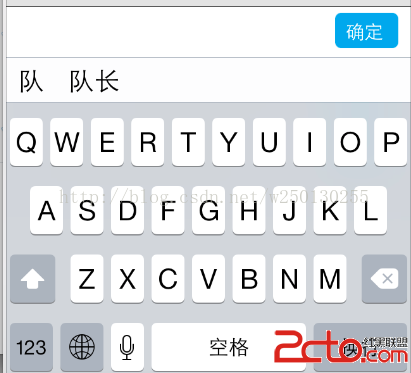
首先建立輔助視圖並添加確定按鈕:
_sureBtn = [UIButton buttonWithType:UIButtonTypeCustom];
_sureBtn.frame = CGRectMake(self.view.size.width - 60, 5, 50, 28);
_sureBtn.backgroundColor = [UIColor colorWithRed:0.150 green:0.662 blue:0.915 alpha:1.000];
_sureBtn.titleLabel.font = [UIFont systemFontOfSize:15];
_sureBtn.layer.cornerRadius = 5.0;
[_sureBtn setTitle:@"確定" forState:UIControlStateNormal];
[_sureBtn addTarget:self action:@selector(changeRemarks) forControlEvents:UIControlEventTouchUpInside];

_view = [[UIView alloc] initWithFrame:CGRectMake(0, 0, self.view.frame.size.width, 40)];
_view.backgroundColor = [UIColor whiteColor];

// 頂部分割線
UIView *line = [[UIView alloc] initWithFrame:CGRectMake(0, 0, self.view.frame.size.width, 0.5)];
line.backgroundColor = [UIColor blackColor];
[_view addSubview:line];
[_view addSubview:_sureBtn];
將輔助視圖應用到 TextField
對一般的 Textfield,直接指定其 inputAccessoryView 即可:
_begoodatField.inputAccessoryView = _view;
如果是 tableview 中 cell 裡的文本框,則需要先取得該 cell 的 textfield 再指定:
// cellMenu 為自定義 cell 的名字
_xuexiaoField = cellMenu.celltext;
_xuexiaoField.inputAccessoryView = _view;
確定按鈕的處理方法
點擊確定時,讓所有 textfield 都放棄第一響應者,即可收回鍵盤:
- (void)changeRemarks {
    [_nicktextField resignFirstResponder];
    [_xuexiaoField resignFirstResponder];
    [_begoodatField resignFirstResponder];
    [_bumenField resignFirstResponder];
}
透過 inputAccessoryView 添加一個「確定」按鈕,既能避免手勢衝突,又能給使用者明確的收回鍵盤方式,是處理 UITableViewController 鍵盤收起的優雅解法。
- 上一篇文章: iOS 技巧:圖片壓縮與將 View 保存為圖片
- 下一篇文章: iOS 基礎:UIButton 的簡單操作與事件綁定