
iOS 動畫完全解析:從 UIView 屬性動畫到 CALayer 動畫
編輯:iOS 開發綜合
動畫是提升 iOS App 使用者體驗的關鍵。要理解 iOS 的動畫機制,得先掌握幾個基礎概念。
UIView 與 CALayer 的關係
1. iOS 中我們看得到的控制項都是 UIView 的子類,例如 UIButton、UILabel、UITextField、UIImageView 等。
2. UIView 之所以能在螢幕上顯示,是因為建立它時內部會自動加入一個 CALayer 圖層,並在顯示時呼叫 drawRect: 方法完成繪圖。
3. CALayer 本身就具備顯示功能,但它無法回應用戶的互動事件。如果只是單純顯示一個圖形,用 CALayer 或 UIView 都可以;但若這個圖形需要回應互動,就必須使用 UIView 或其子類。
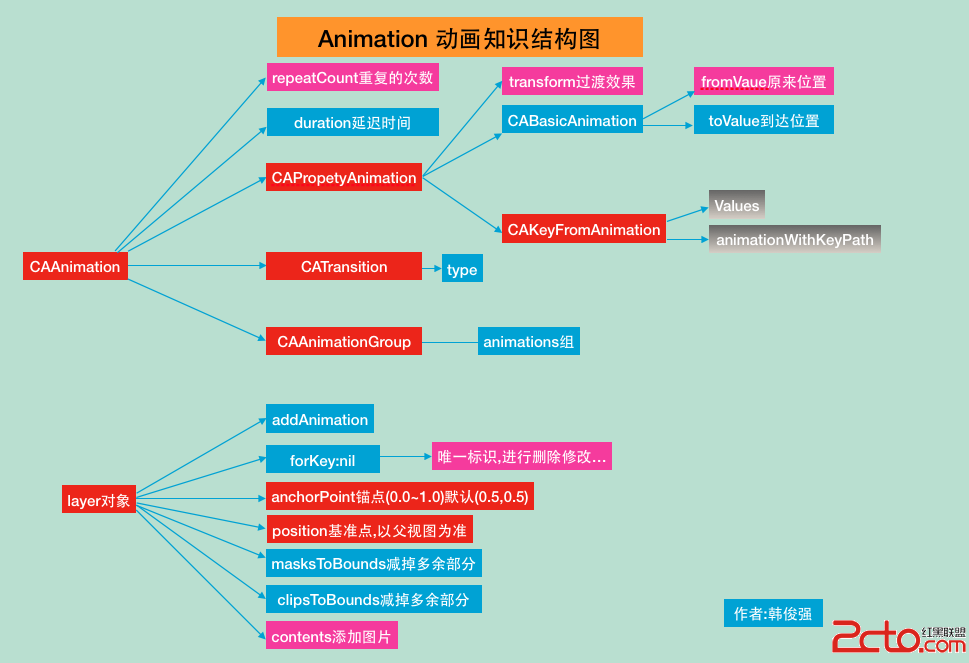
動畫知識框圖如下:
介面與屬性宣告
#import ViewController.h #import UITextField+Shake.h @interface ViewController () @property (retain, nonatomic) IBOutlet UIImageView *balloon; @property (retain, nonatomic) IBOutlet UITextField *TF; @property (retain, nonatomic) IBOutlet UIButton *bounces; @property (retain, nonatomic) IBOutlet UIView *animationView; @property (retain, nonatomic) IBOutlet UIImageView *cloud; @end@implementation ViewController
- (void)viewDidLoad { [super viewDidLoad]; //取到當前視圖控制器自帶view的圖層 CALayer *layer = self.view.layer; // UIButton *button = [UIButton buttonWithType:UIButtonTypeSystem]; // button.layer //button的圖層 //layer 的color必須是CGColor self.animationView.layer.backgroundColor = [UIColor greenColor].CGColor; }
為 UITextField 建立搖動類別
UITextField+Shake.h #import@interface UITextField (Shake) - (void)shake; @end UITextField+Shake.m #import UITextField+Shake.h @implementation UITextField (Shake) //震動的方法 - (void)shake{ CAKeyframeAnimation *keyFrame = [CAKeyframeAnimation animationWithKeyPath:@position.x]; keyFrame.values = @[@(self.center.x + 10),@(self.center.x),@(self.center.x - 10)]; keyFrame.repeatCount = 10; keyFrame.duration = 0.03; [self.layer addAnimation:keyFrame forKey:nil]; } @end
動畫總入口
- (IBAction)handleAnimation:(UIButton *)sender { //UIView的屬性動畫 [self handlePropertyAnimation]; //UIView的屬性動畫 Block形式 [self handlePrepertyAnimationBlock]; //UIView的過渡動畫 [self handleTrabsitionAnimation]; //CALayer動畫 [self handleCALayer]; //CALayer 的基礎動畫 [self handleBasicAnimation]; //CALayer的關鍵幀動畫 [self handleKeyFrameAnimation]; //UITextField 調用輸入震動框方法 [self.TF shake]; //CALayer的過渡動畫 [self handleLayerCATransactionAnimation]; //CAAinmationGroup 分組動畫 [self handleAnimatonGroup]; }
UIView 屬性動畫
可動畫的屬性包含:frame、center、bounds、alpha、backgroundColor、transform。修改屬性做動畫時,動畫結束後屬性的修改結果會真實地作用在視圖上,無法恢復到之前的樣子。
- (void)handlePropertyAnimation{ //iOS4.0之前必須把要修改的可動畫屬性寫在begin 和 commit 之間 //開始動畫 [UIView beginAnimations:nil context:nil]; //指定代理 動畫的代理不需要遵循協議,因為此代理就沒有制定協議 [UIView setAnimationDelegate:self]; //設置動畫的持續時間 [UIView setAnimationDuration:3.0]; //設置動畫的重復次數 給重復效果旋轉效果立即消失 [UIView setAnimationRepeatCount:3.0]; //設置動畫的反轉效果 [UIView setAnimationRepeatAutoreverses:YES]; //設置動畫的變化速度 [UIView setAnimationCurve:UIViewAnimationCurveEaseInOut]; //如果要實現這個方法必須設置代理,此方法在動畫結束後觸發 [UIView setAnimationDidStopSelector:@selector(makeAnimationBack)]; //修改屬性做動畫 //1.center 修改中心點 CGPoint center = self.animationView.center; center.y += 10; self.animationView.center =center; //2.修改透明度 alpha self.animationView.alpha = 0.0; //3.變形 tranform //<#CGAffineTransform t#> 之前形變量 //旋轉的角度180/4 self.animationView.transform = CGAffineTransformRotate(self.animationView.transform, M_PI_4); self.animationView.transform = CGAffineTransformScale(self.animationView.transform, 0.5, 0.5); //提交動畫 [UIView commitAnimations]; }
恢復到視圖之前的狀態:
- (void)makeAnimationBack{ // self.animationView.center = self.view.center; self.animationView.alpha = 1.0; //恢復到tranform最初狀態,最初狀態就在CGAffineTransformIdentity記錄 self.animationView.transform = CGAffineTransformIdentity; }
UIView 屬性動畫(Block 形式)
- (void)handlePrepertyAnimationBlock{ //iOS4.0之後使用block的形式做動畫 __block typeof(self)weakSelf = self; //2.block的第二種形式 [UIView animateWithDuration:2 animations:^{ //1.獲得中心點 CGPoint center = weakSelf.animationView.center; //改變中心點 center.y += 50; weakSelf.animationView.center =center; //2.透明度 weakSelf.animationView.alpha = 0.0; //3.形變修改transform weakSelf.animationView.transform = CGAffineTransformScale(weakSelf.animationView.transform, 0.5, 0.2); } completion:^(BOOL finished) { //返回動畫之前的狀態 [weakSelf makeAnimationBack]; }]; //3.block的第三種形式 [UIView animateWithDuration:3 delay:1 options:UIViewAnimationOptionAllowAnimatedContent animations:^{ CGPoint center = weakSelf.animationView.center; center.y += 50; weakSelf.animationView.center =center; weakSelf.animationView.alpha = 0.0; weakSelf.animationView.transform = CGAffineTransformScale(weakSelf.animationView.transform, 0.5, 0.2); } completion:^(BOOL finished) { [weakSelf makeAnimationBack]; }]; //block的第四種形式 彈簧動畫 [UIView animateWithDuration:2 delay:1 usingSpringWithDamping:0.5 initialSpringVelocity:500 options:UIViewAnimationOptionCurveEaseInOut animations:^{ CGPoint center = weakSelf.bounces.center; center.y += 10; weakSelf.bounces.center = center; weakSelf.bounces.transform = CGAffineTransformScale(weakSelf.bounces.transform, 1.2, 1.2); } completion:^(BOOL finished) { CGPoint center = weakSelf.bounces.center; center.y -= 10; weakSelf.bounces.center = center; weakSelf.bounces.transform = CGAffineTransformIdentity; }]; }
UIView 過渡動畫
- (void)handleTrabsitionAnimation{ __block typeof(self)weakSelf = self; //01:對哪個視圖添加過渡動畫 //02:動畫時常 //03:動畫效果 [UIView transitionWithView:self.animationView duration:2 options:UIViewAnimationOptionAllowAnimatedContent animations:^{ weakSelf.animationView.transform = CGAffineTransformRotate(weakSelf.animationView.transform, M_PI_4); } completion:nil]; }
CALayer 動畫
修改 layer 層的屬性做動畫,並不會真實地作用在視圖上,動畫只是一種視覺上的假象。
- (void)handleCALayer{ //CALyer 動畫就是對layer做動畫 //邊框的寬 self.animationView.layer.borderWidth = 10.0; //邊框顏色 self.animationView.layer.borderColor = [UIColor redColor].CGColor; //背景圖片 self.animationView.layer.contents = (id)[UIImage imageNamed:@"test.jpg"].CGImage; //視圖一創建出來的時候 錨點 基准點 中心點三個點是重合的 //錨點 anchorPoint 決定layer層上的哪個點是position 錨點默認是(0.5,0.5) self.animationView.layer.anchorPoint = CGPointMake(0.5, 0); self.animationView.transform = CGAffineTransformRotate(self.animationView.transform, M_PI_4); //基准點 Position 決定當前視圖的layer,在父視圖的位置 self.animationView.layer.position = CGPointMake(160, 184); }
CABasicAnimation 基礎動畫
- (void)handleBasicAnimation{ //CA動畫是根據KVC的原理,就修改layer的屬性,以達到做動畫的效果 CABasicAnimation *basic = [CABasicAnimation animationWithKeyPath:@position.x]; basic.fromValue = @(-80); basic.toValue = @(400); //設置動畫持續的時間 basic.duration = 5.0; //設置動畫重復的次數 basic.repeatCount = 1000; [self.cloud.layer addAnimation:basic forKey:nil]; }
CAKeyframeAnimation 關鍵幀動畫
- (void)handleKeyFrameAnimation{ CAKeyframeAnimation *keyFrame = [CAKeyframeAnimation animationWithKeyPath:@position]; CGPoint point1 = self.cloud.center; CGPoint point2 = CGPointMake(160, 100); CGPoint point3 = CGPointMake(270, self.cloud.center.y); //把一組要播放的動畫需求的數值,按順序放到數組中 NSValue *value1 = [NSValue valueWithCGPoint:point1]; NSValue *value2 = [NSValue valueWithCGPoint:point2]; NSValue *value3 = [NSValue valueWithCGPoint:point3]; keyFrame.repeatCount = 1000; keyFrame.duration = 15.0; keyFrame.values = @[value1,value2,value3,value1]; [self.cloud.layer addAnimation:keyFrame forKey:nil]; }
CATransition 過渡動畫
- (void)handleLayerCATransactionAnimation{ //常見的過渡類型包括 fade、moveIn、push、reveal 等 // @cube 立方體翻滾效果 // @moveIn 新視圖移到舊視圖上面 // @reveal 顯露效果 // @fade 交叉淡化過渡 (默認為此效果) // @pageCurl 向上翻一頁 // @pageUnCurl 向下翻一頁 // @suckEffect 收縮效果 // @rippleEffect 滴水效果 // @oglFlip 上下左右翻轉效果 // @rotate 旋轉效果 // @push // @cameraIrisHollowOpen 相機鏡頭打開效果 // @cameraIrisHollowClose 相機鏡頭關上效果 //創建過渡動畫對象 CATransition *transition = [CATransition animation]; //配置動畫過渡的樣式 transition.type = @cameraIrisHollowClose; //將過渡動畫添加到layer上 [self.view.layer addAnimation:transition forKey:nil]; }
CAAnimationGroup 分組動畫
- (void)handleAnimatonGroup{ //1.創建第一個關鍵幀動畫,給熱氣球一個運動軌跡 CAKeyframeAnimation *keyframePath = [CAKeyframeAnimation animationWithKeyPath:@position]; //貝塞爾曲線 //1.指定貝塞爾曲線的半徑 CGFloat radius = [UIScreen mainScreen].bounds.size.height / 2.0; //01:圓心 //02:半徑 //03:開始的角度 //04:結束的角度 //05:旋轉方向 UIBezierPath *path = [UIBezierPath bezierPathWithArcCenter:CGPointMake(0, radius) radius:radius startAngle:-M_PI_2 endAngle:M_PI_2 clockwise:YES]; //將貝塞爾曲線作為運動軌跡 keyframePath.path = path.CGPath; //2.創建第二組關鍵幀動畫,讓熱氣球在運動的時候 由小--->大--->小 ; CAKeyframeAnimation *keyFrameScale = [CAKeyframeAnimation animationWithKeyPath:@transform.scale]; //通過一組數據修改熱氣球的大小 keyFrameScale.values = @[@1.0,@1.2,@1.4,@1.6,@1.8,@1.6,@1.4,@1.2,@1.0]; //創建動畫分組對象 CAAnimationGroup *group = [CAAnimationGroup animation]; //將兩個動畫效果添加到分組動畫中 group.animations = @[keyframePath,keyFrameScale]; group.duration = 8; group.repeatCount = 1000; [self.balloon.layer addAnimation:group forKey:nil]; }
最終效果如下:
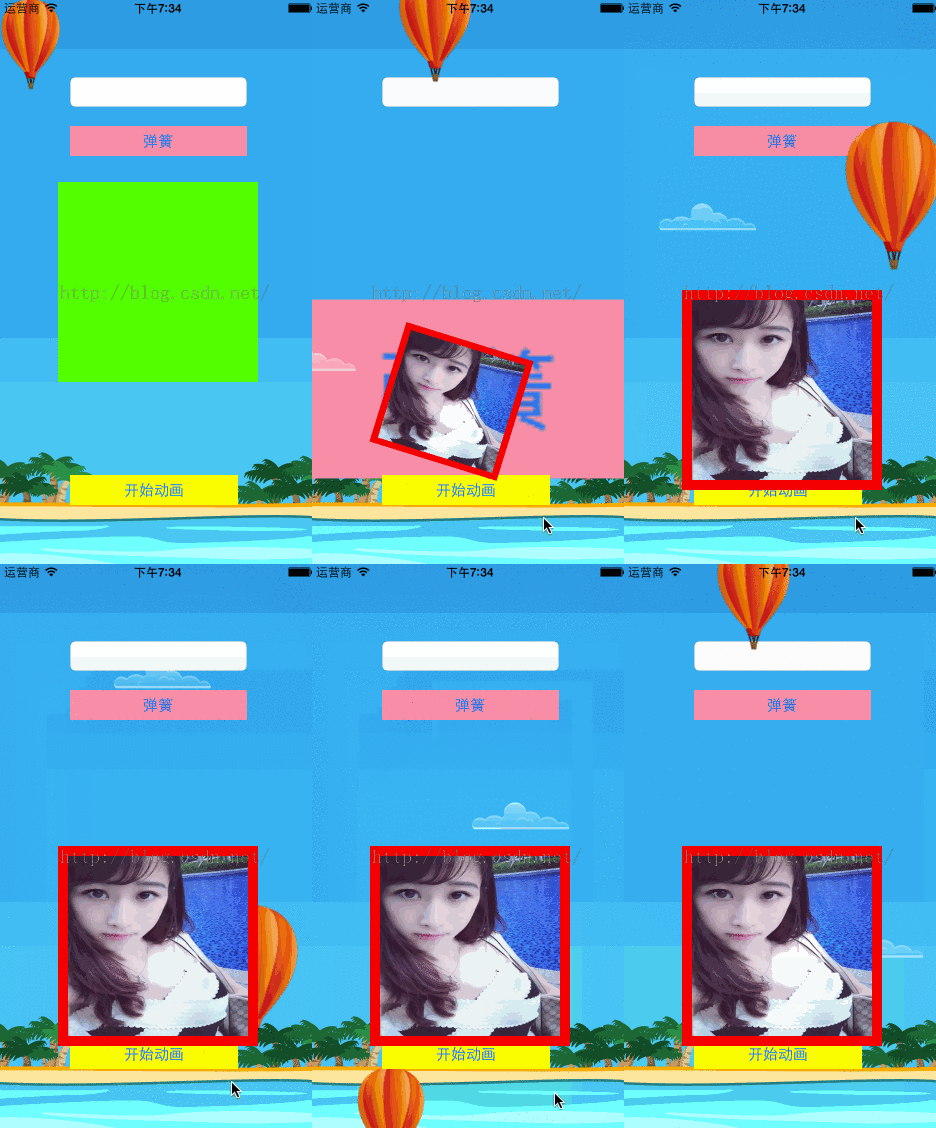
從 UIView 的屬性動畫、Block 動畫、過渡動畫,到 CALayer 的基礎動畫、關鍵幀動畫、過渡動畫與分組動畫,這一整套 API 幾乎涵蓋了日常開發中會用到的所有動畫場景。理解它們背後的原理(尤其是 CALayer 與 UIView 的分工),你就能更從容地打造流暢順滑的動態效果。
- 上一篇文章: iOS 搜尋欄實作教學:UISearchController 的進階用法
- 下一篇文章: iOS UILabel 文字左上角對齊的實作技巧