
iOS 開發實戰:警告對話框 UIAlertView 與等待提示器 UIActivityIndicatorView
在 iOS 早期版本的開發中,UIAlertView 與 UIActivityIndicatorView 是兩個非常實用的元件。前者用於彈出警告對話框與使用者互動,後者則是俗稱「轉圈圈菊花」的等待提示器,常用於下載或載入大型檔案時提示使用者耐心等候。
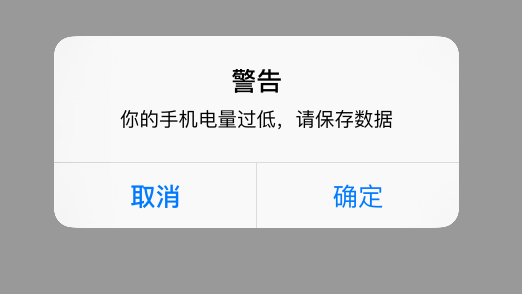

一、宣告介面與代理
使用 UIAlertView 時,記得在類別宣告處加上 UIAlertViewDelegate 代理,才能接收對話框的按鈕回呼事件。
#import <UIKit/UIKit.h>
@interface ViewController : UIViewController <UIAlertViewDelegate>
{
// 定義一個警告對話框物件
UIAlertView *_alertView;
// 等待提示物件,當下載或載入較大檔案時,可顯示此元件處於等待狀態
UIActivityIndicatorView *_activityIndicator;
}
@property (retain, nonatomic) UIAlertView *alertView;
@property (retain, nonatomic) UIActivityIndicatorView *activityIndicator;
@end
二、實作邏輯
以下程式碼示範如何動態建立兩個按鈕,分別觸發對話框與等待提示器。
#import "ViewController.h"
@implementation ViewController
// 同步屬性與成員變數
@synthesize alertView = _alertView;
@synthesize activityIndicator = _activityIndicator;
- (void)viewDidLoad
{
[super viewDidLoad];
for (int i = 0; i < 2; i++) {
UIButton *btn = [UIButton buttonWithType:UIButtonTypeRoundedRect];
btn.frame = CGRectMake(100, 100 + 100 * i, 100, 40);
if (i == 0) {
[btn setTitle:@"警告對話框" forState:UIControlStateNormal];
} else if (i == 1) {
[btn setTitle:@"等待指示器" forState:UIControlStateNormal];
}
btn.tag = 101 + i;
[btn addTarget:self action:@selector(pressBtn:) forControlEvents:UIControlEventTouchUpInside];
[self.view addSubview:btn];
}
}
-(void)pressBtn:(UIButton *)btn
{
if (btn.tag == 101) {
// 建立警告對話框
// 參數說明:
// p1 標題、p2 提示訊息、p3 處理按鈕事件的代理、p4 取消按鈕文字(索引為 0)
// 其餘為其他按鈕文字,nil 代表結束
_alertView = [[UIAlertView alloc] initWithTitle:@"警告"
message:@"你的手機電量過低,請保存數據"
delegate:self
cancelButtonTitle:@"取消"
otherButtonTitles:@"確定", nil];
[_alertView show];
} else if (btn.tag == 102) {
// 建立等待提示器,寬高不可變更
_activityIndicator = [[UIActivityIndicatorView alloc] initWithFrame:CGRectMake(100, 300, 80, 80)];
// 設定風格:小灰、小白、大白
_activityIndicator.activityIndicatorViewStyle = UIActivityIndicatorViewStyleGray;
self.view.backgroundColor = [UIColor blueColor];
[self.view addSubview:_activityIndicator];
// 啟動動畫並顯示
[_activityIndicator startAnimating];
// 停止動畫並隱藏
// [_activityIndicator stopAnimating];
}
}
補充說明:otherButtonTitles 若只放一個「確定」,它會與取消按鈕橫向並排;若放入多個(如「確定」、「確定1」、「確定2」),則會全部縱向排列,索引依序為 1、2、3。
三、對話框的代理回呼
當使用者點擊對話框按鈕時,會觸發以下三個代理方法,可用來處理不同階段的事件。
// 點擊按鈕時呼叫,參數為對話框本身與按鈕索引
-(void)alertView:(UIAlertView *)alertView clickedButtonAtIndex:(NSInteger)buttonIndex
{
NSLog(@"index=%ld\n", (long)buttonIndex);
}
// 對話框即將消失時呼叫
-(void)alertView:(UIAlertView *)alertView willDismissWithButtonIndex:(NSInteger)buttonIndex
{
NSLog(@"即將消失!");
}
// 對話框已經消失時呼叫
-(void)alertView:(UIAlertView *)alertView didDismissWithButtonIndex:(NSInteger)buttonIndex
{
NSLog(@"已經消失");
}
透過以上程式碼,你就能在畫面上彈出警告對話框、顯示等待菊花,並透過代理方法精準掌握使用者的操作時機。值得提醒的是,UIAlertView 與 UIActivityIndicatorView 在後續 iOS 版本中已被 UIAlertController 等新元件取代,新專案建議優先採用官方推薦的方案。