
iOS 懸浮按鈕實作:使用 UIWindow 打造全局浮動入口
編輯:iOS 開發綜合
在實際項目中,我們常常需要在畫面最上層放置一個浮動按鈕,例如快速發布、回到頂部或全局操作入口。這類需求可以借助 UIWindow 來實現,因為它能夠獨立於一般視圖層級,顯示在當前介面之上。
完整項目源碼:
https://github.com/qxuewei/XWSuspendBtn
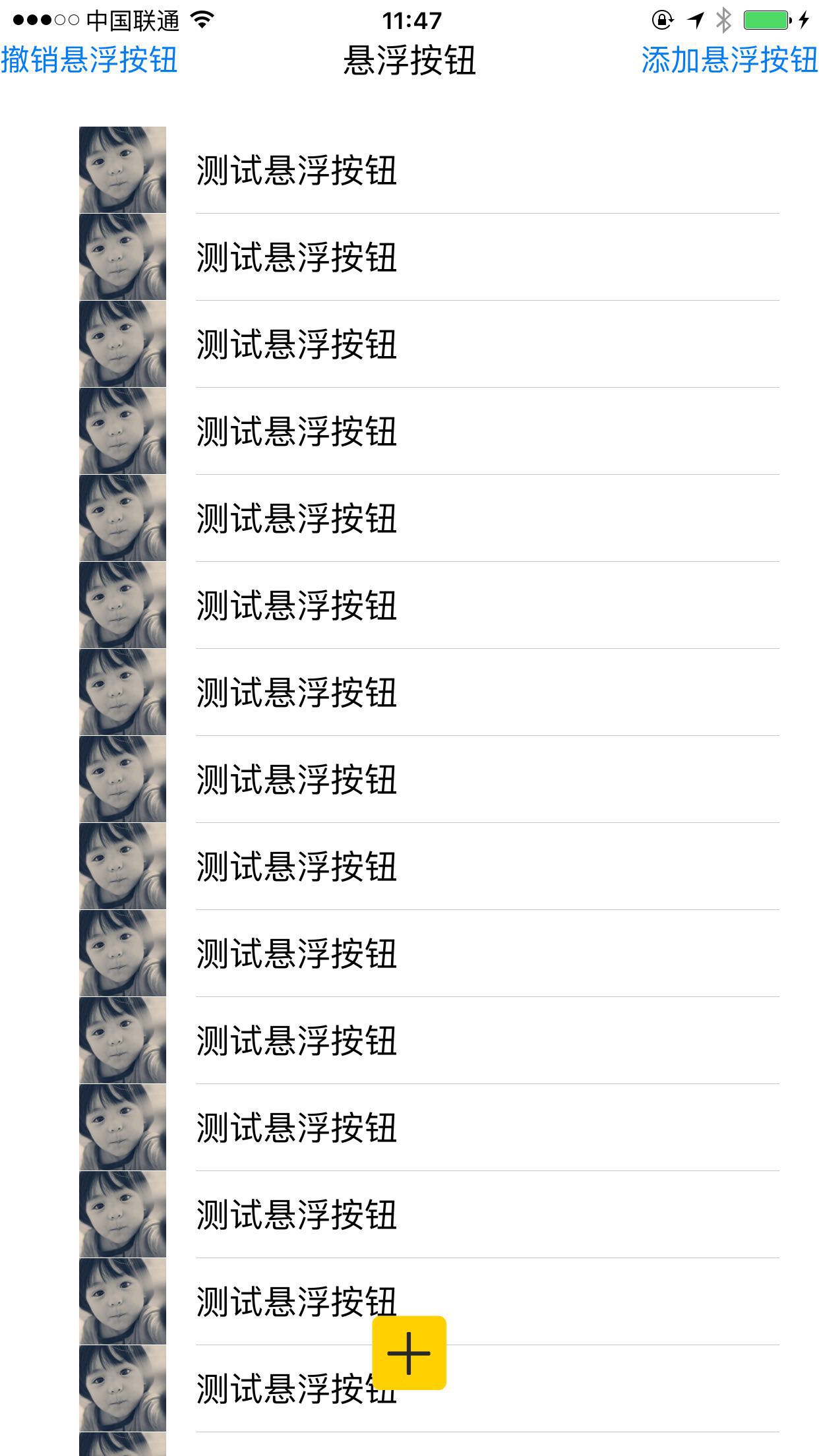
最終實現效果如下:
實現思路
整體思路可以拆成三步:
- 在需要顯示懸浮按鈕的類中,宣告
UIWindow與UIButton屬性。 - 建立一個透明且位於高層級的
UIWindow,並把按鈕加入其中。 - 在合適的時機呼叫建立方法,例如視圖加載完成後延遲執行。
屬性宣告
/** window */
@property (nonatomic, strong) UIWindow *window;

/** 懸浮按鈕 */
@property (nonatomic, strong) UIButton *button;
建立懸浮按鈕
關鍵在於將 window.windowLevel 設定得足夠高,並讓背景透明,這樣按鈕就能浮現於一般頁面之上。
- (void)creatSuspendBtn {
    _button = [UIButton buttonWithType:UIButtonTypeCustom];
    [_button setImage:[UIImage imageNamed:@"plus"] forState:UIControlStateNormal];

    CGFloat screenWidth = [UIScreen mainScreen].bounds.size.width;
    CGFloat screenHeight = [UIScreen mainScreen].bounds.size.height;

    _button.frame = CGRectMake(0, 0, 64, 64);
    [_button addTarget:self action:@selector(suspendBtnClick) forControlEvents:UIControlEventTouchUpInside];

    _window = [[UIWindow alloc] initWithFrame:CGRectMake(screenWidth * 0.5 - 32, screenHeight - 84, 64, 64)];
    _window.windowLevel = UIWindowLevelAlert + 1;
    _window.backgroundColor = [UIColor clearColor];

    [_window addSubview:_button];
    [_window makeKeyAndVisible];
}
在視圖加載時建立
由於 UIWindow 需要在合適的生命週期建立,常見做法是在 viewDidLoad 中延遲呼叫。
- (void)viewDidLoad {
    [super viewDidLoad];

    [self.mainTableView setDelegate:self];
    [self.mainTableView setDataSource:self];

    [self performSelector:@selector(creatSuspendBtn) withObject:nil afterDelay:0.2];
}
注意事項
使用 UIWindow 實現懸浮按鈕時,應注意視窗層級、透明背景與顯示時機。若頁面切換較多,也可以考慮將懸浮按鈕放入全域視窗或自定義容器視圖中管理,避免多個頁面各自建立導致層級衝突。
項目 GitHub 地址:
https://github.com/qxuewei/XWSuspendBtn
- 上一篇文章: GCD API 理解(一):串行/並發隊列、同步異步與死鎖解析
- 下一篇文章: iOS 直播實作:App 進入背景後持續錄音與推流