
On-Demand Resources 官方指南(三、四):管理資源與除錯
本文譯自 Apple 官方文件《On-Demand Resources Guide》。前兩部分講的是按需載入資源的基礎概念,以及建立與編輯 tag。
(三)管理按需載入資源
資源的下載與管理由作業系統負責,App 這邊則透過 NSBundleResourceRequest 來完成五件事:
請求取得按需載入資源
告知系統某些資源已不再使用
調整下載優先級
追蹤下載進度
接收儲存空間不足的提醒
當某些已下載的資源不再需要時,可以用 NSBundle 的方法設定保存優先級。
整體流程可以歸納為四步:
App 配置並初始化一個
NSBundleResourceRequest物件。要管理的 tag 必須在初始化時指定,之後無法更改。App 請求取得某個 tag 底下的資源。若需要下載,可調整優先級並追蹤進度;若出錯則採取對應措施。常見錯誤包含 tag 無效、沒有網路連線、無權使用行動數據、空間不足等。
App 使用這些資源,方式與同類資源完全相同。
App 結束存取,並通知系統不再需要這些資源。
只要 tag 已經下載到裝置上,任何時候都能設定它的保存優先級。
注意:每個 NSBundleResourceRequest 物件只能用於一個「請求/結束」循環。
請求存取
App 必須在使用資源前先請求存取對應 tag。第一步是建立 NSBundleResourceRequest 物件,同一個 tag 可以由多個 request 物件管理。
每個 NSBundleResourceRequest 實例管理同一個 bundle 底下打了 tag 的資源,初始化時可指定 tag 與 bundle:
資源都在 main bundle 時,用
initWithTags:資源都在同一個自訂 bundle 時,用
initWithTags:bundle:
注意:bundle 也可以設為 main bundle。
// Initialize an NSBundleResourceRequest with the desired tags
NSSet *tags = [NSSet setWithArray: @[@"birds", @"bridge", @"city"]];

// All the resources are in the main bundle so use the shorter initialization method
resourceRequest = [[NSBundleResourceRequest alloc] initWithTags:tags];
tag 與 bundle 都只能在初始化時設定。
請求存取資源
初始化完成後就可以發出請求。當所有 tag 底下的資源都已在本地,系統會保留這些資源,並透過回呼通知 App 它們已可使用。
請求存取有兩個方法,差別在於「資源不在裝置上」時的行為:
beginAccessingResourcesWithCompletionHandler:會從 App Store 下載資源。conditionallyBeginAccessingResourcesWithCompletionHandler:不會觸發下載。
兩者都在回呼 block 中回傳結果,且都要求資源已全部就位。
// Request access to the tags for this resource request
[resourceRequest beginAccessingResourcesWithCompletionHandler: ^(NSError * __nullable error) {
    // Check if there is an error
    if (error) {
        // There is a problem, update app state (should inform user if appropriate)
        self.resourcesLoaded = NO;
        return;
    }
    // the resources associated with the the tags are loaded, start using them
    self.resourcesAvailable = YES;
}];
注意:允許存取之後,不要再用同一個 request 實例發出第二次請求。
檢查 tag 是否已在裝置上
有些時候你並不想在資源缺失時直接觸發下載。例如裝置處於低速網路,而高畫質圖片與音效不在本地,這時可以改用低畫質版本。
conditionallyBeginAccessingResourcesWithCompletionHandler: 在 tag 已存在時允許存取;若不存在,App 才需要改呼叫 beginAccessingResourcesWithCompletionHandler: 下載。
// Request access to tags that may already be on the device
[resourceRequest conditionallyBeginAccessingResourcesWithCompletionHandler: ^(BOOL resourcesAvailable) {
    if (resourcesAvailable) {
        // the resources associated with the the tags are loaded, start using them
        self.highQualityResourcesAvailable = YES;
    } else {
        // The resources are not on the device and need to be loaded
        // Queue up a call to custom method for loading the tags using
        // beginAccessingResourcesWithCompletionHandler:
        dispatch_async(dispatch_get_main_queue(), ^{
            [self loadLowerQualityTags];
        })
    }
}];
注意:如果這個方法回傳 YES,就不要再呼叫 beginAccessingResourcesWithCompletionHandler:。
該在什麼時候請求 tag
因為從 App Store 下載需要時間,你可以在真正用到之前就先請求。下載時間取決於總大小、網路速度,以及系統願意分配多少資源。
在沒有頻寬限制的理想情況下,於 300Mbps 的 802.11n 或 LTE 網路上,下載一個 64MB 的 tag 至少要 1.7 秒;現實中的實際速度往往遠低於此。
下載優先級
資源請求有預設優先級,且隨時可以調整(包含下載進行中)。低優先級佔用較少的系統資源,把資源讓給其他任務,但下載速度也會變慢;這對整體 App 效率是有利的。
// The priority is a value between 0.0 and 1.0
self.resourceRequest.loadingPriority = 0.1;
反之,提高優先級會佔用更多系統資源、加快下載,但會壓低 App 整體效率。如果下載非常緊急,可以設為 NSBundleResourceRequestLoadingPriorityUrgent,讓系統盡可能調度資源——典型情境是用戶必須等資源下載完才能繼續操作。
// Raise the priority based on the urgency
if (self.userWaiting) {
    // The user is waiting, request the maximum download time
    self.resourceRequest.loadingPriority = NSBundleResourceRequestLoadingPriorityUrgent;
} else {
    // Set a higher priority
    self.resourceRequest.loadingPriority = 0.8;
}
上面用的是固定浮點值,你也可以依 App 當時的狀態動態調整。
追蹤下載進度
下載開始後,request 會持續更新 progress(一個 NSProgress 型別的屬性)。App 透過對 progress.fractionCompleted 做 KVO 來追蹤進度,需要處理開始觀察、結束觀察,以及值變化時的行為。
// Start observing fractionCompleted for the progress
[self.resourceRequest.progress addObserver:self
                                forKeyPath:@"fractionCompleted"
                                   options:NSKeyValueObservingOptionNew
                                   context:NULL];

// Stop observing fractionCompleted for the progress
[self.resourceRequest.progress removeObserver:self
                                   forKeyPath:@"fractionCompleted"];
- (void)observeValueForKeyPath:(NSString *)keyPath ofObject:(id)object
change:(NSDictionary *)change context:(void *)context {
// Check for the progress object and key
if ((object == self.resourceRequest.progress) && ([keyPath isEqualToString:@"fractionCompleted"])) {
double progressSoFar = self.resourceRequest.progress.fractionCompleted;
// do something with the value
}
}追蹤進度的兩個主要用途是:
動態調整下載優先級:時間緊迫就提高,時間充裕就降低。
給使用者回饋:一個簡單的進度條就能把
fractionCompleted呈現出來。
暫停、恢復與取消
進行中的下載可以暫停、恢復或取消,都透過 progress 屬性與 NSProgress 提供的方法完成。
// Pause the current download
[self.resourceRequest.progress pause];

// Resume the current download
[self.resourceRequest.progress resume];

// Cancel the current download
[self.resourceRequest.progress cancel];
結束存取
App 不再使用資源時,結束存取能讓系統回收儲存空間——這就是生命週期的第四步。有兩種方式:
對 request 送出
endAccessingResources直接釋放這個 request 物件
// End access by calling this method or deallocating the NSBundleResourceRequest instance
[self.resourceRequest endAccessingResources];
呼叫之後,這個 request 就不能再用來請求存取了。若還需要存取同一個 tag,必須重新建立一個 NSBundleResourceRequest。
設定保留優先級
有些 tag 底下的資源比其他更重要,例如應用內購買或核心功能的資源會被更頻繁使用。這些 tag 適合設為高保留優先級——當系統開始清理時,會從優先級最低的開始。
用 NSBundle 的方法即可設定與查詢。
// Check the preservation priority for the llama in-app purchase module
double currentPriority = [[NSBundle mainBundle] preservationPriorityForTag:@"iap-llamas"];

// Set the priority to the maximum of 1.0 (the default is 0.0)
// The call to set the priority takes a set of tags
NSSet *tags = [NSSet setWithArray: @[@"iap-llamas"]];
[[NSBundle mainBundle] setPreservationPriority:1.0 forTags:tags];
儲存空間不足的通知
當系統無法為正在請求的資源騰出足夠空間時,會發出通知。App 應該立即停止存取所有不再需要的 tag;若系統仍無法釋放出足夠空間,App 會被終止。
舉例來說,在一個多關卡遊戲裡,玩家正在第 4 關,App 同時請求了第 3、5、6 關的 tag。收到空間不足通知時,App 可以釋放第 3、6 關的資源。
// Notification handler for low disk space warning
- (void)lowDiskSpace:(NSNotification*)theNotification {
    // Free the lower priority resource requests
    for (NSBundleResourceRequest *atRequest in self.lowPriorityRequests) {
        // End accessing the resources
        [atRequest endAccessingResources];
    }
    // clear lowPriorityRequests preventing multiple calls to endAccessingResource
    [self.lowPriorityRequests removeAllObjects];
註冊通知一般由 app delegate 或主視圖負責。這裡的 lowPriorityRequests 並非系統提供,而是需要 App 自己建立與維護的 mutable set。
(四)除錯
開發過程中可能遇到三類問題,各自需要不同的工具:
網路連線:低速或無網路造成的問題
本地儲存空間:空間不足導致無法下載
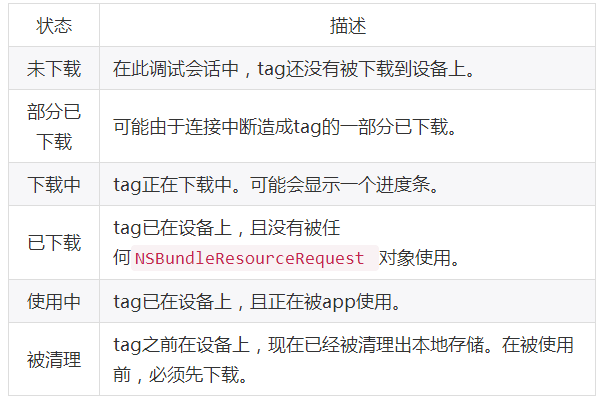
意外狀態:tag 處於非預期狀態,例如顯示為使用中,但 App 所有模組都已結束存取
排查意外狀態最有用的工具是 Xcode 的磁碟儀表(Disk Gauge),它會列出每個 tag 目前的狀態。
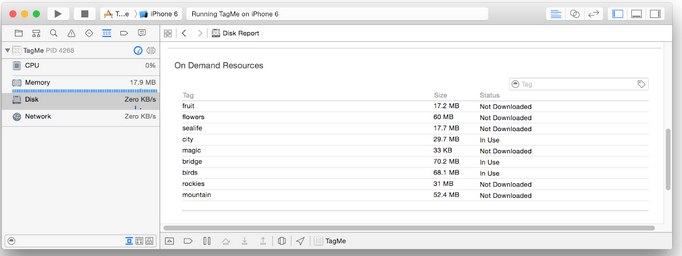
儀表會顯示每個 tag 的大小與狀態,其中大小是針對當前裝置裁切後的結果。
怎麼開磁碟儀表
模擬器與真機都可以使用:
選擇
View > Navigators > Show Debug Navigator用 Scheme 彈窗選一個 target 與裝置
選擇
Product > Run啟動 App,它會在該裝置上執行並連上除錯器在 Debug Navigator 清單中點選磁碟儀表,它會顯示在 workspace 的內容區
往下捲動直到看見資源分類,必要時調整窗格大小以顯示全部 tag
附錄 A:可打 tag 的資源類型
下表列出可以標記 tag 的資源類型。
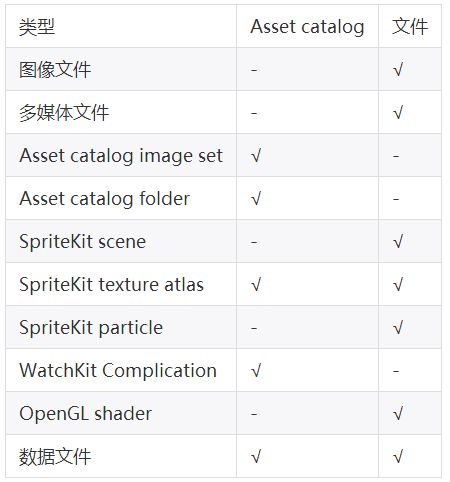
資料檔可以是除了可執行的 Swift、Objective-C、C、C++ 二進位檔以外的任何型別;由腳本語言產生的檔案也可以作為資源。
附錄 B:資源大小限制
在提交 App Store 審核時與 App 執行時,資源能使用的空間都有上限。
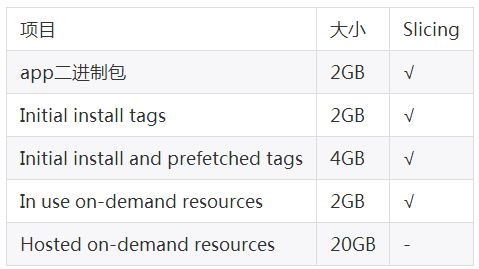
Slicing:該大小是在 App 裁切前還是裁切後
App 二進位檔:裁切後下載到裝置上的安裝包大小
Initial install tags:裁切後標為初始安裝 tag 的全部大小
Initial install and prefetched tags:裁切後標為初始安裝與預先擷取 tag 的全部大小
In use on-demand resources:裁切後 App 在任何時刻使用中的 tag 大小。只要有任何一個 request 物件正在存取該 tag,就算使用中
Hosted on-demand resources:由 App Store 託管、未裁切的大小
前兩部分請見:按需載入資源基礎,以及建立與編輯 tag。