
Xcode 8 Instruments 工具集的增減與 GPU 調優新玩法
最近項目趕得緊,沒仔細看 Xcode 8 的發佈說明。直到做性能優化時才發現,Instruments 工具集比 Xcode 7 少了幾項,而被精簡掉的工具裡,有一項對我們項目影響不小——它就是 GPU Driver。
更新:經各位老司機提醒,Xcode 7 新增的 UI Test 功能其實等同於 Automation,所以 Instruments 8 在功能上並沒有比上一版少。然而這幾天用 Instruments 8 做性能調優時,它一直提示 glInvalidateFramebuffer 的調用位置有誤,但同樣的代碼在 Instruments 7 裡並不會報這個提示。可以確定的是,這段代碼完全遵循了 WWDC 與相關 Programming Guide 的建議。

Instruments 的提示與官方文檔的說法對我而言恰好相反:
The application called glInvalidateFrameBuffer before presenting the renderbuffer. This is incorrect. If you call glInvalidateFramebuffer, do so after presenting. renderbuffer ID = 1.
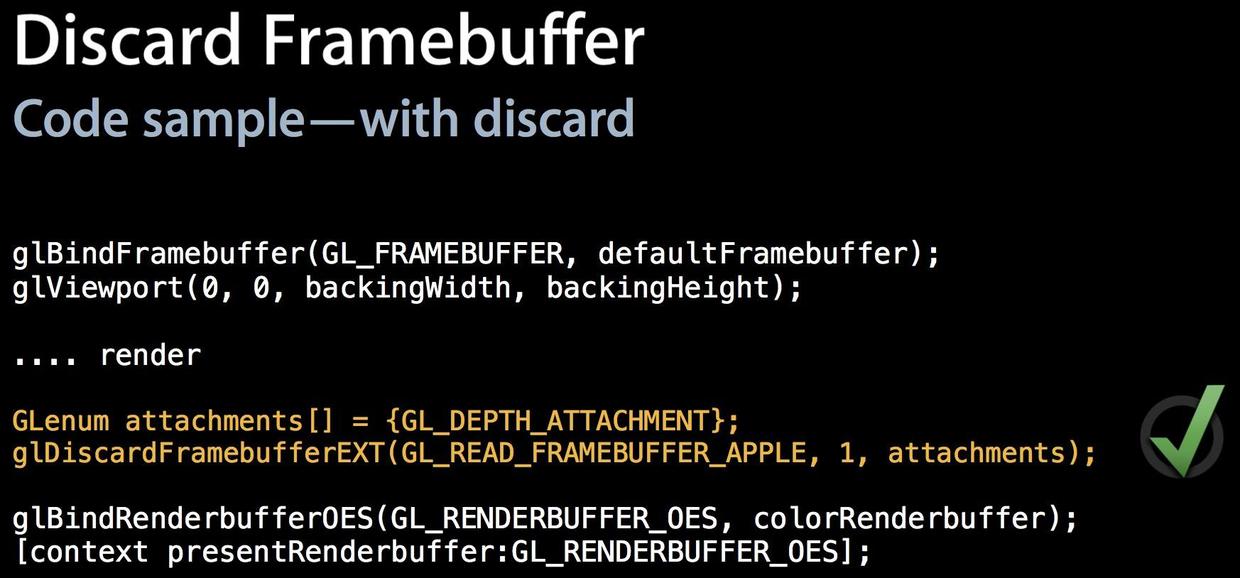
Other framebuffer attachments used in your rendering algorithm (for example, depth, stencil, and multisampling buffers) need not be preserved, because their contents will be recreated on the next frame drawn. OpenGL ES automatically stores these buffers to shared memory—incurring a performance cost—unless you explicitly invalidate them. To invalidate a buffer, use the glInvalidateFramebuffer command in OpenGL ES 3.0 or the glDiscardFramebufferEXT command in OpenGL ES 1.1 or 2.0. When you use the basic drawing cycle provided by GLKView class, it automatically invalidates any drawable depth, stencil, or multisampling buffers it creates.
摘自官方文檔 Tuning Your OpenGL ES App - Avoid Logical Buffer Loads and Stores
下面是我們的代碼,可以看到它是照官方建議寫的:
glBlitFramebuffer(0, 0, width, height,
 0, 0, width, height,
 GL_COLOR_BUFFER_BIT,
 GL_LINEAR);
GLenum discardAllAttachments[] = {GL_COLOR_ATTACHMENT0,
 GL_DEPTH_ATTACHMENT,
 GL_STENCIL_ATTACHMENT};
glInvalidateFramebuffer(GL_READ_FRAMEBUFFER,
 sizeof(discardAllAttachments) / sizeof(discardAllAttachments[0]),
 discardAllAttachments);
glBindRenderbuffer(GL_RENDERBUFFER, defaultRenderbuffer[0]);
[context presentRenderbuffer:GL_RENDERBUFFER];
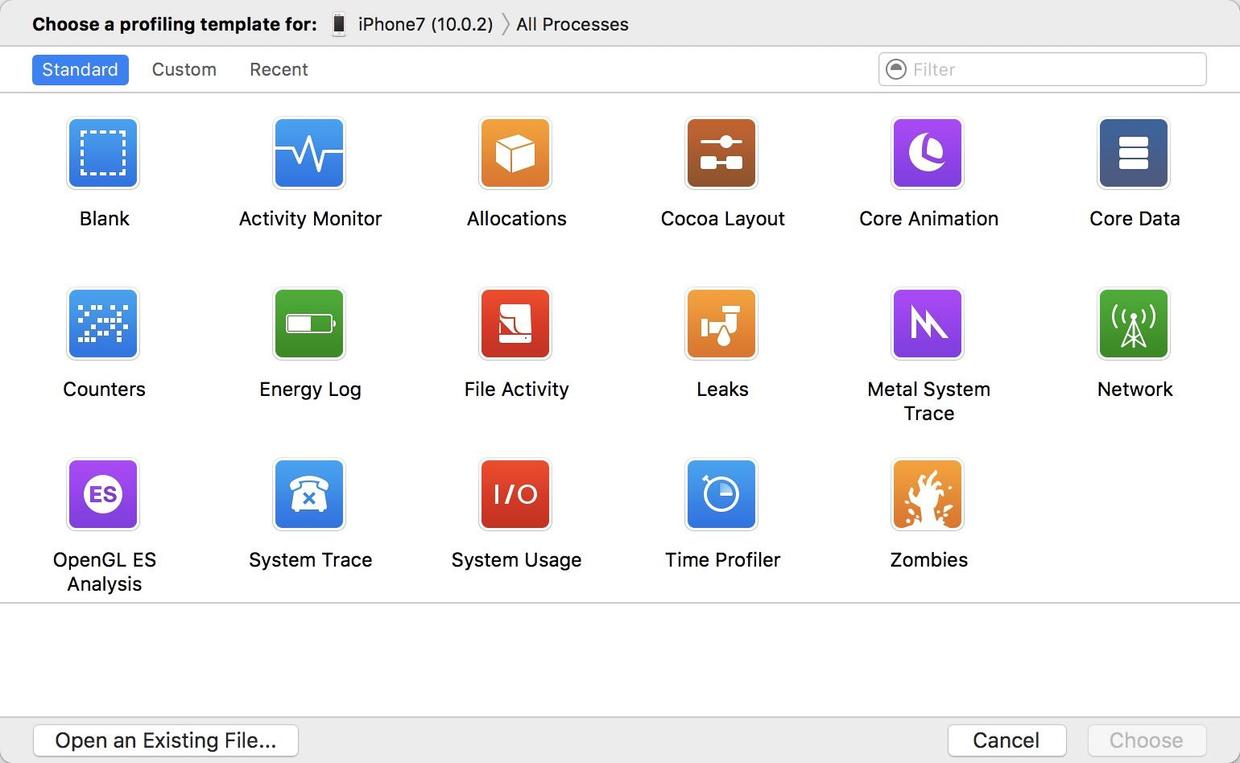
回到主題。Xcode 8 的 Instruments 保留了 17 個工具。
相比之下,Xcode 7 的 Instruments 裝載了 19 個工具。
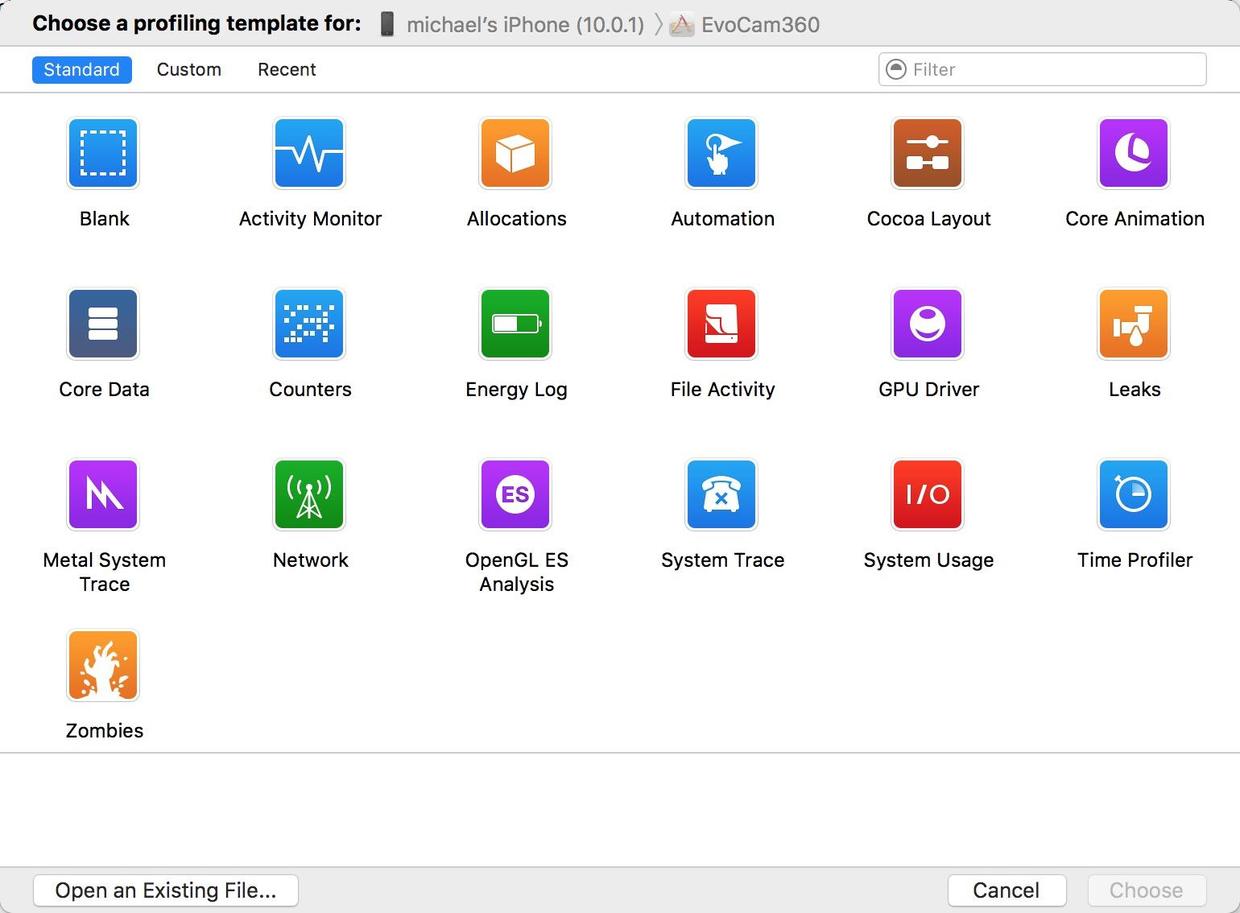
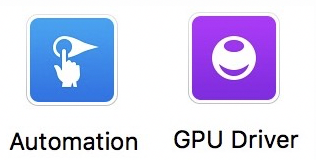
被刪除的兩個工具分別是 Automation 和 GPU Driver。Automation 用來執行我們編寫的腳本並啟動指定 App,這些腳本模擬了界面點擊;GPU Driver 則從 GPU 驅動統計接口取樣,對相應時間段內的 CPU 占用情況做採樣,用以分析 OpenGL (ES) 代碼的性能。雖然它被移走了,但使用 Instruments 的 OpenGL ES Analysis 時仍具備 GPU Driver 的分析能力。
趨勢分析
下面就 Instruments 的變更談談個人看法。
Automation 對應的是自動化界面邏輯測試,此次移除後是否會在後期推出更方便的替代品,暫無消息,因此頗令人費解。
GPU Driver 的移除,與 Metal System Trace 新增 tvOS 和 macOS 對 Metal 的支持相呼應,似乎暗示蘋果不會推出官方支持的 Vulkan——畢竟 GPU Driver 主要用於分析 OpenGL (ES) 程序的性能,而 Metal System Trace 的新增說明如下圖所示。

Metal System Trace 新增說明那麼,在未來的日子裡,OpenGL ES 3.0 或許就是 iOS 支持的最後一個 OpenGL ES 版本。對國內多數從事 GPU 編程的小團隊而言,可能得同時備著 Xcode 7 與 Xcode 8:工作流依然是在 Xcode 8 裡寫著色器邏輯,用 Xcode 7 的 Instruments 做 GPU 優化,把 iOS 端著色器性能調校好後再移植到 Android,並依據對應芯片做針對性優化。當然,對於 SenseTime 這類擁有專業 GPU 開發團隊的公司,應該影響不大,因為它們有資源同時維護 Metal、Vulkan 兩套代碼,以換取每個平台的最佳性能。順帶一提,百度地圖的引擎部分據說也是先在 iOS 上調通、再往 Android 搬運的——這種故事可不能隨便往外說。
Xcode 8 的 GPU 相關新增功能
問題來了:既然 Xcode 8 的 Instruments 被「閹割」了,為何我們還要用 Xcode 8?答案是,Xcode 8 新增了幾個相當實用的 GPU 調試功能,當然新功能更多是為 Metal 服務的。
1、查看已上傳至 GPU 的紋理大小
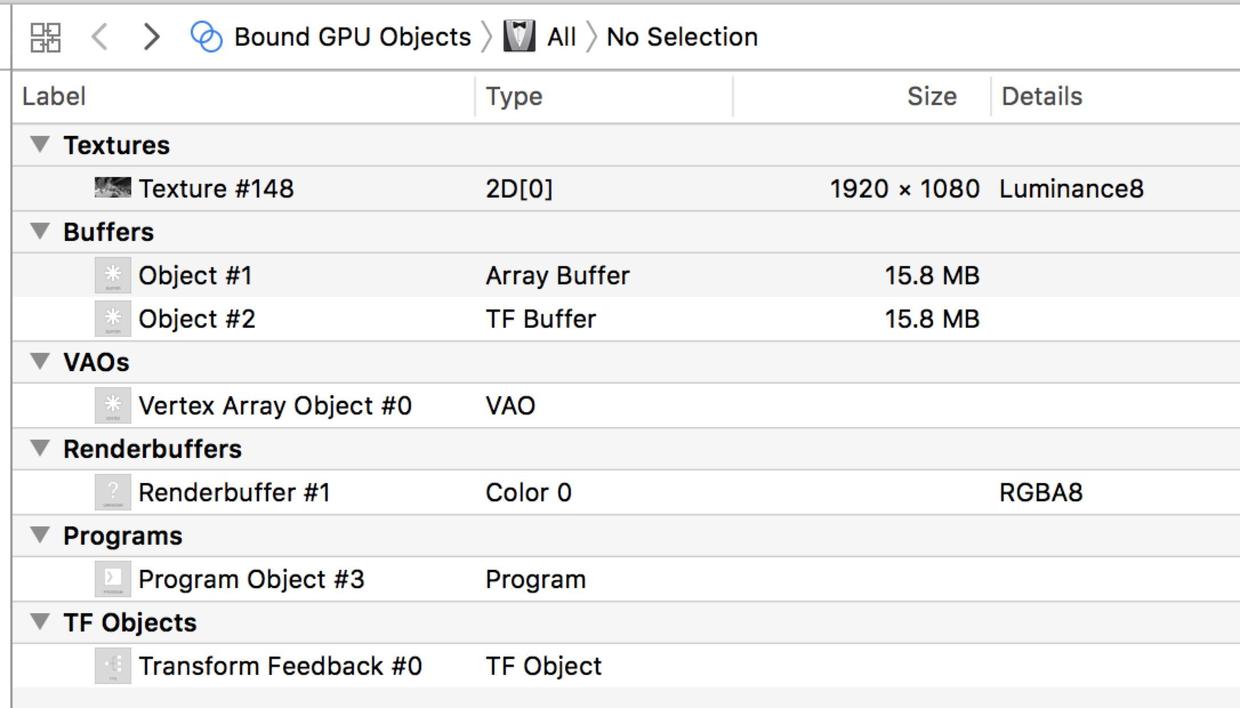
此功能可用於 OpenGL ES,方便查看上傳到 GPU 的紋理尺寸、格式與緩衝區大小,比如 1920x1080、Luminance8。
2、屏蔽 GPU 部分功能
嚴格來說,這算不上新功能,而是從 Instruments 的 OpenGL ES Analysis 搬到了 Xcode。
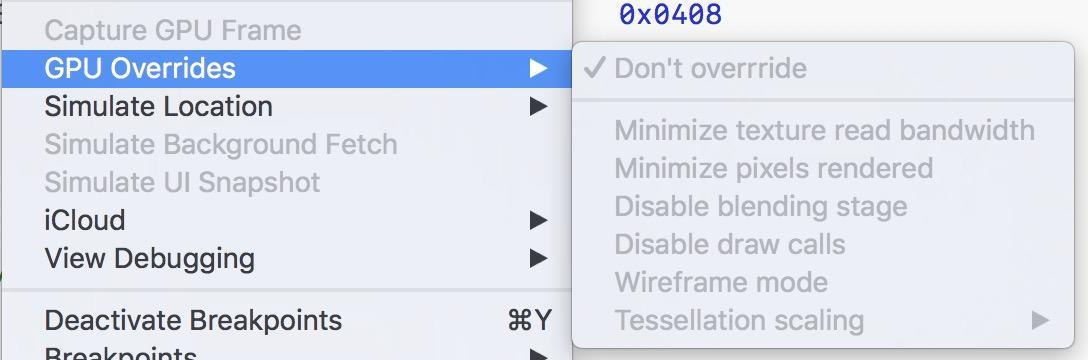
用 Xcode 8 新建項目,把老項目代碼逐一拷進來後發現,部分功能也能用在 OpenGL ES 程序上——可以禁用部分 GPU 功能來觀察性能表現,如下圖。
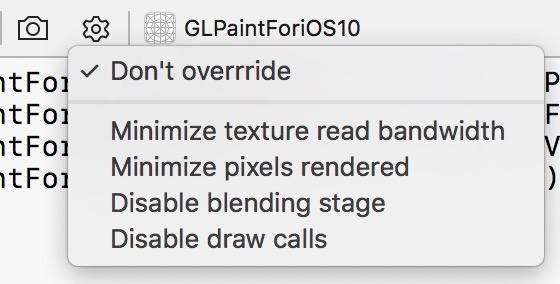
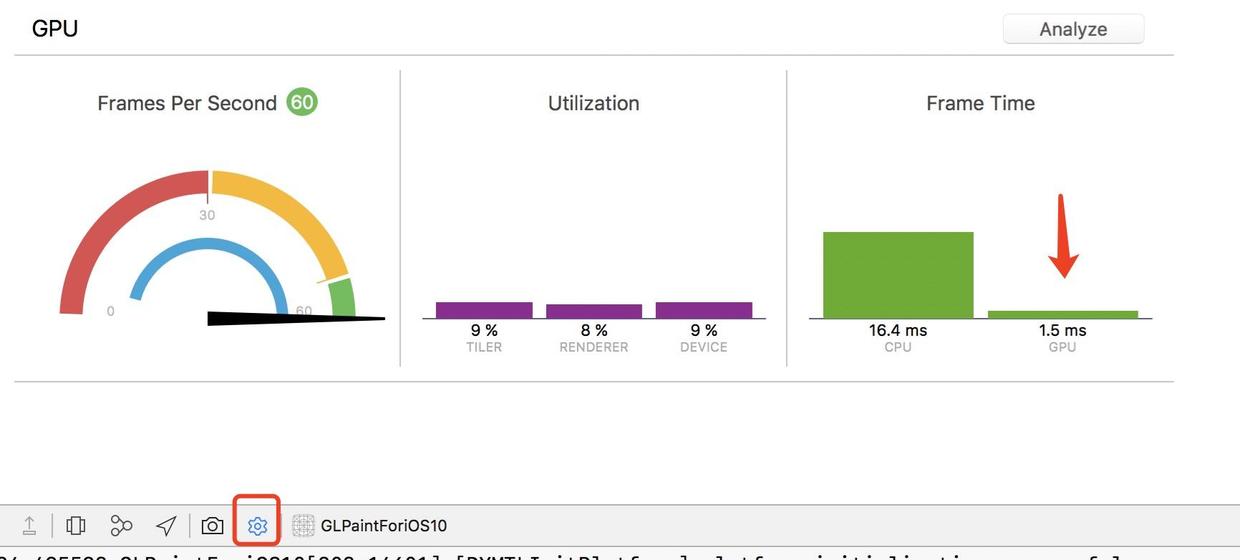
比如,選擇最小化渲染的像素數量,就能觀察 Fragment Shader 對性能的影響,如下圖。
- 上一篇文章: iOS Runtime 實戰:用方法交換打造防崩潰方案
- 下一篇文章: 手把手教你給 iOS 模擬器「安裝」app 文件