實時顯示iOS編寫UI代碼效果:有效提高UI編寫速度
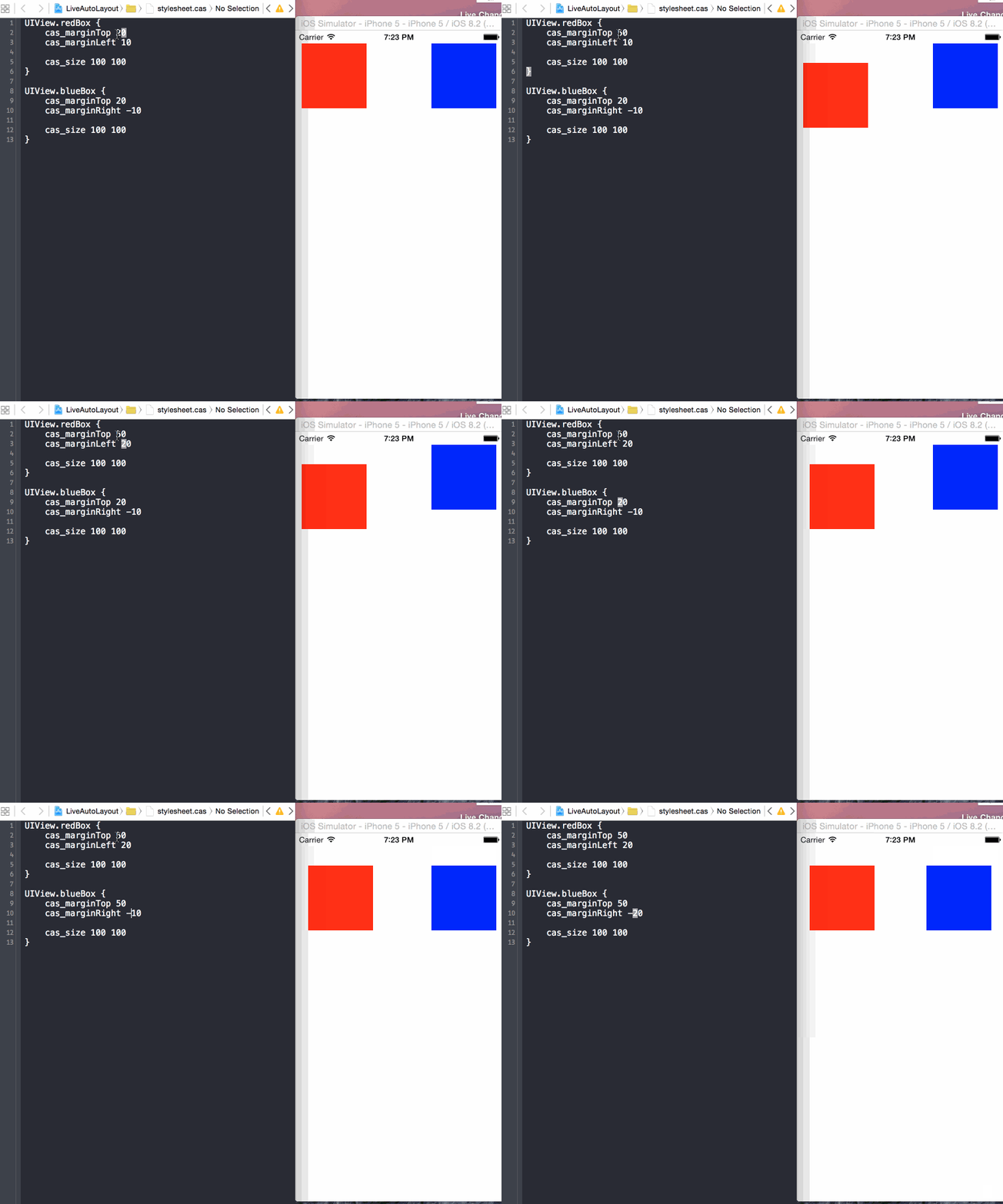
編寫iOS應用UI的方式大概有兩種,一種是Storyboard/Xib,另一種是手寫代碼。采用Storyboard/Xib方式組織UI,由於提供可視化的特性,只要從UI庫中拖動UI控件,便可以顯示結果,極大地提高開發速度。但面臨一個問題就是多人協作開發,由於所有的UI都放在同一個Storyboard文件中,使用Git/SVN合並代碼就會出現沖突。多人協作開發還不是主要問題,有人提出可以創建多個Storyboard來分開UI編寫,而Storyboard/Xib最主要問題是代碼復用性比較差。所以有些人就選擇手寫UI代碼,這樣不僅可以解決多人協作開發問題,而且通過自定義控件在多個View使用。但每次手寫UI代碼後都要編譯、構建和運行,最後在模擬器顯示,這樣會拖慢開發速度。如果每次修改UI控件後,保存修改便實時在模擬器顯示修改後結果,就可以極大的提高編寫UI的速度。
Auto Layout
Auto Layout是什麼
Auto Layout是一個基於constraint(約束)的布局系統,它根據UI元素之間約束關系來調整UI元素的位置和大小。
Auto Layout解決什麼問題
更容易適配不同分辨率設備的屏幕(iPhone 6 Plus, iPhone 6, iPhone 5s/5, iPhone 4s/4)
當設備旋轉時不需要做額外處理
使用constraint來描述布局邏輯,更利於理解和清晰
如何使用Auto Layout
Auto Layout中約束的類對應是NSLayoutConstraint, 而創建NSLayoutConstraint對象主要有兩種方式,第一種是
+ (id)constraintWithItem:(id)view1
               attribute:(NSLayoutAttribute)attribute1
               relatedBy:(NSLayoutRelation)relation
                  toItem:(id)view2
               attribute:(NSLayoutAttribute)attribute2
              multiplier:(CGFloat)multiplier
                constant:(CGFloat)constant;
上面方法主要意思是,某個view1的attribute1等於(小於或等於/大於或等於)某個view2的attribute2的multiplier倍加上constant。而attribute主要由表示位置(上/下/左/右)和大小(寬/高)的以下幾個值:
typedef enum: NSInteger {
   NSLayoutAttributeLeft = 1,
   NSLayoutAttributeRight,
   NSLayoutAttributeTop,
   NSLayoutAttributeBottom,
   NSLayoutAttributeLeading,
   NSLayoutAttributeTrailing,
   NSLayoutAttributeWidth,
   NSLayoutAttributeHeight,
   NSLayoutAttributeCenterX,
   NSLayoutAttributeCenterY,
   NSLayoutAttributeBaseline,
   NSLayoutAttributeNotAnAttribute = 0
} NSLayoutAttribute;
簡化一下,使用公式可以表達為:
view1.attribute1 = view2.attribute2 * multiplier + constant
第二種方式是:
+ (NSArray *)constraintsWithVisualFormat:(NSString *)format
                                 options:(NSLayoutFormatOptions)opts
                                 metrics:(NSDictionary *)metrics
                                   views:(NSDictionary *)views;
這種方式主要是采用Visual Format Language(可視化格式語言)來描述約束布局,雖然語法比較簡潔,但是可讀性比較差和容易出錯。
Auto Layout存在問題
雖然Auto Layout在布局view方面是非常強大和靈活,但是創建constraint的語法過於繁雜,引用Masonry一個例子:
UIView *superview = self;
UIView *view1 = [[UIView alloc] init];
view1.translatesAutoresizingMaskIntoConstraints = NO;
view1.backgroundColor = [UIColor greenColor];
[superview addSubview:view1];
UIEdgeInsets padding = UIEdgeInsetsMake(10, 10, 10, 10);
[superview addConstraints:@[
    //view1 constraints
    [NSLayoutConstraint constraintWithItem:view1
                                 attribute:NSLayoutAttributeTop
                                 relatedBy:NSLayoutRelationEqual
                                    toItem:superview
                                 attribute:NSLayoutAttributeTop
                                multiplier:1.0
                                  constant:padding.top],
    [NSLayoutConstraint constraintWithItem:view1
                                 attribute:NSLayoutAttributeLeft
                                 relatedBy:NSLayoutRelationEqual
                                    toItem:superview
                                 attribute:NSLayoutAttributeLeft
                                multiplier:1.0
                                  constant:padding.left],
    [NSLayoutConstraint constraintWithItem:view1
                                 attribute:NSLayoutAttributeBottom
                                 relatedBy:NSLayoutRelationEqual
                                    toItem:superview
                                 attribute:NSLayoutAttributeBottom
                                multiplier:1.0
                                  constant:-padding.bottom],
    [NSLayoutConstraint constraintWithItem:view1
                                 attribute:NSLayoutAttributeRight
                                 relatedBy:NSLayoutRelationEqual
                                    toItem:superview
                                 attribute:NSLayoutAttributeRight
                                multiplier:1
                                  constant:-padding.right],
 ]];
如此簡單的一個例子都要編寫這麼多行代碼,想象一下如果創建多個view的constraint時會多麼痛苦啊。另一個方式是采用Visual Format Language (VFL),雖然語法比較簡潔,但是可讀性比較差和容易出錯。
Masonry
為什麼使用Masonry
Masonry是采用鏈式DSL(Domain-specific language)來封裝NSLayoutConstraint,通過這種方式編寫Auto Layout布局代碼更加易讀和簡潔。
使用Masonry的MASConstraintMaker來表達相同constraint
UIEdgeInsets padding = UIEdgeInsetsMake(10, 10, 10, 10);
[view1 mas_makeConstraints:^(MASConstraintMaker *make) {
    make.top.equalTo(superview.mas_top).with.offset(padding.top); //with is an optional semantic filler
    make.left.equalTo(superview.mas_left).with.offset(padding.left);
    make.bottom.equalTo(superview.mas_bottom).with.offset(-padding.bottom);
    make.right.equalTo(superview.mas_right).with.offset(-padding.right);
}];
甚至可以更短
[view1 mas_makeConstraints:^(MASConstraintMaker *make) {
    make.edges.equalTo(superview).with.insets(padding);
}];
如何使用
使用Masonry創建constraint來定義布局的方式有三種:mas_makeConstraints,mas_updateConstraints,mas_remakeConstraints。
1. mas_makeConstraints
使用mas_makeConstraints創建constraint後,你可以使用局部變量或屬性來保存以便下次引用它;如果創建多個constraints,你可以采用數組來保存它們。
// in public/private interface
@property (nonatomic, strong) MASConstraint *topConstraint;
...
// when making constraints
[view1 mas_makeConstraints:^(MASConstraintMaker *make) {
    self.topConstraint = make.top.equalTo(superview.mas_top).with.offset(padding.top);
    make.left.equalTo(superview.mas_left).with.offset(padding.left);
}];
...
// then later you can call
[self.topConstraint uninstall];
2. mas_updateConstraints
有時你需要更新constraint(例如,動畫和調試)而不是創建固定constraint,可以使用mas_updateConstraints方法
// this is Apple's recommended place for adding/updating constraints
// this method can get called multiple times in response to setNeedsUpdateConstraints
// which can be called by UIKit internally or in your code if you need to trigger an update to your constraints
- (void)updateConstraints {
    [self.growingButton mas_updateConstraints:^(MASConstraintMaker *make) {
        make.center.equalTo(self);
        make.width.equalTo(@(self.buttonSize.width)).priorityLow();
        make.height.equalTo(@(self.buttonSize.height)).priorityLow();
        make.width.lessThanOrEqualTo(self);
        make.height.lessThanOrEqualTo(self);
    }];
    //according to apple super should be called at end of method
    [super updateConstraints];
}
3. mas_remakeConstraints
mas_remakeConstraints與mas_updateConstraints比較相似,都是更新constraint。不過,mas_remakeConstraints是刪除之前constraint,然後再添加新的constraint(適用於移動動畫);而mas_updateConstraints只是更新constraint的值。
- (void)changeButtonPosition {
    [self.button mas_remakeConstraints:^(MASConstraintMaker *make) {
        make.size.equalTo(self.buttonSize);
        if (topLeft) {
            make.top.and.left.offset(10);
        } else {
            make.bottom.and.right.offset(-10);
        }
    }];
}想了解以上三個代碼片段的更多細節,可以下載Masonry iOS Examples工程查閱。
Classy
Classy簡介和特性
Classy是一個能與UIKit無縫結合stylesheet(樣式)系統。它借鑒CSS的思想,但引入新的語法和命名規則。
靈活內嵌的語法
{ } : ; 這些語法符號是可選的,你可以選擇適合自己的風格來表達stylesheet。
你可以使用{ } : ; 來限定stylesheet
$main-color = #e1e1e1;
MYCustomView {
  background-color: $main-color;
  title-insets: 5, 10, 5, 10;
  > UIProgressView.tinted {
    progress-tint-color: black;
    track-tint-color: yellow;
  }
}
^UIButton.warning, UIView.warning ^UIButton {
  title-color[state:highlighted]: #e3e3e3;
}
或者你使用空格來限定stylesheet
$main-color = #e1e1e1
MYCustomView
  background-color $main-color
  title-insets 5, 10, 5, 10
  > UIProgressView.tinted
    progress-tint-color black
    track-tint-color yellow
^UIButton.warning, UIView.warning ^UIButton
  title-color[state:highlighted] #e3e3e3
默認樣式
Classy在應用程序Bundle默認查找文件名為stylesheet.cas的樣式文件。如果你采用這個文件名,你可以不用做任何東西就能加載樣式文件。
但如果你想指定其他file path(樣式文件名),你可以創建[CASStyler defaultStyler]
[CASStyler defaultStyler].filePath = [[NSBundle mainBundle] pathForResource:@"myStyles.cas" ofType:nil];
如果你還想當發生錯誤時,獲取錯誤信息以便於調試,可以使用-(void)setFilePath:error:
NSError *error = nil;
NSString filePath = [[NSBundle mainBundle] pathForResource:@"myStyles.cas" ofType:nil];
[[CASStyler defaultStyler] setFilePath:filePath error:&error];
如果你是使用Storyboard/Xib組織UI界面,那就需要在main.m的int main(int argc, char * argv[])方法設置 filePath,這樣可以確保在創建UIWindow之前加載stylesheet。否則(采用手寫UI代碼),你在 AppDelegate.m的- (BOOL)application:didFinishLaunchingWithOptions:方法設置filePath
Live Reload
Live Reload是實時顯示編寫UI代碼效果的關鍵特性,它能夠實時檢查stylesheet文件變化,無需重新編譯、構建和運行模擬器,從而極大提高開發速度。
為了啟用Live Reload,你需要指定stylesheet路徑,並且只運行在模擬器上。
#if TARGET_IPHONE_SIMULATOR
    NSString *absoluteFilePath = CASAbsoluteFilePath(@"../Styles/stylesheet.cas");
    [CASStyler defaultStyler].watchFilePath = absoluteFilePath;
#endif
Selectors
Style Selectors是指定哪個view使用哪種樣式的方式。主要有三種方法來指定目標view:
Object Class
View Hierarchy
Style Class
你可以混合使用三種方法,例子如下:
/* match views
 * where class is UIButton or UIButton subclass
 * and styleClass is "large"
 * and superview class is UITabBar
 */
UITabBar > ^UIButton.large { }
想了解具體如何使用,請查閱官網Selectors章節
為了避免與Objective-C的message selectors混淆,術語style selectors表示Classy stylesheets的selectors
Properties
Classy支持所有UIAppearance的屬性和方法,也支持與UIAppearance無關的很多屬性。Classy使用與UIKit相同屬性命名,所以你不必考慮如何將style property映射到Objective-C的property。
UIPageControl類的屬性如下:
@property (nonatomic,retain) UIColor *pageIndicatorTintColor;
@property (nonatomic,retain) UIColor *currentPageIndicatorTintColor;
style property的名字采用與objective-c一樣的名字
UIPageControl {
  pageIndicatorTintColor black
  currentPageIndicatorTintColor purple
}
style property的命名規則采用kebab case
UIPageControl {
page-indicator-tint-color black
current-page-indicator-tint-color purple
}
想了解具體如何使用,請查閱官網Properties章節
Keep it DRY(Don't Repeat Yourself)
在編程中一個很重要的原則就是避免重復,這不僅可以大量減少重復代碼,並且使得代碼更加容易復用和維護。Classy提供三種方式避免代碼重復:grouping, nesting,variables
Grouping
如果有兩個以上的style selectors共用相同的屬性時
UISlider.info {
  minimum-track-tint-color black
  maximum-track-tint-color purple
}
UISlider.error {
  minimum-track-tint-color black
  maximum-track-tint-color purple
  thumb-tint-color red
}
我們可以提取相同的屬性到分組style selector中
UISlider.info, UISlider.error {
  minimum-track-tint-color black
  maximum-track-tint-color purple
}
UISlider.error {
  thumb-tint-color red
}
Nesting
如果兩個以上style selectors共用相同的view hierarchy時
UICollectionView {
  background-color #a2a2a2
}
UICollectionView > UICollectionViewCell {
  clips-to-bounds NO
}
UICollectionView > UICollectionViewCell UILabel {
  text-color purple
}
UICollectionView > UICollectionViewCell UILabel.title {
  font 20
}
我們通過nesting方式將view hierarchies表達成這樣方式
UICollectionView {
  background-color #a2a2a2
  > UICollectionViewCell {
    clips-to-bounds NO
    UILabel {
      text-color purple
      &.title {
        font 20
      }
    }
  }
}
Variables
Classy讓你通過定義variables來將多個相同的style property值存儲以便共享。Variable命名規則如下:
必須以大小寫字母或$符號開頭
可以包含_,-或任何字母數字
// prefix with ' $ ' to help distinguish variables
$brand-color = #e1e1e1
// OR not
insets = 5, 10, 5, 10
UIButton {
  background-color $brand-color
  contentEdgeInsets insets
  background-image[state:selected] bg_button insets
}
最後官方還提供一個實例來解釋具體如何使用:Custom Views Example
ClassyLiveLayout
ClassyLiveLayout通過結合Classy stylesheets與Masonry一起使用,能夠在運行的模擬器中微調Auto Layout約束實時顯示效果的工具。
ClassyLiveLayout一個核心category:UIView+ClassyLayoutProperties,在UIView定義以下屬性:
@property(nonatomic, assign) UIEdgeInsets cas_margin;
@property(nonatomic, assign) CGSize cas_size;
// shorthand properties for setting only a single constant value
@property(nonatomic, assign) CGFloat cas_sizeWidth;
@property(nonatomic, assign) CGFloat cas_sizeHeight;
@property(nonatomic, assign) CGFloat cas_marginTop;
@property(nonatomic, assign) CGFloat cas_marginLeft;
@property(nonatomic, assign) CGFloat cas_marginBottom;
@property(nonatomic, assign) CGFloat cas_marginRight;
cas_margin和cas_size分別表示UI元素的位置和大小,而其余的屬性都是對兩個屬性進一步細分。我們可以從stylesheets中訪問style properties來定義constraints布局,做到將數據與代碼分離,有利於修改和復用代碼。
UIView.blue-box {
    cas_size: 80 100
    cas_margin-top: 60
    cas_margin-left: 50
}
UIView.red-box {
    cas_size-width: 120
    cas_margin-left: 20
}
我們可以在updateConstraints或updateViewConstrains定義布局時引用style properties
- (void)updateViewConstraints {
  [super updateViewConstraints];
  [_blueBoxView mas_updateConstraints:^(MASConstraintMaker *make) {
      make.width.equalTo(@(_blueBoxView.cas_size.width));
      make.height.equalTo(@(_blueBoxView.cas_size.height));
      make.top.equalTo(@(_blueBoxView.cas_margin.top));
      make.left.equalTo(@(_blueBoxView.cas_margin.left));
  }];
  [_redBoxView mas_updateConstraints:^(MASConstraintMaker *make) {
      make.width.equalTo(@(_redBoxView.cas_size.width));
      make.height.equalTo(_blueBoxView);
      make.top.equalTo(_blueBoxView);
      make.left.equalTo(_blueBoxView.mas_right).with.offset(_redBoxView.cas_margin.left);
  }];
}
當定義view layouts時,將Auto Layout的constraints都放在stylesheets中實時加載(Live reload)。如果你修改constraints,無需重新編譯、構建和運行模擬器便能實時看到修改後的效果。
示例工程
配置工程
由於需要引用Masonry,Classy和ClassyLiveLayout,Podfile配置如下:
pod 'Masonry', '~> 0.6.1'
pod 'Classy', '~> 0.2.4'
pod 'ClassyLiveLayout', '~> 0.6.0'
編寫代碼
1. 添加stylesheet.cas文件到工程
當安裝好Masonry,Classy和ClassyLiveLayout後,第一次運行項目會出現沒有stylesheet.cas文件錯誤:

只要向工程添加空的stylesheet.cas文件即可。

2. 創建LiveView類,該類繼承SHPAbstractView。
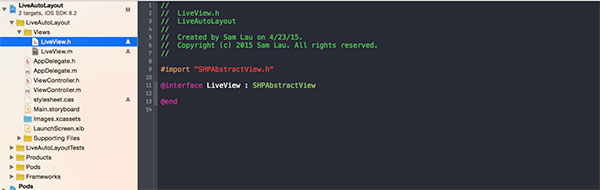
在ViewController創建LiveView對象,然後被self.view引用。
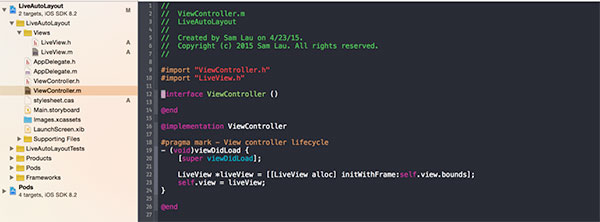
當編譯運行時,在SHPAbstractView.h由於找不到UIView出現編譯錯誤。
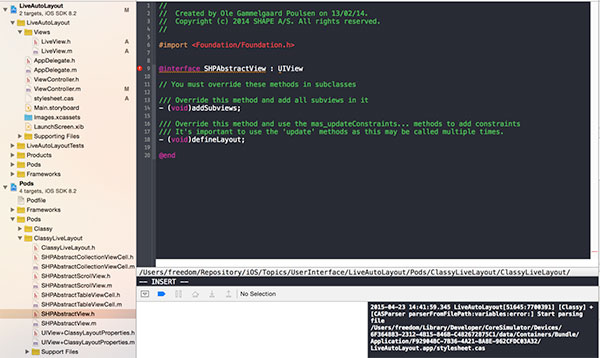
只需引入UIKit便可以解決,但運行一下應用程序,出現一下錯誤:
主要原因是任何自定義UIView繼承SHPAbstractView都需要override兩個方法:- (void)addSubviews和- (void)defineLayout,我們可以查看SHPAbstractView的源碼可知:
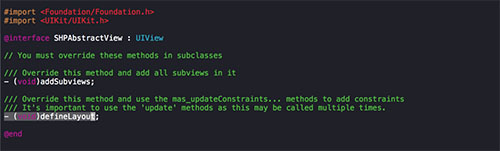
所以只要在LiveView.m文件覆蓋兩個方法即可
#pragma mark - Add subviews and define layout
- (void)addSubviews
{
}
- (void)defineLayout
{
}
3. LiveView類設計
LiveView主要由包含redBoxView和blueBoxView兩個屬性,redBoxView表示紅色方塊,blueBoxView表示藍色方塊。
#import "SHPAbstractView.h"
@interface LiveView : SHPAbstractView
@property (strong, nonatomic) UIView *redBoxView;
@property (strong, nonatomic) UIView *blueBoxView;
@end
4. LiveView類實現
由於SHPAbstractView類如何初始化View已經做了處理,暴露兩個接口- (void)addSubviews和-(void)defineLayout分別處理構建view hierarchy和定義布局,子類只要覆蓋SHPAbstractView這兩個方法就可以創建LiveView了。
但是我們將Auto Layout的constraints都放在stylesheets中實時加載(Live reload),即放在本工程的stylesheet.cas文件,將布局數據和布局代碼分離。
UIView.redBox {
    cas_marginTop 50
    cas_marginLeft 20
    cas_size 100 100
}
UIView.blueBox {
    cas_marginTop 50
    cas_marginRight -20
    cas_size 100 100
}
有了constraints數據後,便可以在代碼布局:
@implementation LiveView
#pragma mark - Add subviews and define layout
- (void)addSubviews
{
    self.backgroundColor = [UIColor whiteColor];
    [self addSubview:self.redBoxView];
    [self addSubview:self.blueBoxView];
}
- (void)defineLayout
{
    [self.redBoxView mas_updateConstraints:^(MASConstraintMaker* make){
        make.top.equalTo(@(self.redBoxView.cas_marginTop));
        make.left.equalTo(@(self.redBoxView.cas_marginLeft));
        make.width.equalTo(@(self.redBoxView.cas_sizeWidth));
        make.height.equalTo(@(self.redBoxView.cas_sizeHeight));
    }];
    [self.blueBoxView mas_updateConstraints:^(MASConstraintMaker *make){
        make.top.equalTo(@(self.blueBoxView.cas_marginTop));
        make.right.equalTo(@(self.blueBoxView.cas_marginRight));
        make.width.equalTo(@(self.blueBoxView.cas_sizeWidth));
        make.height.equalTo(@(self.blueBoxView.cas_sizeHeight));
    }];
}
#pragma mark - Lazy initialization
- (UIView*)redBoxView
{
    if (!_redBoxView) {
        _redBoxView = [UIView new];
        _redBoxView.cas_styleClass = @"redBox";
        _redBoxView.backgroundColor = [UIColor redColor];
    }
    return _redBoxView;
}
- (UIView*)blueBoxView
{
    if (!_blueBoxView) {
        _blueBoxView = [UIView new];
        _blueBoxView.cas_styleClass = @"blueBox";
        _blueBoxView.backgroundColor = [UIColor blueColor];
    }
    return _blueBoxView;
}
5. 模擬器支持Live Reload
為了啟用Live Reload,你需要指定stylesheet路徑,並且只運行在模擬器上。
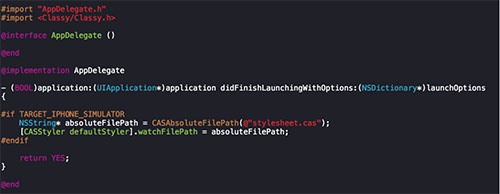
最後效果
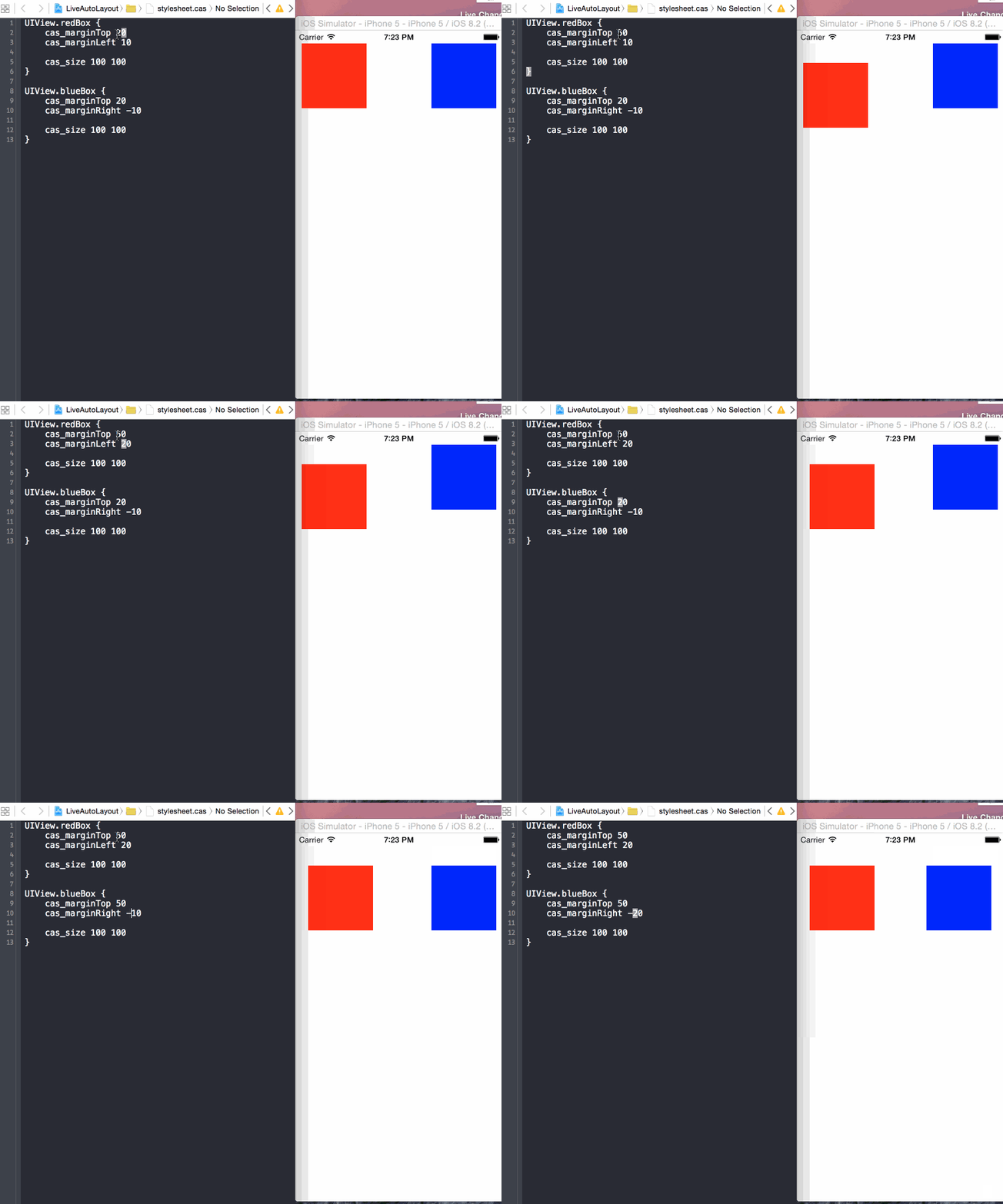
示例代碼存放地址:LiveAutoLayout
總結
之前手寫UI代碼每次更改一般都要重新編譯、構建和運行模擬器才能看到效果,但結合使用Masonry,Classy和ClassLiveLayout之後,告別這個費時過程,極大地提高開發速度;不僅如此,我們將Auto Layout的constraints都放在stylesheets中實時加載(Live reload),將布局數據和布局代碼分離,使得代碼更加復用和維護。Classy還提供三種避免重復方法:Grouping, Nestting和Variable,盡可能復用樣式數據。
這是本人第一次編寫技術博客,可能有很多錯誤和漏洞,希望大家多多指點,也希望這篇文章能夠幫助到大家。
擴展閱讀
Storyboard/XIB與手寫代碼的選擇
代碼手寫UI,xib和StoryBoard間的博弈,以及Interface Builder的一些小技巧
iOS 開發中的爭議(二)
Storyboard可視化開發
Adaptive Layout Tutorial: Getting Started
WWDC 2014 Session筆記 - 可視化開發,IB 的新時代
AutoLayout與Masonry
iOS 開發實踐之 Auto Layout
Masonry介紹與使用實踐
Auto Layout WWDC 視頻集合
WWDC 2012: Introduction to Auto Layout for iOS and OS X
WWDC 2012: Best Practices for Mastering Auto Layout
WWDC 2012: Auto Layout by Example
WWDC 2013: Taking Control of Auto Layout in Xcode 5



- iOS在固定的label上靜態顯示一切文字
- iOS緩存文件年夜小顯示功效和一鍵清算功效的完成辦法
- iOS設置UIButton文字顯示地位和字體年夜小、色彩的辦法
- UIMenuController在Cell外部沒法顯示的處理方法(iOS9.2)
- IOS完成上滑隱蔽NvaigtionBar而下拉則顯示後果
- iOS 中應用tableView完成右滑顯示選擇功效
- IOS 運用內顯示 AppStore 某個運用的概況
- iOS運用中UILabel文字顯示後果的經常使用設置總結
- IOS開辟之tableView點擊行跳轉並帶有“顯示”更多功效
- iOS開辟中完成顯示gif圖片的辦法
- ios 相似微信紅點顯示功用
- iOS中相似微信紅點顯示功用
- iOS 日歷顯示及規則某件事的完成時間(可選)
- iOS UITextField、UITextView只限輸出中文、英文、數字及實時限制字符個數封裝完成
- iOS UITextField、UITextView只限輸出中文、英文、數字及實時限制字符個數的封裝完成代碼