再造 “手機QQ” 側滑菜單(一)——實現側滑效果
本系列文章中,我們將嘗試再造手機QQ的側滑菜單,力爭最大限度接近手Q的實際效果,並使用 Auto Layout 仿造左側菜單,實現和主視圖的聯動。
代碼示例:https://github.com/johnlui/SwiftSideslipLikeQQ
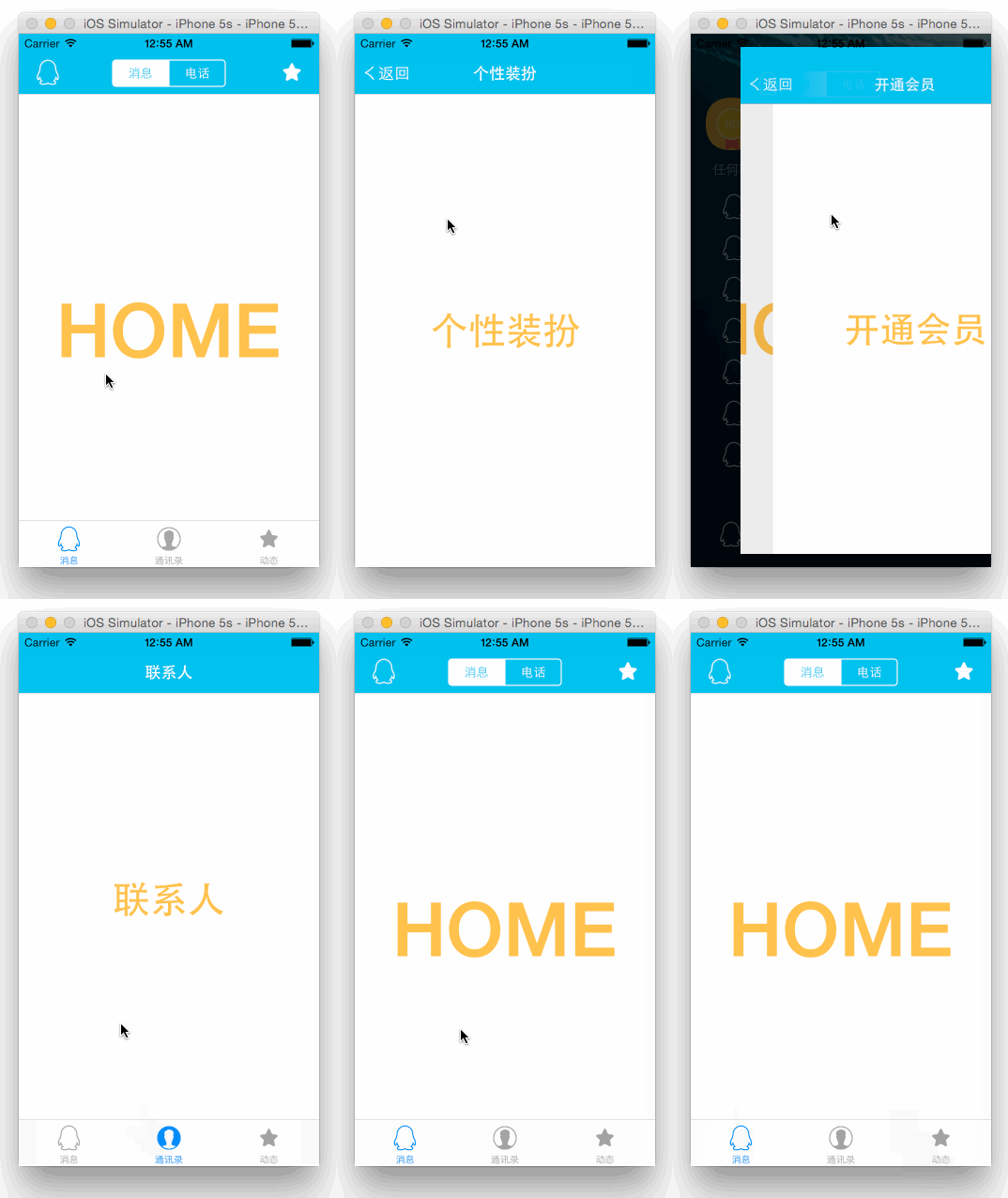
最終效果:
開發環境
本系列文章的開發環境為:
OS X 10.10.3
Xcode Version 6.3 (6D570)
基本數據采集
初步體驗,手Q采用的應該是線性動畫,即縮放比例等隨著手指滑動的距離以一次方程的形式變化。動畫達到最大幅度時截圖如下(4.7 寸):
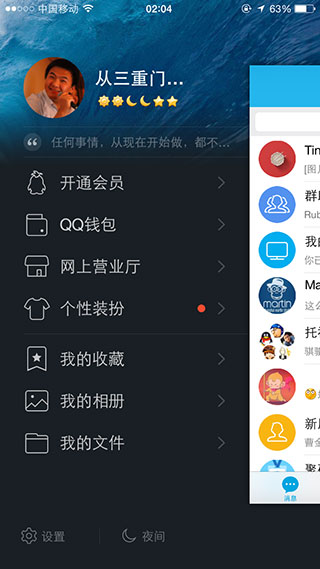
提取基本數據:
右側主視圖左邊界距離屏幕左邊界的距離占屏幕寬度的比例為:78%
右側主視圖的高度占屏幕高度的比例為:77%
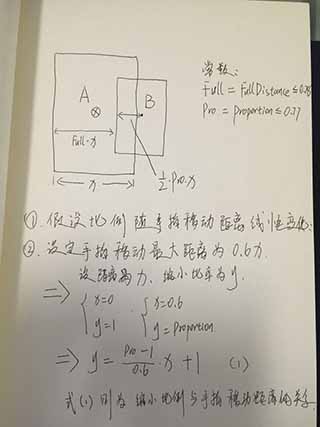
找出線性關系
1. 比例與手指移動距離的關系
字比較丑 o(╯□╰)o。注意:式(1)中的 x 表示“手指移動距離”這個變量,和上面圖中表示屏幕寬度的 x 意義不同。
2. 矩形中心向右移動距離和手指移動距離相等
實現側滑
1. 新建項目,在 StoryBoard 中新增一個 View Controller,並新增一個名為 HomeViewController 的 UIViewController 類,並在 StoryBoard 中完成綁定。
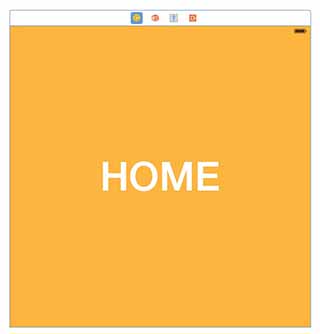
2. 給 HomeViewController 設置背景顏色以示區分。也可以像我一樣設一個大 Label 作為更明顯的區分。
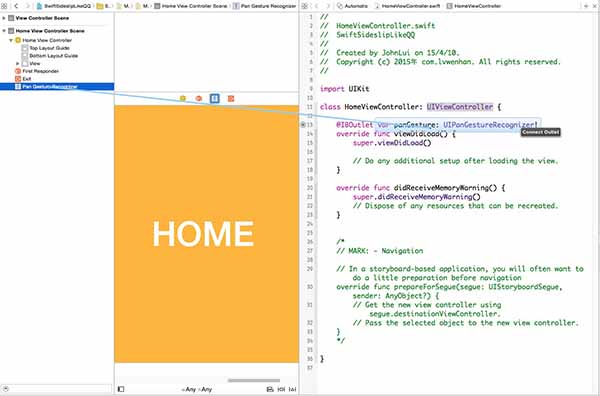
3. 給 HomeViewController 拖放一個 UIPanGestureRecognizer 並綁定到代碼。
從右下角拖一個 Pan Gesture Recognizer 到主窗體上,這一步會讓它與 HomeViewController.view 自動綁定。下圖為第二步,綁定到代碼。
4. 編寫代碼實現效果:
新建 Common.swift,存儲屏幕寬度、高度:
import UIKit
struct Common {
    static let screenWidth = UIScreen.mainScreen().applicationFrame.maxX
    static let screenHeight = UIScreen.mainScreen().applicationFrame.maxY
}
修改 ViewController:
import UIKit
class ViewController: UIViewController {

    var homeViewController: HomeViewController!
    var distance: CGFloat = 0

    let FullDistance: CGFloat = 0.78
    let Proportion: CGFloat = 0.77
    override func viewDidLoad() {
        super.viewDidLoad()

        // 給主視圖設置背景
        let imageView = UIImageView(image: UIImage(named: "back"))
        imageView.frame = UIScreen.mainScreen().bounds
        self.view.addSubview(imageView)

        // 通過 StoryBoard 取出 HomeViewController 的 view,放在背景視圖上面
        homeViewController = UIStoryboard(name: "Main", bundle: nil).instantiateViewControllerWithIdentifier("HomeViewController") as! HomeViewController
        self.view.addSubview(homeViewController.view)

        // 綁定 UIPanGestureRecognizer
        homeViewController.panGesture.addTarget(self, action: Selector("pan:"))
    }
    override func didReceiveMemoryWarning() {
        super.didReceiveMemoryWarning()
        // Dispose of any resources that can be recreated.
    }
    // 響應 UIPanGestureRecognizer 事件
    func pan(recongnizer: UIPanGestureRecognizer) {
        let x = recongnizer.translationInView(self.view).x
        let trueDistance = distance + x // 實時距離

        // 如果 UIPanGestureRecognizer 結束,則激活自動停靠
        if recongnizer.state == UIGestureRecognizerState.Ended {
            if trueDistance > Common.screenWidth * (Proportion / 3) {
                showLeft()
            } else if trueDistance < Common.screenWidth * -(Proportion / 3) {
                showRight()
            } else {
                showHome()
            }

            return
        }
        // 計算縮放比例
        var proportion: CGFloat = recongnizer.view!.frame.origin.x >= 0 ? -1 : 1
        proportion *= trueDistance / Common.screenWidth
        proportion *= 1 - Proportion
        proportion /= 0.6
        proportion += 1
        if proportion  Void in
            self.homeViewController.view.center = CGPointMake(self.view.center.x + self.distance, self.view.center.y)
            self.homeViewController.view.transform = CGAffineTransformScale(CGAffineTransformIdentity, proportion, proportion)
            }, completion: nil)
    }
}
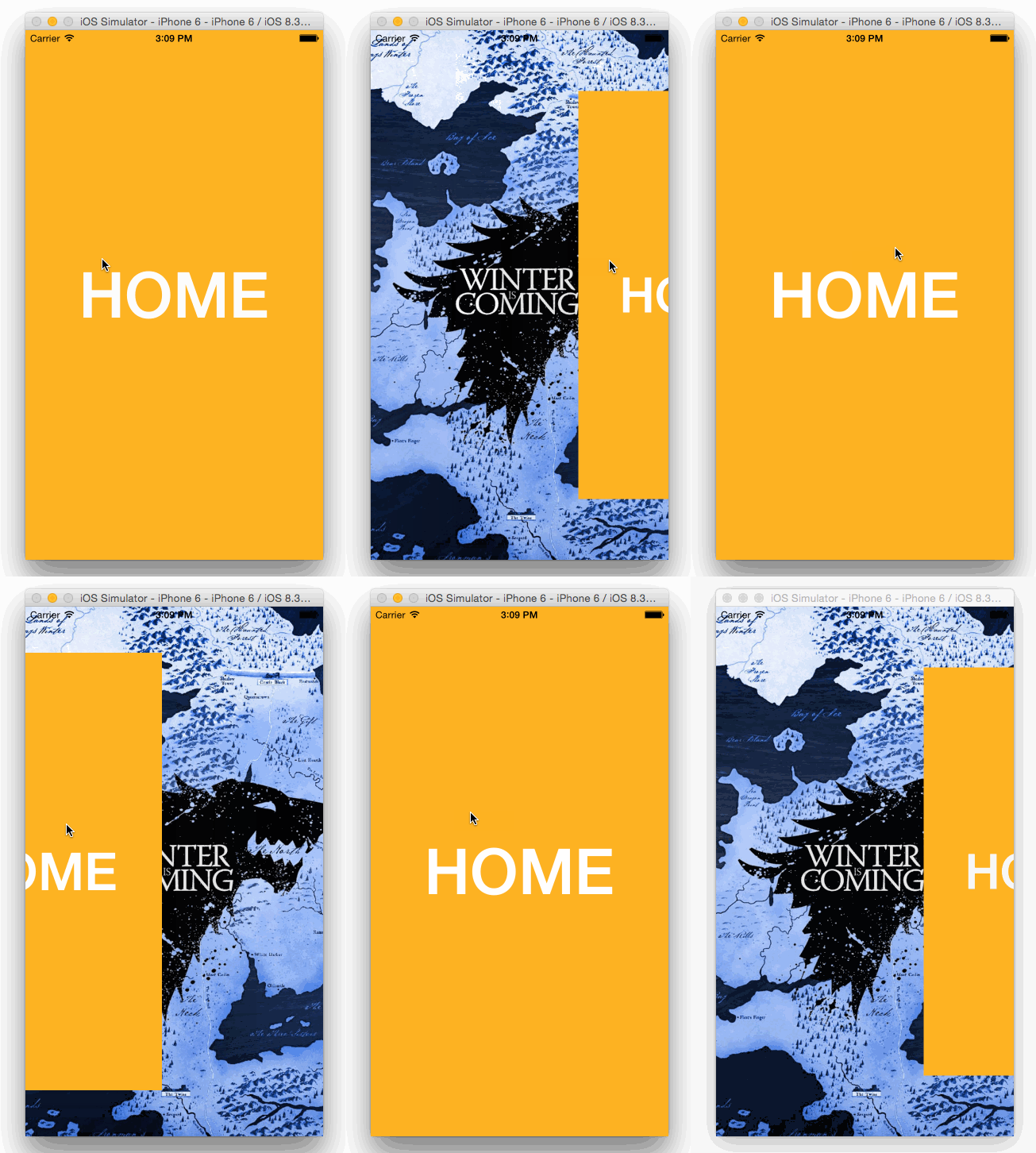
5. 查看效果
下一步:再造 “手機QQ” 側滑菜單(二)——高仿左視圖