
卡片動畫初體驗
作者:@翁呀偉呀 授權本站轉載。
這次的示例是我看過了 這篇Blog 後自己實現的。那篇 blog 裡只寫了個開頭,後邊的內容好像沒時間寫,但是我實現後感覺有很多問題。所以貼到這裡,希望有人能指導一下。
ps: 題目沒有別的意思,只是單純覺得這3個字放在這裡特別和諧,真的,我反正是信了。
效果圖
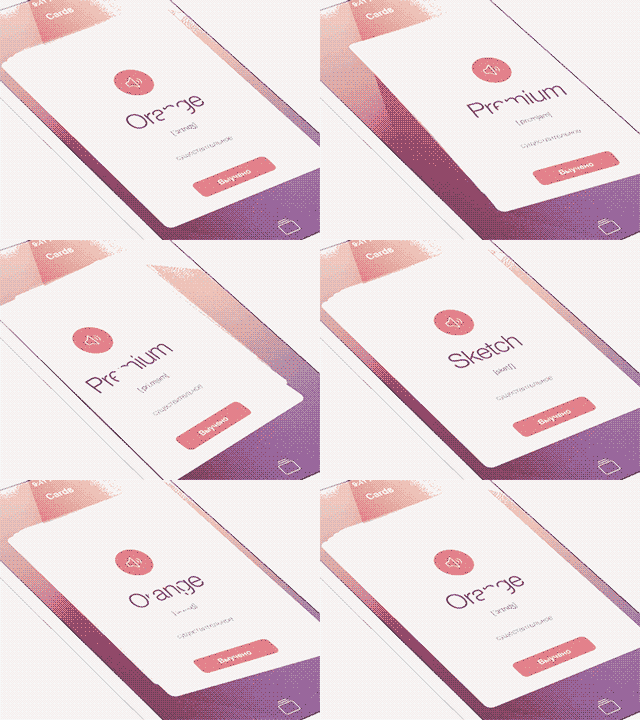
首先看要實現的效果:
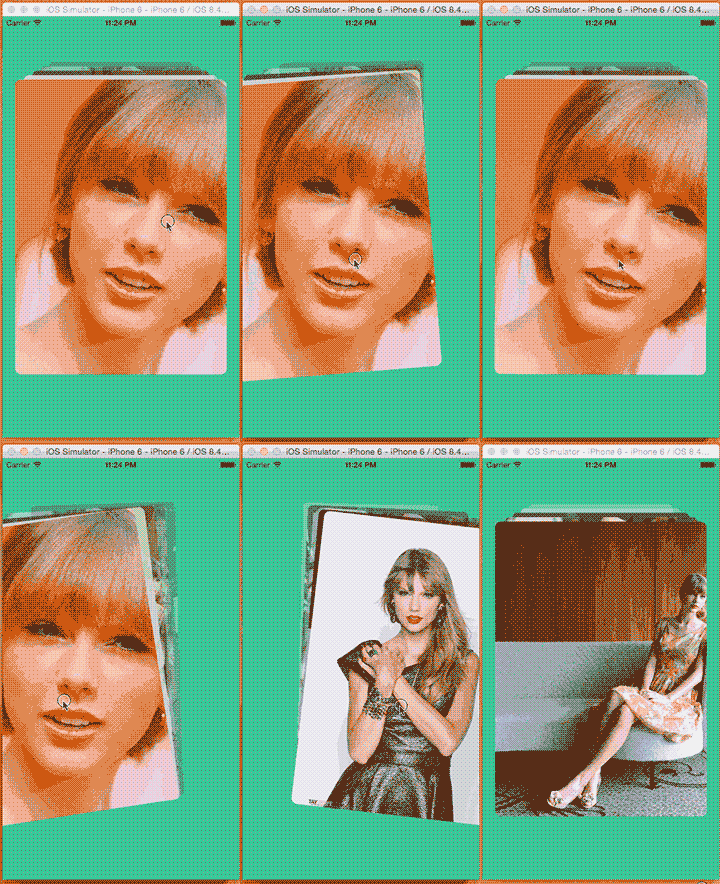
然後看看我實現的效果:
分析
包含若干個子視圖,每層子視圖越往後,寬度越小,y值越小,不透明度越小,逐層遞減。
需要創建 2 個手勢,一點單擊手勢 Tap,一個滑動手勢 Pan。
滑動的時候,每層卡片都要往某個方向移動,並且每層卡片移動的距離也要遞減。
滑動的時候,還需要旋轉,並且也是逐層遞減的。
滑動超過一個距離後,第一張卡片移除屏幕,其他的卡片依次先前移動。
單擊的時候,需要翻轉第一張視圖。
激動人心的代碼部分
創建卡片
這些卡片,我采用 UIImageView 代替,也就是說首先創建若干個 imageView。
為了重構方便,我將創建卡片分為 3 個方法,依次是:
這個方法用來 初始化一個卡片,傳入卡片和索引,就會初始化它的 y方向上的距離、橫向的縮放、不透明度的遞減。
  func setUpImageView(imageView: UIImageView, index: Int) {
      var transform = CATransform3DIdentity
      transform.m34 = -0.001
      imageView.layer.transform = transform
      imageView.layer.transform = CATransform3DTranslate(imageView.layer.transform, 0, -7.0 * CGFloat(index), 0)
      imageView.layer.transform = CATransform3DScale(imageView.layer.transform, 1 - 0.08 * CGFloat(index), 1, 1)
      imageView.layer.opacity = 1 - 0.2 * Float(index)
  }
這個方法用來 創建一個卡片,只用傳入索引(用來初始化)就可以了,它會創建一個 UIImageView,並設置一些所有卡片共有的屬性,然後調用上面的方法進行初始化,最後給卡片添加兩個手勢。
  func createOneImageView(index: Int) -> UIImageView {
      let imageView = UIImageView()
      imageView.contentMode = UIViewContentMode.ScaleAspectFill
      imageView.frame = CGRectInset(self.view.frame, 20, 100)
      imageView.layer.cornerRadius = 10
      imageView.layer.masksToBounds = true
      setUpImageView(imageView, index: index)
      //點擊手勢
      let tap = UITapGestureRecognizer(target: self, action: Selector("tapPanGesture:"))
      imageView.addGestureRecognizer(tap)
      //滑動手勢
      let pan = UIPanGestureRecognizer(target: self, action: Selector("panPanGesture:"))
      imageView.addGestureRecognizer(pan)
      imageView.userInteractionEnabled = true
      return imageView
  }
第三個是一次性創建多個卡片,傳入數量即可。它會調用循環調用上面的方法創建若干個卡片,並把它們添加到 self.view 上 和 一個全局數組中,以供後面使用。
  func createImageViews(count: Int) {
      for index in 0..《count { //顯示原因,請將《自行改為英文
          let imageView = createOneImageView(index)
          imageView.image = UIImage(named: String(format: "Taylor Swift d", arguments: [index % 5]))
          self.view.insertSubview(imageView, atIndex: 1)
          self.imageViews.append(imageView)
      }
  }
滑動手勢
手勢中,有兩個地方很重要,一個是滑動中,一個是滑動結束。在滑動中需要實時改變每個卡片的位置,還好監測是否超過規定距離,如果超過距離需要移除最上層的卡片,並讓其他卡片復位,再然後讓每層卡片向前移動,最後創建一個新的卡片添加到最後。在滑動結束後需要讓每個卡片復位。
滑動中
如果沒有超過規定距離,就改變每個卡片的位置。通過 view.layer.transform 屬性改變。為了方便,我這裡使用 KVC 來設置形變值。
 for index in 0..《self.imageViews.count { //顯示原因,請將《自行改為英文
      let imageView = self.imageViews[index]

      imageView.layer.setValue((1 - (CGFloat(index) / CGFloat(self.imageViews.count))) * delta, forKeyPath: "transform.translation.x")
      imageView.layer.setValue((1 - (CGFloat(index) / CGFloat(self.imageViews.count))) * (delta / self.maxLength) * (15.0 / 180) * CGFloat(M_PI), forKeyPath: "transform.rotation.z")
  }
如果超過了規定值,就是用動畫讓第一個視圖移出屏幕外。注意:當調用 pan.enabled = false 後,會再次進入手勢監聽方法,並且手勢的狀態為 Cancelled。
  pan.enabled = false
  let imageView = self.imageViews.first
  let current = imageView?.layer.valueForKeyPath("transform.translation.x") as! CGFloat
  UIView.animateWithDuration(0.5, animations: { () -> Void in
      imageView?.layer.setValue((current > 0) ? self.view.bounds.width : -self.view.bounds.width, forKeyPath: "transform.translation.x")
      }, completion: nil)
滑動結束
所以在手勢結束(pan.state == .Ended || pan.state == .Cancelled)時需要判斷 pan.enable 屬性,如果 pan.enable == true,說明沒有超過規定值,只用將所有卡片復位就可以了,如果 pan.enable == false,說明超過了規定值,就需要將第一張卡片從父視圖移除,並添加到復用的數組中,然後讓其他的卡片依次前移。
  else if pan.state == .Ended || pan.state == .Cancelled {
      UIView.animateWithDuration(0.5, delay: 0, usingSpringWithDamping: 0.4, initialSpringVelocity: 0, options: UIViewAnimationOptions.CurveLinear, animations: { () -> Void in
          for index in 0.. Void in
          if !pan.enabled {
              pan.enabled = true
              let first = self.imageViews.removeAtIndex(0)
              first.removeFromSuperview()
              self.resueArray.append(first)
              self.endAnimation()
          }
      })
  }
最後我調用了 self.endAnimation() 方法。這個方法就是將數組中所有卡片向前移動的動畫。
func endAnimation() {
    for index in 0.. Void in
                imageView.layer.setValue(-7.0 * CGFloat(index), forKeyPath: "transform.translation.y")
                imageView.layer.setValue(1 - 0.08 * CGFloat(index), forKeyPath: "transform.scale.x")
                imageView.layer.opacity = 1 - 0.2 * Float(index)
            }, completion: {(finish: Bool) -> Void in
                //最後一個動畫完畢後,添加新的Card到最後
                if index == self.imageViews.count - 1 {
                    self.addNewCard()
                }
        })
    }
}
所有卡片移動完成後,調用 `` 方法,將一個新的卡片添加到最後。這個方法中,將判斷重用數組中有沒有卡片,如果沒有,就創建一個,如果有,就直接拿來改變內容就可以了。最後將卡片添加到數組中。
  func addNewCard() {
      var imageView: UIImageView
      if self.resueArray.isEmpty {
          imageView = createOneImageView(self.imageViews.count)
      } else {
          imageView = self.resueArray.removeAtIndex(0)
          setUpImageView(imageView, index: self.imageViews.count)
      }
      imageView.image = UIImage(named: String(format: "Taylor Swift d", arguments: [arc4random_uniform(5)]))
      self.view.insertSubview(imageView, atIndex: 1)
      self.imageViews.append(imageView)
  }
到這裡,我的示例中的內容都講完了,獲取完整源代碼請移步: GitHub
但是這和目標中的效果還有一段距離,下面就是一些問題,希望大家能指導一下。
存在的問題
效果感覺不是很流暢,大家可以下載源碼感受一下,估計是移動過程中的代碼有些麻煩,太過復雜。
這裡的重用數組其實就裝了一個卡片,因為移除一個添加一個,所以感覺沒必要這麼重用。誰有好點的想法希望告訴我一下。
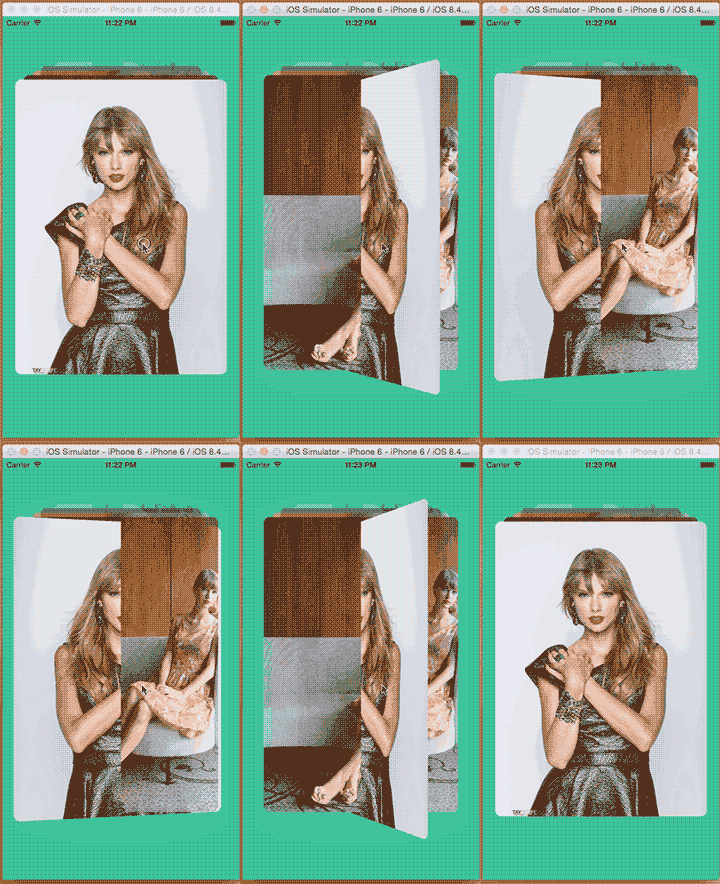
最重要的一點,點擊翻轉效果,我在點擊監聽方法中是這麼寫的:
 UIView.animateWithDuration(0.5, animations: { () -> Void in
     imageView.layer.transform = CATransform3DRotate(imageView.layer.transform, CGFloat(M_PI), 0, 1, 0)
 })
運行之後卻是下面這個叼樣子!目前還不知道為什麼會這樣,所以誰知道為什麼或者有什麼好的方法實現點擊翻轉效果,請一定要告訴我。
更新
上面第三個問題解決方法:
修改最上面的卡片的 layer.zPosition 屬性,設置的足夠大就可以解決這個問題。可以在點擊的方法裡修改。代碼已更新。感謝 @從今以後 的解決方法!

- iOS應用CALayer完成動畫加載的後果
- iOS仿付出寶芝麻信譽分數儀表盤動畫後果
- iOS突變圓環扭轉動畫CAShapeLayer CAGradientLayer
- iOS 應用動畫和貝塞爾完成咻咻後果
- iOS完成知乎和途家導航欄突變的文字動畫後果
- iOS 動畫 —— 禮花後果實例具體
- iOS完成轉動字幕的動畫殊效
- iOS 屏幕解鎖文字動畫後果
- IOS 波紋進度(waveProgress)動畫完成
- IOS完成碎片化動畫詳解
- iOS動畫完成雨花與櫻花殊效
- iOS動畫之向右拉的抽屜3D後果
- iOS動畫殊效之立方體翻轉
- iOS的CoreAnimation開辟框架中的Layer層動畫制造解析
- 實例講授iOS中的CATransition轉場動畫應用
- 源碼推薦(01.04B):基於AFNetworking3.0的網絡請求封裝,iOS仿蘋果健康折線圖
- 源碼推薦(9.23):YT_ShopTypeView商品分類菜單,雙向滾動slider
- 源碼推薦(01.14):自適應邊界的按鈕(天女散花),自定義下拉菜單
- Cocoa不死,Cocoa永生
- 怎樣創建一個Xcode插件(Part 2)
- 源碼推薦(11.03):定制的Alertview 不用寫代理不用實例化,Swift版本 隨著鍵盤升起淡入一個view
- 源碼推薦(01.14B):AFN網絡請求一句代碼搞定,iOS 9最新的UIAlertController
- 源碼推薦(9.21):模仿qq的小紅點的動畫,Swift (及Objective
- iOS10:CallKit的簡單應用
- 源碼推薦(5.04):CDPMonitorKeyboard封裝,可解決輸入view被鍵盤遮擋問題,點燈游戲