談 UIView Animation 編程藝術
“Action!”,歡迎收看這期大型扯談實用類技術節目,《小明講故事》,大家好,我是小明!
有人會這麼問,“小明,no zuo no die,你覺得哪個城市的人最作?”。“我覺得~倫敦的人比較作,相當作,作得有風格,作得有國際范!因為~有一個倫敦人叫Charlie Chaplin,中文名叫查理 卓別林,小名叫作不停,作界的佛爺啊,嘻嘻~”, “幼稚!!” 。“美國新墨西哥州的人也挺作的,你看《貓和老鼠》中的Tom捉了140集,Jerry還是沒有被捉住,作界的二爺呢。” ,“滾!!”。
得動畫者得天下啊,有請我們今天的嘉賓啞劇之王--卓別林先生和深愛Jerry的Tom先生。
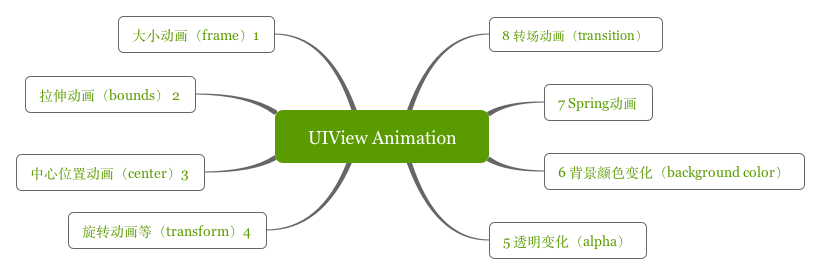
文章結構圖
“卓先生,您也做過電影後期剪切工作,電影的動畫是如何形成的呢?”
“在英國把動畫叫Animation,它的動詞形式是Animate,你們中文意思是“賦予生命”。對於人類來說,眼睛看到一幅畫或一個物體後,在0.34秒內不會消失。利用這一原理,在一幅畫還沒有消失前播放下一幅畫,就會給人造成一種流暢的視覺變化效果。對於蒼蠅,那就不一樣,那叫反應遲鈍。”
“哦~卓先生說的應該就是逐幀動畫,每一個畫面就是一幀,逐一播放形成連續的動畫效果。
"Tom先生,您那個時代動畫又有什麼變化嗎?”
“我是看卓先生的電影長大的,1940我才出現在熒屏上。不過有些不一樣了,不僅僅單一畫面逐一播放,你們可以在《貓和老鼠》中,看到我的胡子被Jerry拉得誇張長,追起Jerry來,身體那些誇張的伸縮,人無法做到的,這也是動漫的魅力。這些動畫變化,是可以通過計算機計算每一個時間變化的信息集合成每一幀的畫面。 ”
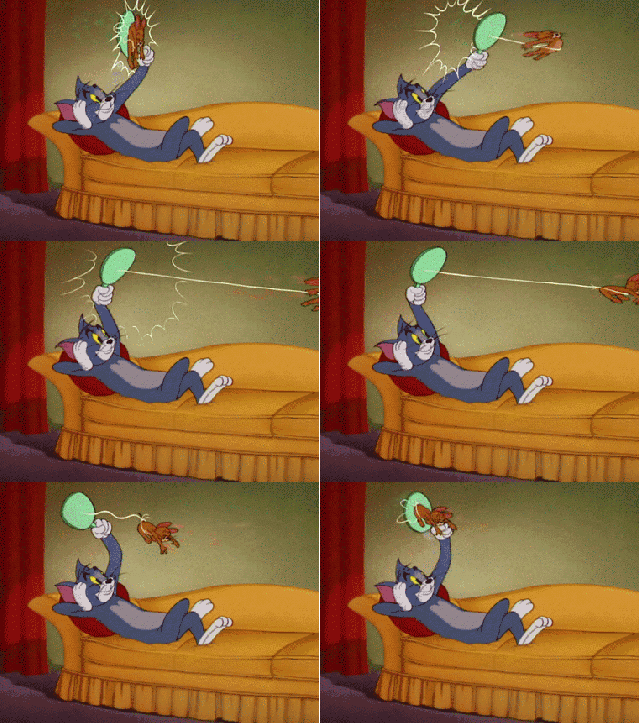
“哦~Tom先生說的應該是關鍵幀動畫。這個在現代技術比較常見的動畫制作方式。比如現在大家用的蘋果產品,按鈕的大小變化,圖片的移動,旋轉等等這些都是關鍵幀動畫。作為iOS開發者的話,UIView Animation就是屬於關鍵幀動畫這一類”。
現代的技術是很先進,挺有味道的,我們一起來領略一下,還得請Tom示范一下。
一.大小動畫(改變frame)
1.展示效果
fram大小變化
2.Show Code
-(void)changeFrame{
    CGRect originalRect = self.anView.frame;
    CGRect rect = CGRectMake(self.anView.frame.origin.x-20, self.anView.frame.origin.y-120, 160, 80);
    [UIView animateWithDuration:1 animations:^{
        self.anView.frame = rect;
    } completion:^(BOOL finished) {
        [UIView animateWithDuration:1 animations:^{
            self.anView.frame = originalRect;
        }];
    }];
}
二.拉伸動畫(改變bounds)
1.展示效果
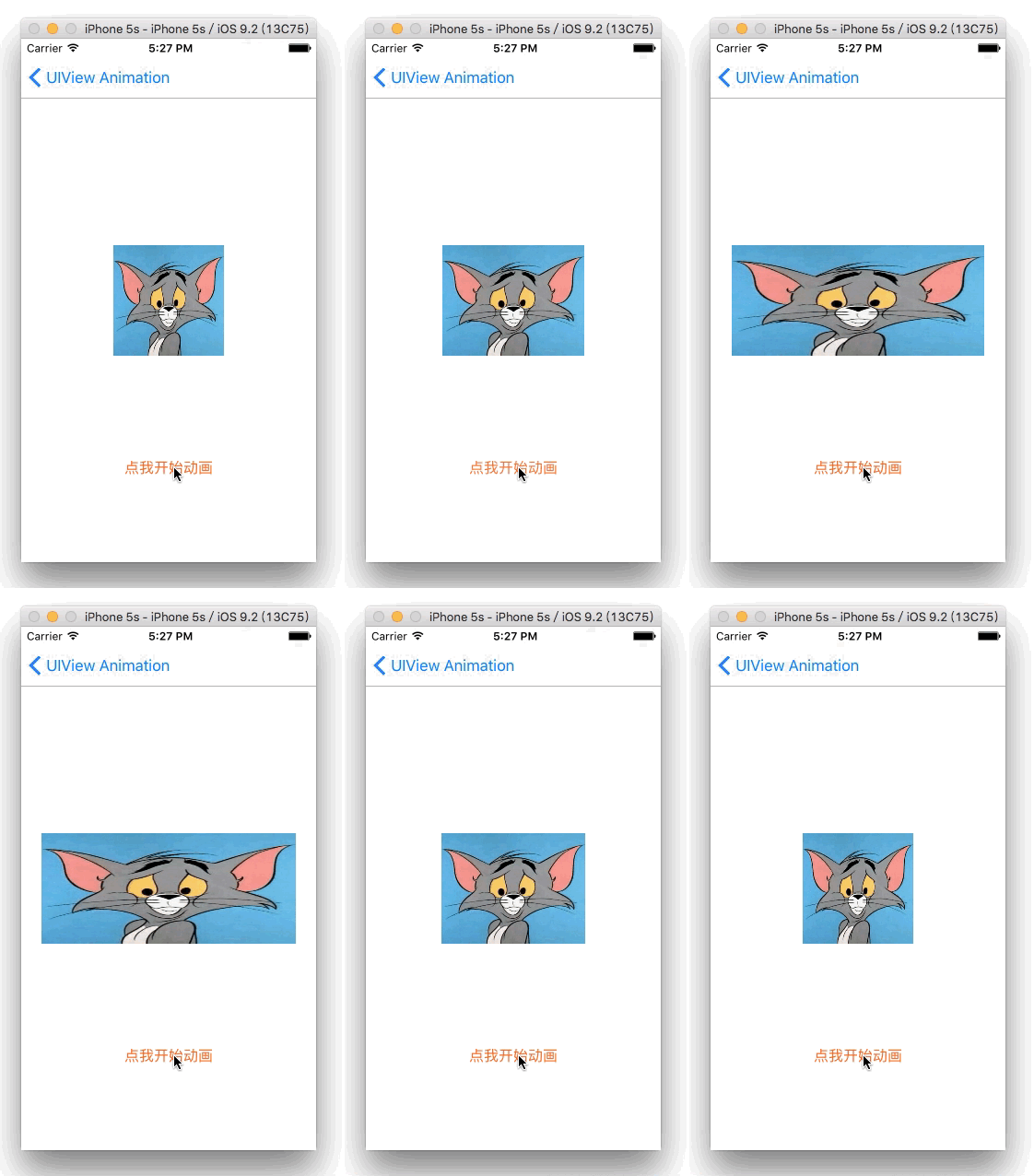
bounds變化
2.Show Code
-(void)changeBounds{
    CGRect originalBounds = self.anView.bounds;
    //盡管這個rect的x,y跟原始的不同,動畫也只是改變了寬高
    CGRect rect = CGRectMake(0, 0, 300, 120);
    [UIView animateWithDuration:1 animations:^{
    self.anView.bounds = rect;
    } completion:^(BOOL finished) {
        [UIView animateWithDuration:1 animations:^{
            self.anView.bounds = originalBounds;
        }];
    }];
}
三.轉移動畫(改變center)
1.展示效果
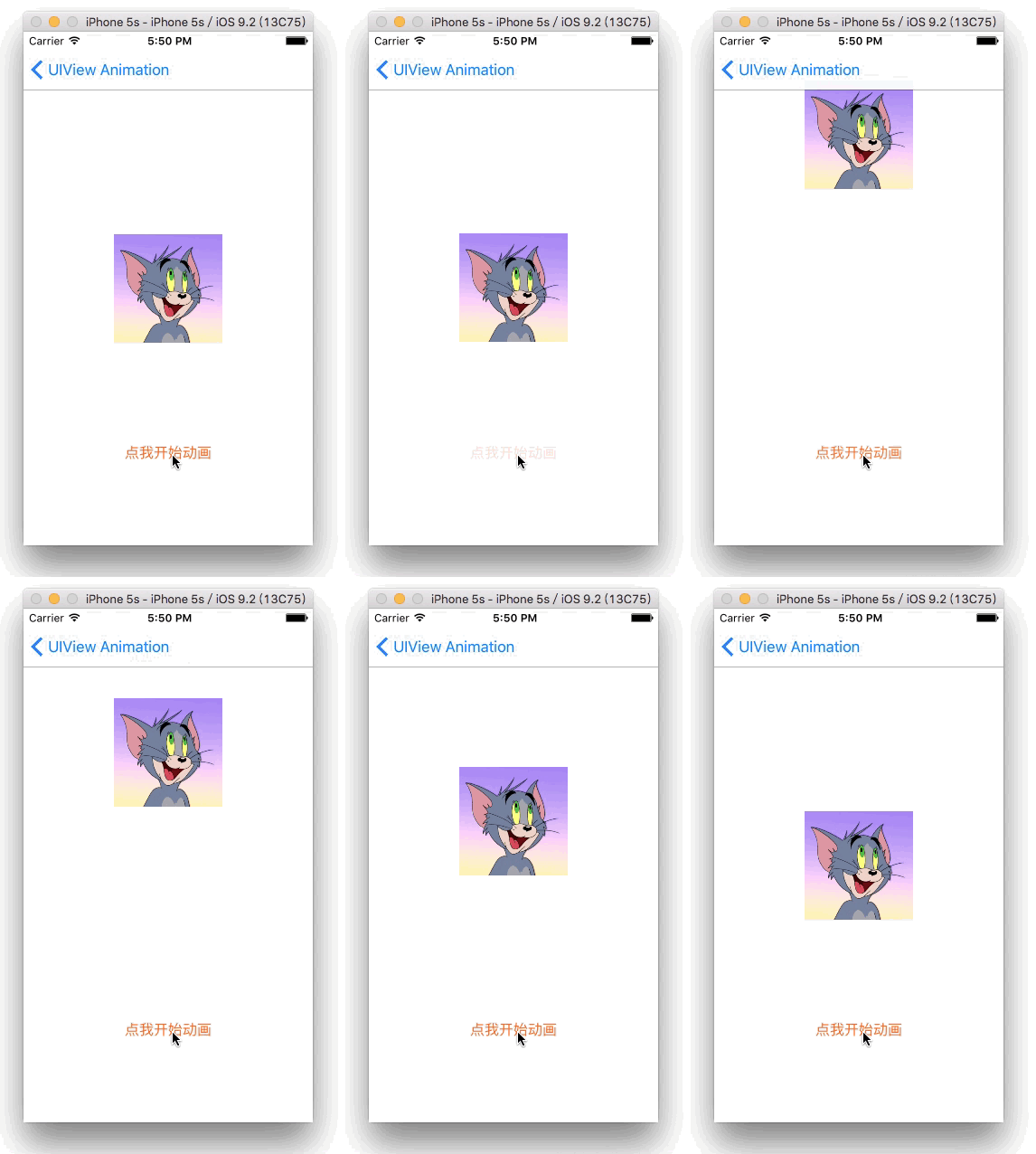
center變化.gif
2.Show Code
-(void)changeCenter{
    CGPoint originalPoint = self.anView.center;
    CGPoint point = CGPointMake(self.anView.center.x, self.anView.center.y-170);
    [UIView animateWithDuration:0.3 animations:^{
        self.anView.center = point;
    } completion:^(BOOL finished) {
        [UIView animateWithDuration:1 animations:^{
            self.anView.center = originalPoint;
        }];
    }];
}
謝謝二爺的示范,經典的表情也勾起很多人的回憶。好,我們回到現實,以上的3個例子,大家不難發現共同的特點和重復性。
1.都是改變UIView的屬性就可以產生動畫
2.都是帶有block做結束回調,對結束監控
3.動畫大小和位置變化可以通過多種方式實現
“佛爺,是不是很好奇我們並沒有使用Tom先生很多圖片組逐一顯示?來,也請您下礦一走!”。“哈哈,好!不過那碗河水我還是要倒的”,“行,隨你翻騰~”。
四.旋轉動畫(改變transform)
1.展示效果
transform變化.gif
2.Show Code
-(void)transform{
    CGAffineTransform originalTransform = self.anView.transform;
    [UIView animateWithDuration:2 animations:^{
        //self.anView.transform = CGAffineTransformMakeScale(0.6, 0.6);//縮放
        //self.anView.transform = CGAffineTransformMakeTranslation(60, -60);
        self.anView.transform = CGAffineTransformMakeRotation(4.0f);
    } completion:^(BOOL finished) {
        [UIView animateWithDuration:2 animations:^{
            self.anView.transform = originalTransform;
        }];
    }];
}
五.透明度動畫(改變alpha)
1.展示效果
alpha變化.gif
2.Show Code
-(void)alpha{
    [UIView animateWithDuration:2 animations:^{
        self.anView.alpha = 0.3;
    } completion:^(BOOL finished) {
        [UIView animateWithDuration:2 animations:^{
            self.anView.alpha = 1;
        }];
    }];
}
卓先生,停停停,來,回到我們舞台中間來。就以上5中都能讓您玩的這麼愉快,以上都是僅僅修改本身的屬性值,我再介紹剩下三種基於UIView特別的動畫,一個是Keyframe,一個Spring和Transition動畫。一人一個輪著來,卓先生你先。
六.背景顏色Keyframes動畫(改變background)
1.展示效果
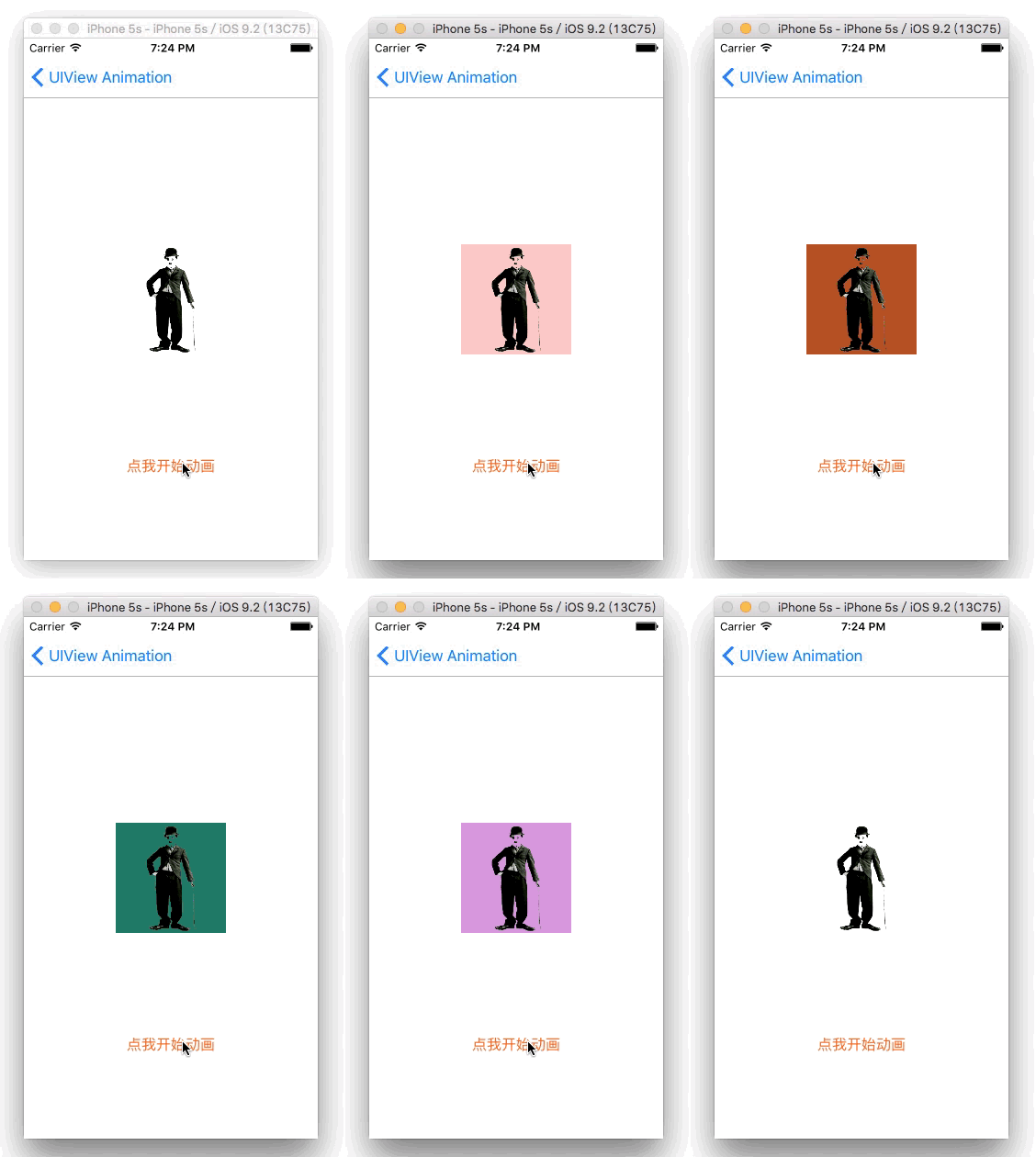
background變化.gif
2.Show Code
-(void)changeBackground{
    [UIView animateKeyframesWithDuration:9.0 delay:0.f options:UIViewKeyframeAnimationOptionCalculationModeLinear animations:^{
        [UIView addKeyframeWithRelativeStartTime:0.f relativeDuration:1.0 / 4 animations:^{
            self.anView.backgroundColor = [UIColor colorWithRed:0.9475 green:0.1921 blue:0.1746 alpha:1.0];
        }];
        [UIView addKeyframeWithRelativeStartTime:1.0 / 4 relativeDuration:1.0 / 4 animations:^{
            self.anView.backgroundColor = [UIColor colorWithRed:0.1064 green:0.6052 blue:0.0334 alpha:1.0];
        }];
        [UIView addKeyframeWithRelativeStartTime:2.0 / 4 relativeDuration:1.0 / 4 animations:^{
            self.anView.backgroundColor = [UIColor colorWithRed:0.1366 green:0.3017 blue:0.8411 alpha:1.0];
        }];
        [UIView addKeyframeWithRelativeStartTime:3.0 / 4 relativeDuration:1.0 / 4 animations:^{
            self.anView.backgroundColor = [UIColor colorWithRed:0.619 green:0.037 blue:0.6719 alpha:1.0];
        }];
        [UIView addKeyframeWithRelativeStartTime:3.0 / 4 relativeDuration:1.0 / 4 animations:^{
            self.anView.backgroundColor = [UIColor whiteColor];
        }];
    } completion:^(BOOL finished) {
        NSLog(@"動畫結束");
    }];
}
七.Spring動畫(iOS 7.0起)
1.展示效果
spring動畫.gif
2.Show Code
-(void)springAnimation{
    CGRect originalRect = self.anView.frame;
    CGRect rect = CGRectMake(self.anView.frame.origin.x-80, self.anView.frame.origin.y, 120, 120);
    [UIView animateWithDuration:0.4 delay:0 usingSpringWithDamping:0.5 initialSpringVelocity:4 options:UIViewAnimationOptionCurveLinear animations:^{
        self.anView.frame = rect;
        } completion:^(BOOL finished) {
            [UIView animateWithDuration:1 delay:1 usingSpringWithDamping:0.5 initialSpringVelocity:4 options:UIViewAnimationOptionCurveLinear animations:^{
                   self.anView.frame = originalRect;
            } completion:^(BOOL finished) {
        }];
    }];
}
八.transition動畫
1.展示效果
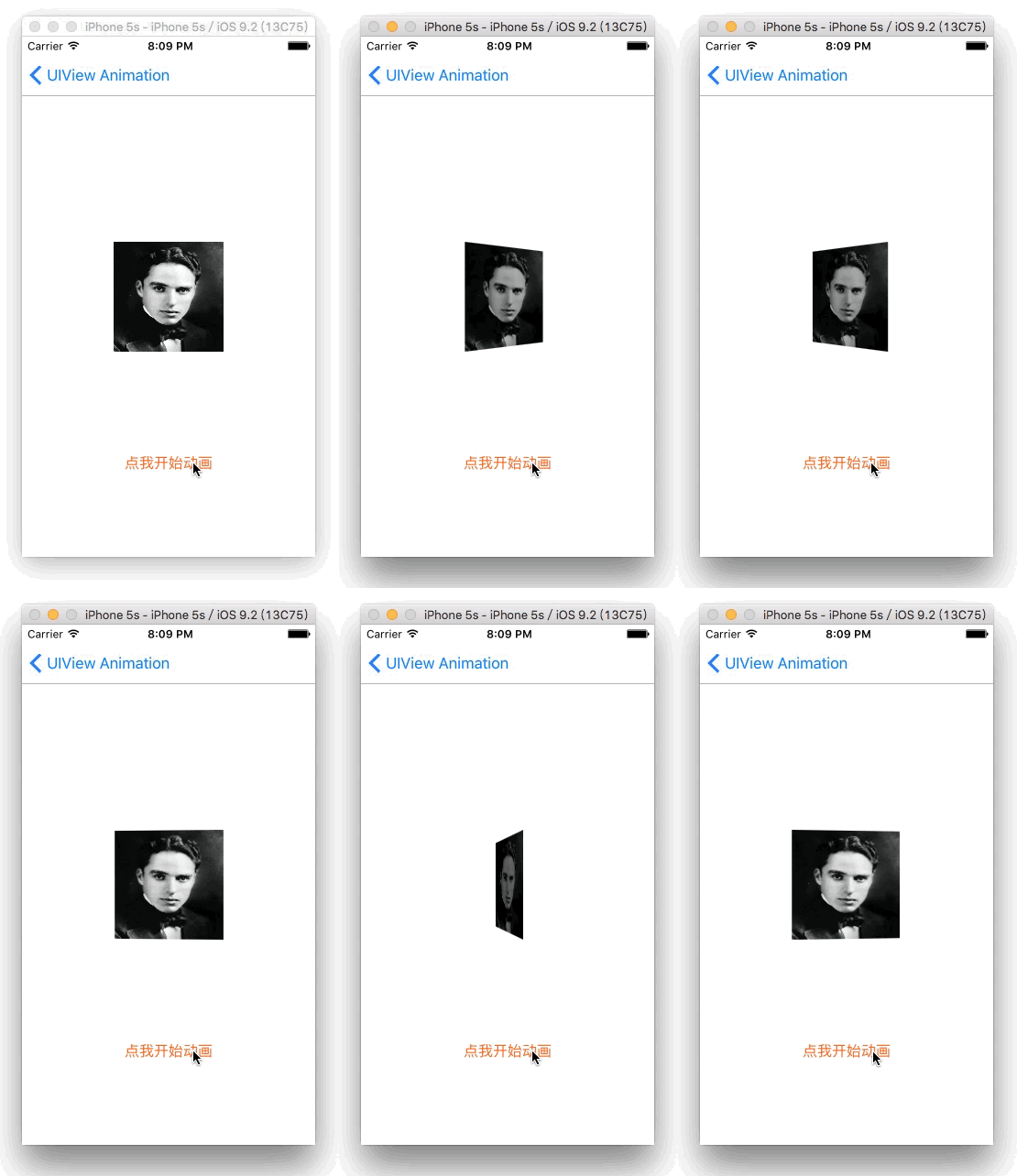
transition動畫.gif
2.Show Code
-(void)transitionAnimation{
    [UIView transitionWithView:self.anView duration:2.0 options:UIViewAnimationOptionTransitionFlipFromLeft animations:^{
        //self.anView.backgroundColor = [UIColor blueColor];
    } completion:^(BOOL finished) {
        [UIView transitionWithView:self.anView duration:2.0 options:UIViewAnimationOptionTransitionFlipFromRight animations:^{
        //self.anView.backgroundColor = [UIColor greenColor];
        } completion:^(BOOL finished) {
        }];
    }];
}
九.關於參數option選擇說明
1.UIViewAnimationOptions
UIViewAnimationOptionLayoutSubviews            //進行動畫時布局子控件
UIViewAnimationOptionAllowUserInteraction      //進行動畫時允許用戶交互
UIViewAnimationOptionBeginFromCurrentState     //從當前狀態開始動畫
UIViewAnimationOptionRepeat                    //無限重復執行動畫
UIViewAnimationOptionAutoreverse               //執行動畫回路
UIViewAnimationOptionOverrideInheritedDuration //忽略嵌套動畫的執行時間設置
UIViewAnimationOptionOverrideInheritedCurve    //忽略嵌套動畫的曲線設置
UIViewAnimationOptionAllowAnimatedContent      //轉場:進行動畫時重繪視圖
UIViewAnimationOptionShowHideTransitionViews   //轉場:移除(添加和移除圖層的)動畫效果
UIViewAnimationOptionOverrideInheritedOptions  //不繼承父動畫設置
UIViewAnimationOptionCurveEaseInOut            //時間曲線,慢進慢出(默認值)
UIViewAnimationOptionCurveEaseIn               //時間曲線,慢進
UIViewAnimationOptionCurveEaseOut              //時間曲線,慢出
UIViewAnimationOptionCurveLinear               //時間曲線,勻速
UIViewAnimationOptionTransitionNone            //轉場,不使用動畫
UIViewAnimationOptionTransitionFlipFromLeft    //轉場,從左向右旋轉翻頁
UIViewAnimationOptionTransitionFlipFromRight   //轉場,從右向左旋轉翻頁
UIViewAnimationOptionTransitionCurlUp          //轉場,下往上卷曲翻頁
UIViewAnimationOptionTransitionCurlDown        //轉場,從上往下卷曲翻頁
UIViewAnimationOptionTransitionCrossDissolve   //轉場,交叉消失和出現
UIViewAnimationOptionTransitionFlipFromTop     //轉場,從上向下旋轉翻頁
UIViewAnimationOptionTransitionFlipFromBottom  //轉場,從下向上旋轉翻頁
2.UIViewKeyframeAnimationOptions
UIViewAnimationOptionLayoutSubviews           //進行動畫時布局子控件
UIViewAnimationOptionAllowUserInteraction     //進行動畫時允許用戶交互
UIViewAnimationOptionBeginFromCurrentState    //從當前狀態開始動畫
UIViewAnimationOptionRepeat                   //無限重復執行動畫
UIViewAnimationOptionAutoreverse              //執行動畫回路
UIViewAnimationOptionOverrideInheritedDuration //忽略嵌套動畫的執行時間設置
UIViewAnimationOptionOverrideInheritedOptions //不繼承父動畫設置
UIViewKeyframeAnimationOptionCalculationModeLinear     //運算模式 :連續
UIViewKeyframeAnimationOptionCalculationModeDiscrete   //運算模式 :離散
UIViewKeyframeAnimationOptionCalculationModePaced      //運算模式 :均勻執行
UIViewKeyframeAnimationOptionCalculationModeCubic      //運算模式 :平滑
UIViewKeyframeAnimationOptionCalculationModeCubicPaced //運算模式 :平滑均勻
就UIView的動畫而言,UIViewKeyframeAnimationOptions緊在Keyframes,其余的都是UIViewAnimationOptions。
十.總結和擴展
1.UIView動畫主要是變化UIView的自帶屬性
2.UIView動畫可以有很多種方式實現同一效果
3.Spring動畫iOS 7.0以上才有
4.UIViewKeyframeAnimationOptions用著Keyframes動畫,其余都用UIViewAnimationOptions枚舉
這就以上UIView Animation的動畫的基礎內容了,節目到了尾聲。嘿,卓先生,Tom先生停下來,給大家說byebye啦。謝謝大家,讓我們再次以熱烈的掌聲感謝卓先生和Tom先生。謝謝~~
十一.源碼地址
歡迎下載和Start:https://github.com/minggo620/iOSViewAnimation
謝謝收看這期大型扯淡實用技術類節目,《小明講故事》。"Tom老師,你對我眨眼什麼意思?",“你們中國的《喜洋洋和灰太狼》捉了多少集?”

- iOS開源一個簡略的訂餐app UI框架
- Objective-C 宏界說具體引見
- Objective-C 代碼與Javascript 代碼互相挪用實例
- 在uiview 的tableView中點擊cell進入跳轉到另外一個界面的完成辦法
- iOS開辟之UIScrollView控件詳解
- 進修iOS自界說導航掌握器UINavigationController
- IOS中UITableView轉動到指定地位
- iOS為UIView設置暗影後果
- iOS設置UIButton文字顯示地位和字體年夜小、色彩的辦法
- iOS開辟之UIPickerView完成城市選擇器的步調詳解
- iOS長按UIlabel完成可復制功效
- iOS開辟中UIWebView的加載當地數據的三種方法
- iOS中修正UITextField占位符字體色彩的辦法總結
- IOS 仿時間網選票UI實例代碼
- iOS推送之當地告訴UILocalNotification