IOS開發-UI學習-根據URL顯示圖片,下載圖片的練習(button,textfield,image view,url,data)
編輯:IOS編程技術
編寫一個如下界面,實現:
1、在文本輸入框中輸入一個網址,然後點擊顯示圖片,圖片顯示到UIImageView中。
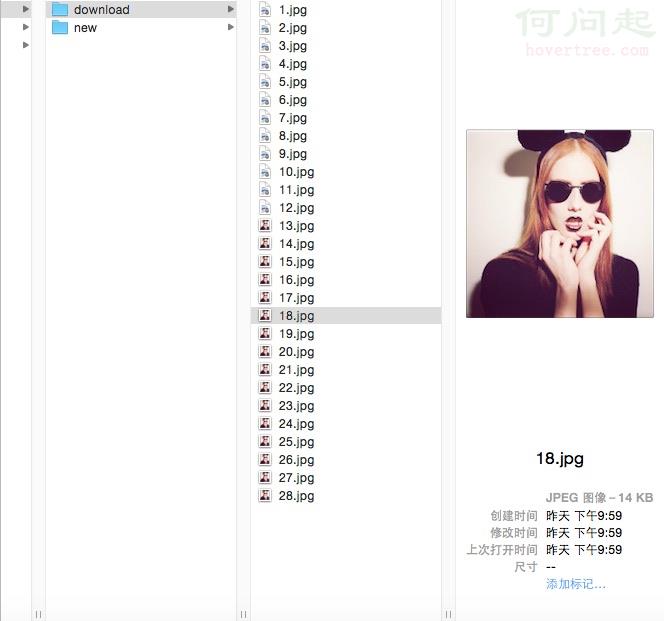
2、點擊下載,這張顯示的圖片被下載到手機的Documents文件夾下的Dowmload目錄下,並按序號命名。
3、在文本框輸入完成之後點擊其他地方,鍵盤自動消失。
准備工作:
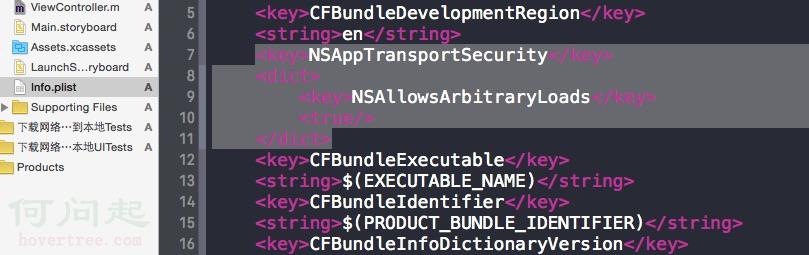
1、輸入的URL有可能是http而非https,需要在Info.plist中添加如下代碼:
    <key>NSAppTransportSecurity</key>
     <dict>
     <key>NSAllowsArbitraryLoads</key>
     <true/>
     </dict>
添加之後,Info.plist如下:
接下來是代碼,代碼全部寫在UIViewController的.m文件中:
 #import "ViewController.h"

 @interface ViewController (){
 //    定於全局變量
     UIButton *btnDownLoad;
     UIButton *btndisplay;
     UIImageView *imageView;
     UITextField *textFieldinputUrl;
     NSData *imagedata;
     NSString *newpath;
     int count;


 }

 @end

 @implementation ViewController

 - (void)viewDidLoad {
     [super viewDidLoad];


 //    顯示圖片按鈕初始化及加載
 //    初始化為圓角矩形按鈕
     btndisplay = [UIButton buttonWithType:UIButtonTypeRoundedRect];
 //    設置按鈕的位置,大小
     btndisplay.frame = CGRectMake(100, 660, 100 ,50 );
 //    設置按鈕背景色
     btndisplay.backgroundColor = [UIColor colorWithRed:0.512 green:0.562 blue:0.943 alpha:1.000];
 //    設置按鈕文本顏色及文本內容
     [btndisplay setTitleColor:[UIColor blackColor] forState:UIControlStateNormal];
     [btndisplay setTitle:@"顯示圖片" forState:UIControlStateNormal] ;
 //    給按鈕添加顯示圖片事件
      [btndisplay addTarget:self action:@selector(display:) forControlEvents:UIControlEventTouchUpInside];
 //    把按鈕加載到view上
     [self.view addSubview:btndisplay];

 //   下載圖片按鈕初始化及加載
     btnDownLoad = [[UIButton alloc]initWithFrame:CGRectMake(218, 660, 100, 50)];
     btnDownLoad.backgroundColor = [UIColor colorWithRed:0.512 green:0.562 blue:0.943 alpha:1.000];
     [btnDownLoad setTitleColor:[UIColor blackColor] forState:UIControlStateNormal];
     [btnDownLoad setTitle:@"下載圖片" forState:UIControlStateNormal] ;
     [btnDownLoad addTarget:self action:@selector(download:) forControlEvents:UIControlEventTouchUpInside];
     [self.view addSubview:btnDownLoad];

 //    設置URL輸入框
 //    初始化文本輸入框及背景色設置
     textFieldinputUrl = [[UITextField alloc]initWithFrame:CGRectMake(20, 590, 378, 50)];
     textFieldinputUrl.backgroundColor = [UIColor colorWithRed:0.653 green:1.000 blue:0.919 alpha:1.000];
 //    設置文本輸入前提示水印
     textFieldinputUrl.placeholder = @"請輸入圖片地址";
 //    設置文本輸入框中消除按鈕
     textFieldinputUrl.clearButtonMode = UITextFieldViewModeAlways;
 //    把文本輸入框加載到View
     [self.view addSubview:textFieldinputUrl];


 //    設置圖片控件
     imageView = [[UIImageView alloc]initWithFrame:CGRectMake(0, 20, 418, 550)];
     imageView.backgroundColor = [UIColor grayColor];
     [self.view addSubview:imageView];

 //    獲取沙盒中document的路徑
     NSString *dictpath = [NSString stringWithFormat:@"%@/Documents",NSHomeDirectory()];
 //    創造一個字符串指向document中的要新建的download文件夾
     newpath =[NSString stringWithFormat:@"%@/download",dictpath];
 //    在document中新建download文件夾
     [[NSFileManager defaultManager]createDirectoryAtPath:newpath withIntermediateDirectories:YES attributes:nil error:nil];

     NSLog(@"%@",dictpath);
 }


 //顯示圖片
 -(void)display:(id)sender{

 //    把文本框輸入的URL轉換成數據
     NSURL *imageurl = [NSURL URLWithString:textFieldinputUrl.text];
     imagedata = [NSData dataWithContentsOfURL:imageurl];
 //    把數據轉換成圖片
     UIImage *image = [UIImage imageWithData:imagedata];
 //    轉換的圖片給UIImageView顯示
     imageView.image =image;

 }


 //下載圖片
 -(void)download:(id)sender{
     count++;
 //    在路徑下新建圖片文件
     NSString *newfilepath = [NSString stringWithFormat:@"%@/%d.jpg",newpath,count];
 //    把圖片數據保存在路徑下新建好的文件中
     [[NSFileManager defaultManager]createFileAtPath:newfilepath contents:imagedata attributes:nil];
 }


 //輸入結束後讓鍵盤滾蛋
 -(void)touchesBegan:(NSSet<UITouch *> *)touches withEvent:(UIEvent *)event{
     [textFieldinputUrl resignFirstResponder];
 }


 - (void)didReceiveMemoryWarning {
     [super didReceiveMemoryWarning];
     // Dispose of any resources that can be recreated.
 }

 @end
最終輸入URL點擊顯示圖片之後顯示:

點擊下載圖片之後,在手機中本軟件的路徑下:
需要注意的地方有:
1、文本框在輸入完後,我們點擊文本框之外的其他地方,鍵盤如何消失:
 //輸入結束後讓鍵盤滾蛋
 -(void)touchesBegan:(NSSet<UITouch *> *)touches withEvent:(UIEvent *)event{
     [textFieldinputUrl resignFirstResponder];
 }
2、下載圖片時如何自動為圖片命名:定義一個全局變量用來計算點擊下載圖片按鈕的次數,然後根據次數為圖片命名,可保證不重名。然後生成格式化字符串作為下載後圖片的名字:
 //下載圖片
 -(void)download:(id)sender{
    count++;
 //   在路徑下新建圖片文件
   看集  NSString *newfilepath = [NSString stringWithFormat:@"%@/%d.jpg",newpath,count];
 //    把圖片數據保存在路徑下新建好的文件中
     [[NSFileManager defaultManager]createFileAtPath:newfilepath contents:imagedata attributes:nil];
 }
相關文章
+