iOS開發之抽屜效果實現
說道抽屜效果在iOS中比較有名的第三方類庫就是PPRevealSideViewController。一說到第三方類庫就自然而然的想到我們的CocoaPods,今天的博客中用CocoaPods引入PPRevealSideViewController,然後在我們的工程中以代碼結合storyboard來做出抽屜效果。
一.在工程中用CocoaPods引入第三方插件PPRevealSideViewController.
(1).在終端中搜索PPRevealSideViewController的版本
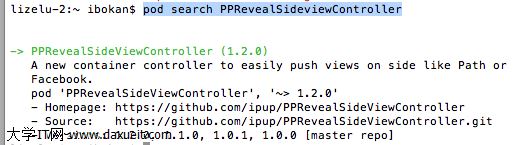
(2).在Podfile中添加相應的版本庫

(3).之後保存一下Podfile文件,然後執行pod install即可
二、為我們的工程添加pch文件
因為用的是XCode6, 上面默認是沒有pch文件的,如果我們想使用pch文件,需要手動添加,添加步驟如下
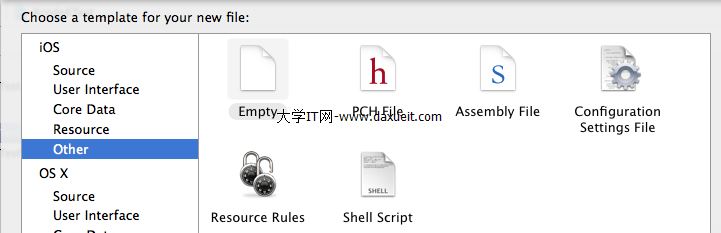
1.在XCode6中是麼有pch文件的,如下圖

2.創建pch文件

3.配置pch文件
(1)、找工程的Targets->Build Settings->Apple LLVM 6.0 - Language

(2)在Prefix Header下面的Debug和Release下添加$(SRCROOT)/工程名/pch文件,入下圖

三、使用PPRevealSideViewController來實現抽屜效果
當然了首先在pch文件中引入我們的第三方類庫,然後使用即可
1.在storyboard拖出來我們要用的視圖控制器,點擊主界面上的按鈕會以抽屜的形式展示出導航頁,然後在導航頁導航到各個界面,之後在從各個頁面回到主界面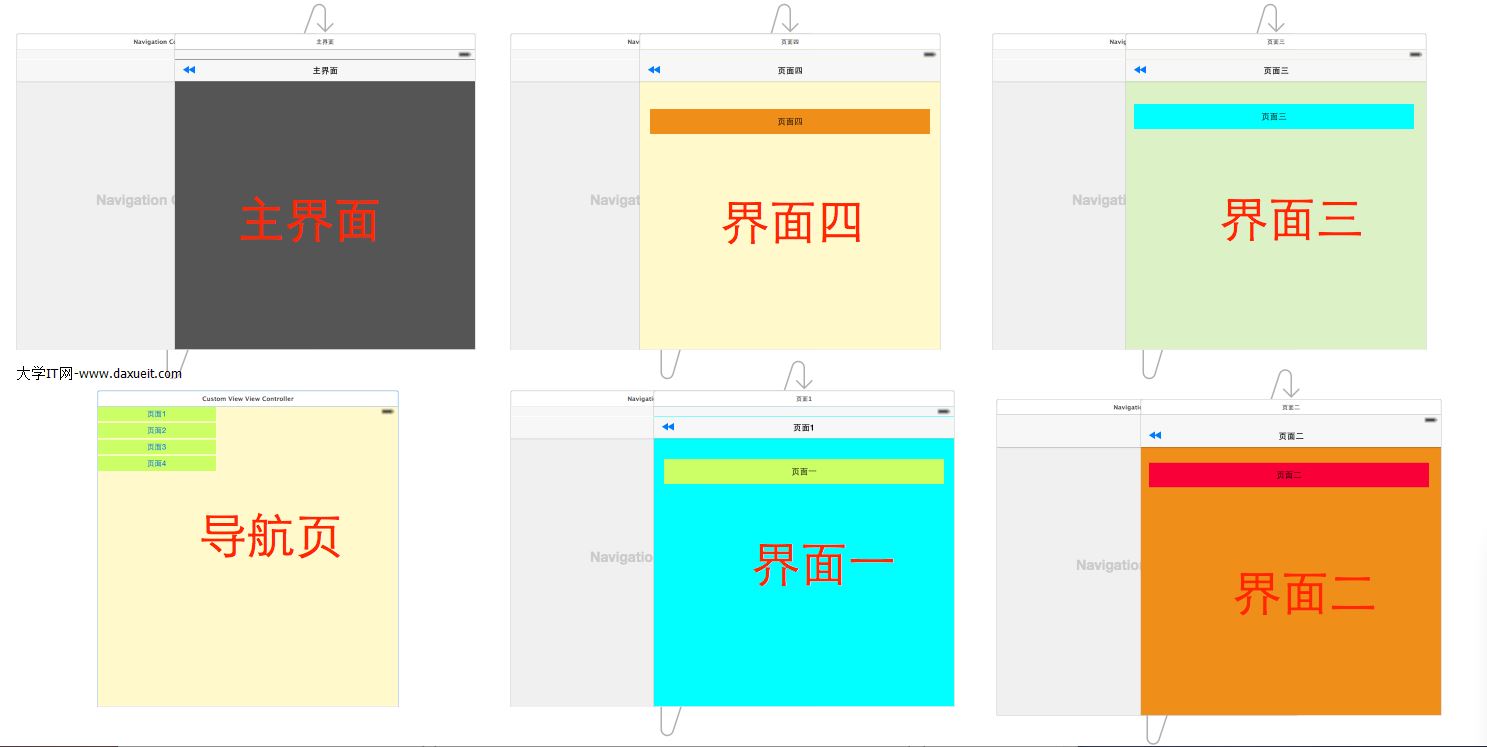
2.在AppDelegate中初始化我們的PPRevealSideViewController並設置為啟動頁面代碼如下:
 - (BOOL)application:(UIApplication *)application didFinishLaunchingWithOptions:(NSDictionary *)launchOptions {
     // Override point for customization after application launch.

     self.window = [[UIWindow alloc] initWithFrame:[[UIScreen mainScreen] bounds]];

     //獲取主視圖的導航控制器
     UIStoryboard *storyboard = [UIStoryboard storyboardWithName:@"Main" bundle:[NSBundle mainBundle]];
     UIViewController *vc = [storyboard instantiateViewControllerWithIdentifier:@"NavigationController"];

     //新建PPRevealSideViewController,並設置根視圖(主頁面的導航視圖)
     PPRevealSideViewController *sideViewController = [[PPRevealSideViewController alloc] initWithRootViewController:vc];

     sideViewController.fakeiOS7StatusBarColor = [UIColor whiteColor];

     //把sideViewController設置成根視圖控制器
     self.window.rootViewController = sideViewController;

     [self.window makeKeyAndVisible];

     return YES;
 }
3.在主界面使用PPRevealSideViewController來推出導航頁
 - (IBAction)tapItem:(id)sender {

     UIStoryboard *storybaord = [UIStoryboard storyboardWithName:@"Main" bundle:[NSBundle mainBundle]];
     UITableViewController *table = [storybaord instantiateViewControllerWithIdentifier:@"CustomViewViewController"];
     [self.revealSideViewController pushViewController:table onDirection:PPRevealSideDirectionLeft animated:YES];
 }
4.在導航頁點擊不同的按鈕使用PPRevealSideViewController跳轉到不同的controller
 - (IBAction)tap1:(id)sender {
      UIStoryboard *storyboard = [UIStoryboard storyboardWithName:@"Main" bundle:[NSBundle mainBundle]];
     UIViewController *one = [storyboard instantiateViewControllerWithIdentifier:@"one"];
     [self.revealSideViewController popViewControllerWithNewCenterController:one animated:YES];
 }

 - (IBAction)tap2:(id)sender {

     UIStoryboard *storyboard = [UIStoryboard storyboardWithName:@"Main" bundle:[NSBundle mainBundle]];
     UIViewController *one = [storyboard instantiateViewControllerWithIdentifier:@"two"];
     [self.revealSideViewController popViewControllerWithNewCenterController:one animated:YES];

 }

 - (IBAction)tap3:(id)sender {
     UIStoryboard *storyboard = [UIStoryboard storyboardWithName:@"Main" bundle:[NSBundle mainBundle]];
     UIViewController *one = [storyboard instantiateViewControllerWithIdentifier:@"three"];
     [self.revealSideViewController popViewControllerWithNewCenterController:one animated:YES];
 }

 - (IBAction)tap4:(id)sender {
     UIStoryboard *storyboard = [UIStoryboard storyboardWithName:@"Main" bundle:[NSBundle mainBundle]];
     UIViewController *one = [storyboard instantiateViewControllerWithIdentifier:@"four"];
     [self.revealSideViewController popViewControllerWithNewCenterController:one animated:YES];
 }
5.各個頁面返回到主界面的代碼如下:
 - (IBAction)tapPage:(id)sender {
     UIStoryboard *storyboard = [UIStoryboard storyboardWithName:@"Main" bundle:[NSBundle mainBundle]];

     UIViewController *view = [storyboard instantiateViewControllerWithIdentifier:@"NavigationController"];

     [self.revealSideViewController popViewControllerWithNewCenterController:view animated:YES];
 }
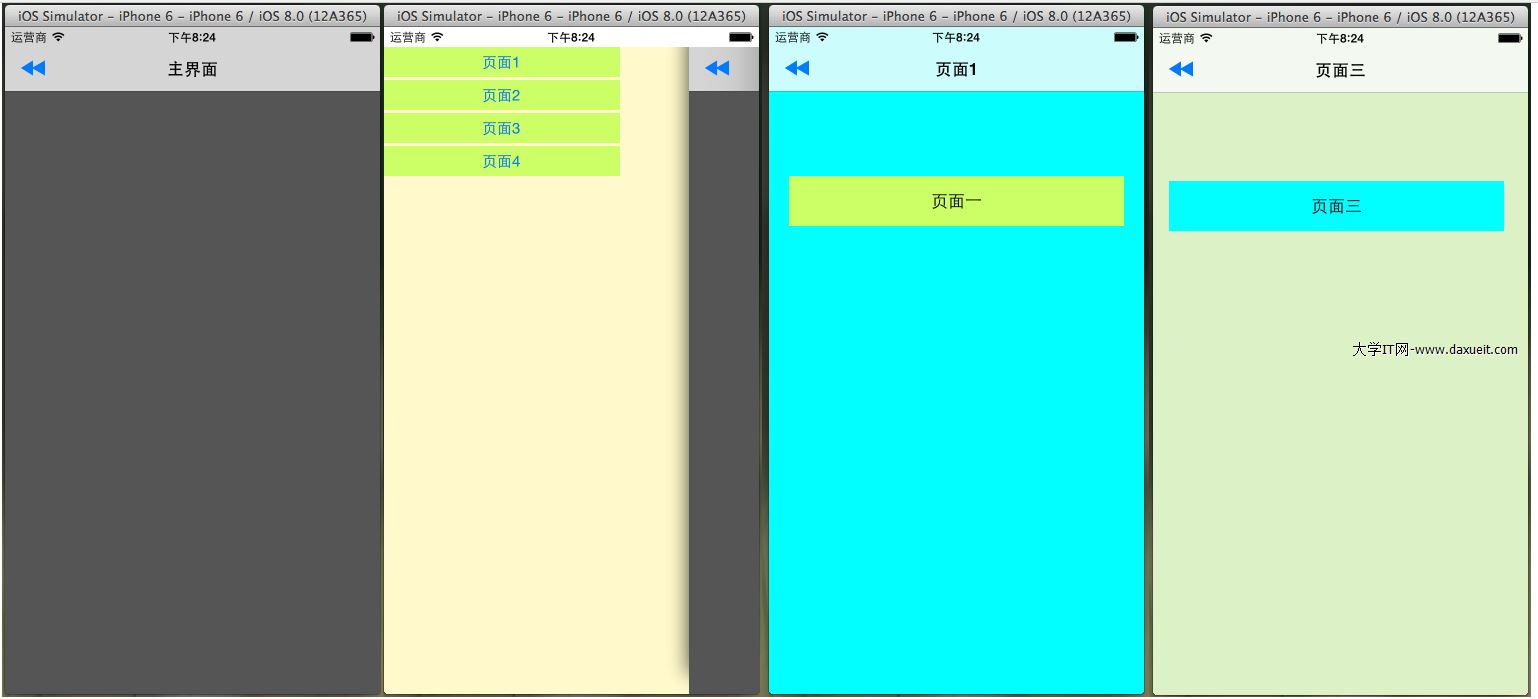
四.到此效果實現完畢,下面是效果圖:
- 上一頁:@properties指針說明
- 下一頁:3種撥打電話的方式