
在 Storyboard 中為 UICollectionView 設計 Header 與 Footer
supplementary view(補充視圖)是 flow layout 的延伸,用來放區段標題與頁尾。它們在預設情況下是關閉的,必須透過兩個步驟啟用:先在 Storyboard 上打開選項,再實作對應的委派方法。
一、拖入 Collection View 並開啟 Header/Footer
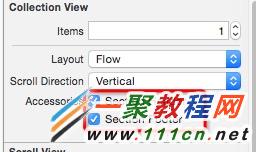
在 Storyboard 中選取 collection view controller 裡的「Collection View」,到屬性檢查器中勾選 Section Header 與 Section Footer。勾選後畫面上就會出現頭尾兩個區域。
接著可以直接在 Storyboard 裡設計這兩個視圖。範例中,頭部用來顯示該區段的標題,底部則放一張靜態橫幅圖片。
二、實作 viewForSupplementaryElementOfKind
如果只做完第一步就執行,你會發現 header 與 footer 並不出現——因為還沒有實作這個委派方法,系統不知道要產生什麼內容。
- (UICollectionReusableView *)collectionView:(UICollectionView *)collectionView
           viewForSupplementaryElementOfKind:(NSString *)kind
                         atIndexPath:(NSIndexPath *)indexPath
{
    UICollectionReusableView *reusableview = nil;

    if (kind == UICollectionElementKindSectionHeader) {
        UICollectionReusableView *headerView =
            [collectionView dequeueReusableSupplementaryViewOfKind:UICollectionElementKindSectionHeader
                                              withReuseIdentifier:@"HeaderView"
                                                     forIndexPath:indexPath];
        reusableview = headerView;
    }

    if (kind == UICollectionElementKindSectionFooter) {
        UICollectionReusableView *footerview =
            [collectionView dequeueReusableSupplementaryViewOfKind:UICollectionElementKindSectionFooter
                                              withReuseIdentifier:@"FooterView"
                                                     forIndexPath:indexPath];
        reusableview = footerview;
    }

    return reusableview;
}
程式碼在說什麼
系統會為每個區段呼叫這個方法,並透過 kind 參數告訴你是要 header 還是 footer。我們先用它做分流,再各自用 dequeueReusableSupplementaryViewOfKind: 取出對應的可重用視圖。這裡的 reuse identifier(HeaderView / FooterView)必須與你在 Storyboard 上為兩個視圖設定的識別符完全一致,否則會在執行期直接 crash。
容易忽略的細節
補充視圖預設沒有尺寸。除了勾選 Section Header/Footer,通常還要實作 flow layout 的 referenceSizeForHeaderInSection: 與 referenceSizeForFooterInSection:(或設定 collectionViewLayout.headerReferenceSize),否則即使內容正確也會因為高度為 0 而看不見。另外,取出 header 後記得把標題文字與圖片實際指派上去,這段範例只示範了「取得視圖」的部分。
- 上一篇文章: 小咖秀影片合輯製作教學:把多段短片合成一支
- 下一篇文章: iOS 開發:用 NSDecimalNumber 做精準金額計算