
用 xib 與純程式碼自訂 UITableViewCell:團購與微博兩個實戰範例
第一部:用 xib 做一個團購列表
1. 專案結構與 plist
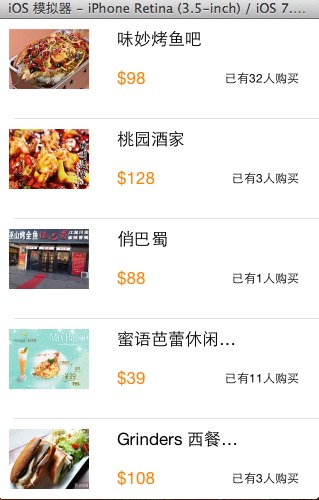
2. 目標效果
3. 第一版:只靠 tag 取值
最直白的做法是給 xib 裡的每個控制項設定 tag,然後用 viewWithTag: 一個個撈出來賦值。
資料模型 YYtg.h:
//
// YYtg.h
// 01-團購數據顯示(沒有配套的類)
//
// Created by apple on 14-5-29.
// Copyright (c) 2014年 itcase. All rights reserved.
//
#import <Foundation/Foundation.h>
#import "Global.h"
@interface YYtg : NSObject
@property(nonatomic,copy)NSString *buyCount;
@property(nonatomic,copy)NSString *icon;
@property(nonatomic,copy)NSString *price;
@property(nonatomic,copy)NSString *title;
YYinitH(tg)
@end
YYtg.m:
#import "YYtg.h"
@implementation YYtg
YYinitM(tg)
@end
主控制器 YYViewController.m:
#import "YYViewController.h"
#import "YYtg.h"
@interface YYViewController ()<UITableViewDataSource>
@property(nonatomic,strong)NSArray *tg;
@property (strong, nonatomic) IBOutlet UITableView *tableview;
@end
@implementation YYViewController
- (void)viewDidLoad
{
[super viewDidLoad];
self.tableview.rowHeight=100;
}
#pragma mark- 懶加載
-(NSArray *)tg
{
if (_tg==nil) {
NSString *fullpath=[[NSBundle mainBundle]pathForResource:@"tgs.plist" ofType:nil];
NSArray *temparray=[NSArray arrayWithContentsOfFile:fullpath];
NSMutableArray *arrayM=[NSMutableArray arrayWithCapacity:temparray.count];
for (NSDictionary *dict in temparray) {
YYtg *tg=[YYtg tgWithDict:dict];
[arrayM addObject:tg];
}
_tg=[arrayM mutableCopy];
}
return _tg;
}
#pragma mark-數據顯示
-(NSInteger)numberOfSectionsInTableView:(UITableView *)tableView
{
return 1;
}
-(NSInteger)tableView:(UITableView *)tableView numberOfRowsInSection:(NSInteger)section
{
return self.tg.count;
}
-(UITableViewCell *)tableView:(UITableView *)tableView cellForRowAtIndexPath:(NSIndexPath *)indexPath
{
static NSString *identifier=@"tg";
UITableViewCell *cell=[tableView dequeueReusableCellWithIdentifier:identifier];
if (cell==nil) {
cell= [[[NSBundle mainBundle]loadNibNamed:@"tgcell" owner:nil options:nil] firstObject];
}
YYtg *tg=self.tg[indexPath.row];
//使用tag設置數據
UIImageView *imgv=(UIImageView *)[cell viewWithTag:1];
imgv.image=[UIImage imageNamed:tg.icon];
UILabel *buyCount=(UILabel *)[cell viewWithTag:4];
buyCount.text=[NSString stringWithFormat:@"已有%@人購買",tg.buyCount];
UILabel *title=(UILabel *)[cell viewWithTag:2];
title.text=tg.title;
UILabel *price=(UILabel *)[cell viewWithTag:3];
price.text=[NSString stringWithFormat:@"$%@",tg.price];
return cell;
}
//隱藏狀態欄
-(BOOL)prefersStatusBarHidden
{
return YES;
}
@end
客製 xib 的 cell:
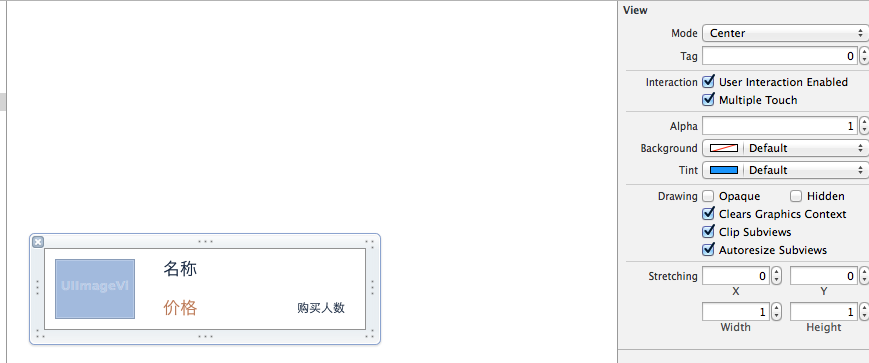
這版能跑,但設計上有味道:主控制器需要知道 xib 裡每個控制項的 tag 是幾,也就是說它必須記住「1 是圖片、2 是標題、3 是價格、4 是購買人數」。一旦 xib 調整,控制器就得跟著改。控制器的職責顯然越界了。
4. 第二版:為 cell 配一個專屬類
把 xib 的操作交給一個專門的類,對外只暴露模型屬性,內部的連線細節外界不必知道。新建 YYtgcell,注意類的繼承關係,並在 xib 上把 File's Owner 的 class 指向它。
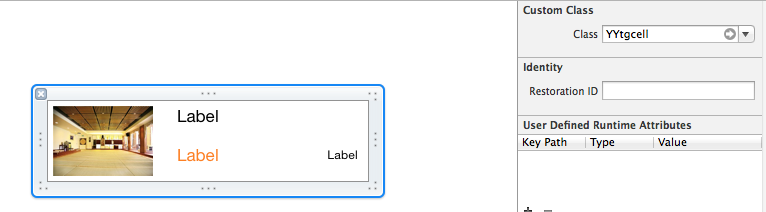
YYtgcell.h:
//
// YYtgcell.h
// 02-團購(使用xib和類完成數據展示)
//
// Created by apple on 14-5-29.
// Copyright (c) 2014年 itcase. All rights reserved.
//
#import <UIKit/UIKit.h>
#import "YYtg.h"
@interface YYtgcell : UITableViewCell
@property(nonatomic,strong)YYtg *yytg;
@end
YYtgcell.m:
#import "YYtgcell.h"
//私有擴展
@interface YYtgcell()
@property (strong, nonatomic) IBOutlet UIImageView *img;
@property (strong, nonatomic) IBOutlet UILabel *titlelab;
@property (strong, nonatomic) IBOutlet UILabel *pricelab;
@property (strong, nonatomic) IBOutlet UILabel *buycountlab;
@end
@implementation YYtgcell
#pragma mark 重寫set方法,完成數據的賦值操作
-(void)setYytg:(YYtg *)yytg
{
_yytg=yytg;
self.img.image=[UIImage imageNamed:yytg.icon];
self.titlelab.text=yytg.title;
self.pricelab.text=[NSString stringWithFormat:@"$%@",yytg.price];
self.buycountlab.text=[NSString stringWithFormat:@"已有%@人購買",yytg.buyCount];
}
@end
控制器清爽多了:
#import "YYViewController.h"
#import "YYtg.h"
#import "YYtgcell.h"
@interface YYViewController ()<UITableViewDataSource,UITableViewDelegate>
@property (strong, nonatomic) IBOutlet UITableView *tableview;
@property(strong,nonatomic)NSArray *tg;
@end
@implementation YYViewController
- (void)viewDidLoad
{
[super viewDidLoad];
self.tableview.rowHeight=80.f;
}
#pragma mark- 懶加載
-(NSArray *)tg
{
if (_tg==nil) {
NSString *fullpath=[[NSBundle mainBundle]pathForResource:@"tgs.plist" ofType:nil];
NSArray *temparray=[NSArray arrayWithContentsOfFile:fullpath];
NSMutableArray *arrayM=[NSMutableArray arrayWithCapacity:temparray.count];
for (NSDictionary *dict in temparray) {
YYtg *tg=[YYtg tgWithDict:dict];
[arrayM addObject:tg];
}
_tg=[arrayM mutableCopy];
}
return _tg;
}
#pragma mark 多少組
-(NSInteger)numberOfSectionsInTableView:(UITableView *)tableView
{
return 1;
}
#pragma mark多少行
-(NSInteger)tableView:(UITableView *)tableView numberOfRowsInSection:(NSInteger)section
{
return self.tg.count;
}
#pragma mark設置每組每行
-(UITableViewCell *)tableView:(UITableView *)tableView cellForRowAtIndexPath:(NSIndexPath *)indexPath
{
static NSString *identifier= @"tg";
YYtgcell *cell=[tableView dequeueReusableCellWithIdentifier:identifier];
if (cell==nil) {
//對於加載的xib文件,可以到xib視圖的屬性選擇器中進行設置
cell=[[[NSBundle mainBundle]loadNibNamed:@"tgcell" owner:nil options:nil]firstObject];
}
cell.yytg=self.tg[indexPath.row];
return cell;
}
-(BOOL)prefersStatusBarHidden
{
return YES;
}
@end
5. 第三版:再往 MVC 靠攏一步
剩下的瑕疵是:載入 xib 這段程式碼還留在控制器裡。把它一起搬進 YYtgcell,對外只給一個便利構造方法。
YYtgcell.h:
#import <UIKit/UIKit.h>
#import "YYtgModel.h"
@interface YYtgcell : UITableViewCell
@property(nonatomic,strong)YYtgModel *yytg;
//把加載數據的內部細節封裝起來
+(instancetype)tgcellWithTableView:(UITableView *)tableView;
@end
YYtgcell.m:
#import "YYtgcell.h"
//私有擴展
@interface YYtgcell()
@property (strong, nonatomic) IBOutlet UIImageView *img;
@property (strong, nonatomic) IBOutlet UILabel *titlelab;
@property (strong, nonatomic) IBOutlet UILabel *pricelab;
@property (strong, nonatomic) IBOutlet UILabel *buycountlab;
@end
@implementation YYtgcell
#pragma mark 重寫set方法,完成數據的賦值操作
-(void)setYytg:(YYtgModel *)yytg
{
_yytg=yytg;
self.img.image=[UIImage imageNamed:yytg.icon];
self.titlelab.text=yytg.title;
self.pricelab.text=[NSString stringWithFormat:@"$%@",yytg.price];
self.buycountlab.text=[NSString stringWithFormat:@"已有%@人購買",yytg.buyCount];
}
+(instancetype)tgcellWithTableView:(UITableView *)tableView
{
static NSString *identifier= @"tg";
YYtgcell *cell=[tableView dequeueReusableCellWithIdentifier:identifier];
if (cell==nil) {
cell=[[[NSBundle mainBundle]loadNibNamed:@"tgcell" owner:nil options:nil]firstObject];
}
return cell;
}
@end
主控制器只剩資料流:
#import "YYViewController.h"
#import "YYtgModel.h"
#import "YYtgcell.h"
@interface YYViewController ()<UITableViewDataSource,UITableViewDelegate>
@property (strong, nonatomic) IBOutlet UITableView *tableview;
@property(strong,nonatomic)NSArray *tg;
@end
@implementation YYViewController
- (void)viewDidLoad
{
[super viewDidLoad];
self.tableview.rowHeight=80.f;
}
#pragma mark- 懶加載
-(NSArray *)tg
{
if (_tg==nil) {
NSString *fullpath=[[NSBundle mainBundle]pathForResource:@"tgs.plist" ofType:nil];
NSArray *temparray=[NSArray arrayWithContentsOfFile:fullpath];
NSMutableArray *arrayM=[NSMutableArray arrayWithCapacity:temparray.count];
for (NSDictionary *dict in temparray) {
YYtgModel *tg=[YYtgModel tgWithDict:dict];
[arrayM addObject:tg];
}
_tg=[arrayM mutableCopy];
}
return _tg;
}
#pragma mark 多少組
-(NSInteger)numberOfSectionsInTableView:(UITableView *)tableView
{
return 1;
}
#pragma mark多少行
-(NSInteger)tableView:(UITableView *)tableView numberOfRowsInSection:(NSInteger)section
{
return self.tg.count;
}
#pragma mark設置每組每行
-(UITableViewCell *)tableView:(UITableView *)tableView cellForRowAtIndexPath:(NSIndexPath *)indexPath
{
//1.創建cell
YYtgcell *cell=[YYtgcell tgcellWithTableView:tableView];
//2.獲取當前行的模型,設置cell的數據
YYtgModel *tg=self.tg[indexPath.row];
cell.yytg=tg;
//3.返回cell
return cell;
}
#pragma mark- 隱藏狀態欄
-(BOOL)prefersStatusBarHidden
{
return YES;
}
@end
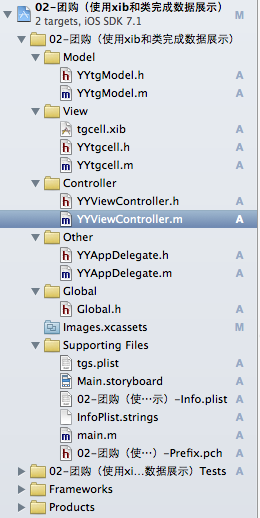
最終的檔案結構就是標準 MVC:
順帶提醒命名規範的重要性。Xcode 支援批次重新命名:
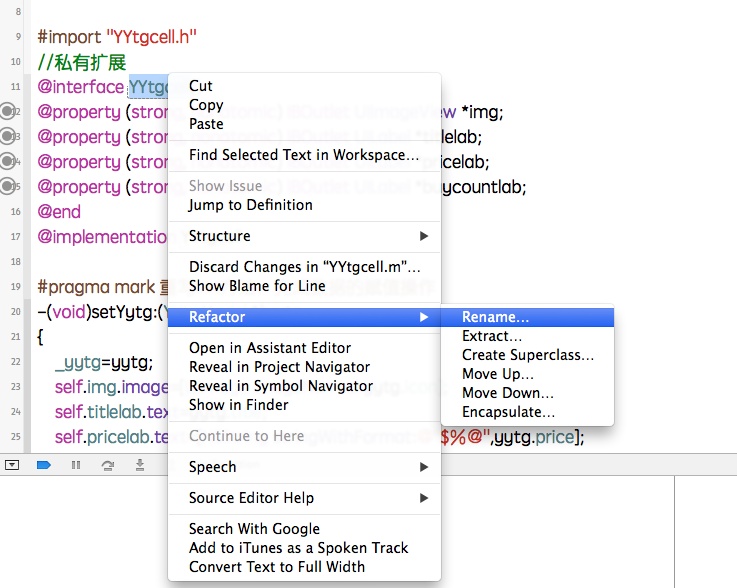
改成想要的樣子:

第二部:純程式碼做一個微博列表
1. 目標效果

2. 純程式碼自訂 cell 的六個步驟
1)新建一個繼承自 UITableViewCell 的類。
2)重寫 initWithStyle:reuseIdentifier:,在其中加入所有要顯示的子控制項(注意加到 contentView 上),並完成一次性的屬性設定,例如字體、固定圖片。
3)準備兩個模型:資料模型存放文字與圖片,frame 模型存放資料模型、所有子控制項的 frame 以及 cell 高度。
4)cell 只持有 frame 模型,不要直接持有資料模型。
5)重寫 frame 模型屬性的 setter,在其中設定子控制項的資料與 frame。
6)frame 模型用懶加載初始化,保證每個 cell 對應的 frame 只計算一次。
為什麼要拆成兩個模型?因為行高計算成本不低,如果每次 heightForRow 都重算文字尺寸,列表一滑就掉幀。把結果快取在 frame 模型裡,是這個模式的核心價值。
3. 檔案結構與實作
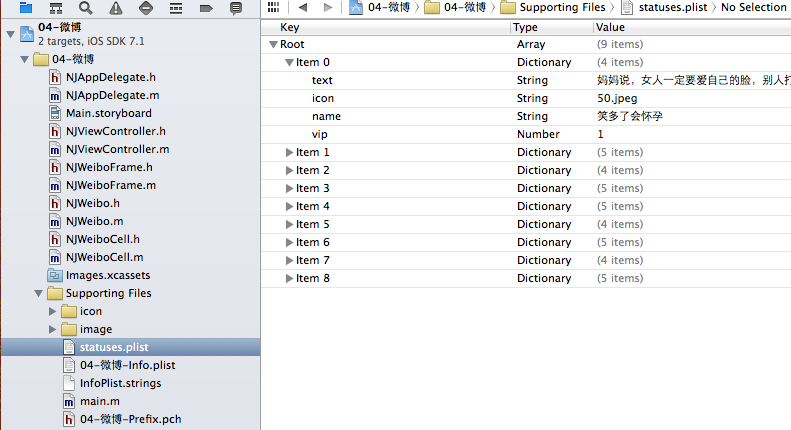
NJWeibo.h:
#import <Foundation/Foundation.h>
@interface NJWeibo : NSObject
@property (nonatomic, copy) NSString *text; // 內容
@property (nonatomic, copy) NSString *icon; // 頭像
@property (nonatomic, copy) NSString *name; // 昵稱
@property (nonatomic, copy) NSString *picture; // 配圖
@property (nonatomic, assign) BOOL vip;
- (id)initWithDict:(NSDictionary *)dict;
+ (id)weiboWithDict:(NSDictionary *)dict;
@end
NJWeibo.m:
#import "NJWeibo.h"
@implementation NJWeibo
- (id)initWithDict:(NSDictionary *)dict
{
if (self = [super init]) {
[self setValuesForKeysWithDictionary:dict];
}
return self;
}
+ (id)weiboWithDict:(NSDictionary *)dict
{
return [[self alloc] initWithDict:dict];
}
@end
NJWeiboCell.h:
#import <UIKit/UIKit.h>
@class NJWeiboFrame;
@interface NJWeiboCell : UITableViewCell
/**
* 接收外界傳入的模型
*/
@property (nonatomic, strong) NJWeiboFrame *weiboFrame;
+ (instancetype)cellWithTableView:(UITableView *)tableView;
@end
NJWeiboCell.m:
#import "NJWeiboCell.h"
#import "NJWeibo.h"
#import "NJWeiboFrame.h"
#define NJNameFont [UIFont systemFontOfSize:15]
#define NJTextFont [UIFont systemFontOfSize:16]
@interface NJWeiboCell ()
/**
* 頭像
*/
@property (nonatomic, weak) UIImageView *iconView;
/**
* vip
*/
@property (nonatomic, weak) UIImageView *vipView;
/**
* 配圖
*/
@property (nonatomic, weak) UIImageView *pictureView;
/**
* 昵稱
*/
@property (nonatomic, weak) UILabel *nameLabel;
/**
* 正文
*/
@property (nonatomic, weak) UILabel *introLabel;
@end
@implementation NJWeiboCell
+ (instancetype)cellWithTableView:(UITableView *)tableView
{
static NSString *identifier = @"status";
// 1.緩存中取
NJWeiboCell *cell = [tableView dequeueReusableCellWithIdentifier:identifier];
// 2.創建
if (cell == nil) {
cell = [[NJWeiboCell alloc]initWithStyle:UITableViewCellStyleDefault reuseIdentifier:identifier];
}
return cell;
}
/**
* 構造方法(在初始化對象的時候會調用)
* 一般在這個方法中添加需要顯示的子控件
*/
- (id)initWithStyle:(UITableViewCellStyle)style reuseIdentifier:(NSString *)reuseIdentifier
{
self = [super initWithStyle:style reuseIdentifier:reuseIdentifier];
if (self) {
// 1.創建頭像
UIImageView *iconView = [[UIImageView alloc] init];
[self.contentView addSubview:iconView];
self.iconView = iconView;
// 2.創建昵稱
UILabel *nameLabel = [[UILabel alloc] init];
nameLabel.font = NJNameFont;
[self.contentView addSubview:nameLabel];
self.nameLabel = nameLabel;
// 3.創建vip
UIImageView *vipView = [[UIImageView alloc] init];
vipView.image = [UIImage imageNamed:@"vip"];
[self.contentView addSubview:vipView];
self.vipView = vipView;
// 4.創建正文
UILabel *introLabel = [[UILabel alloc] init];
introLabel.font = NJTextFont;
introLabel.numberOfLines = 0;
[self.contentView addSubview:introLabel];
self.introLabel = introLabel;
// 5.創建配圖
UIImageView *pictureView = [[UIImageView alloc] init];
[self.contentView addSubview:pictureView];
self.pictureView = pictureView;
}
return self;
}
- (void)setWeiboFrame:(NJWeiboFrame *)weiboFrame
{
_weiboFrame = weiboFrame;
// 1.給子控件賦值數據
[self settingData];
// 2.設置frame
[self settingFrame];
}
/**
* 設置子控件的數據
*/
- (void)settingData
{
NJWeibo *weibo = self.weiboFrame.weibo;
// 設置頭像
self.iconView.image = [UIImage imageNamed:weibo.icon];
// 設置昵稱
self.nameLabel.text = weibo.name;
// 設置vip
if (weibo.vip) {
self.vipView.hidden = NO;
self.nameLabel.textColor = [UIColor redColor];
}else
{
self.vipView.hidden = YES;
self.nameLabel.textColor = [UIColor blackColor];
}
// 設置內容
self.introLabel.text = weibo.text;
// 設置配圖
if (weibo.picture) {// 有配圖
self.pictureView.image = [UIImage imageNamed:weibo.picture];
self.pictureView.hidden = NO;
}else
{
self.pictureView.hidden = YES;
}
}
/**
* 設置子控件的frame
*/
- (void)settingFrame
{
// 設置頭像的frame
self.iconView.frame = self.weiboFrame.iconF;
// 設置昵稱的frame
self.nameLabel.frame = self.weiboFrame.nameF;
// 設置vip的frame
self.vipView.frame = self.weiboFrame.vipF;
// 設置正文的frame
self.introLabel.frame = self.weiboFrame.introF;
// 設置配圖的frame
if (self.weiboFrame.weibo.picture) {// 有配圖
self.pictureView.frame = self.weiboFrame.pictrueF;
}
}
/**
* 計算文本的寬高
*/
- (CGSize)sizeWithString:(NSString *)str font:(UIFont *)font maxSize:(CGSize)maxSize
{
NSDictionary *dict = @{NSFontAttributeName : font};
// 如果計算的文字超出指定範圍,返回的就是指定範圍;小於指定範圍時返回真實範圍
CGSize size = [str boundingRectWithSize:maxSize options:NSStringDrawingUsesLineFragmentOrigin attributes:dict context:nil].size;
return size;
}
@end
NJWeiboFrame.h:
// 專門用來保存每一行數據的frame, 計算frame
#import <Foundation/Foundation.h>
@class NJWeibo;
@interface NJWeiboFrame : NSObject
/**
* 頭像的frame
*/
@property (nonatomic, assign) CGRect iconF;
/**
* 昵稱的frame
*/
@property (nonatomic, assign) CGRect nameF;
/**
* vip的frame
*/
@property (nonatomic, assign) CGRect vipF;
/**
* 正文的frame
*/
@property (nonatomic, assign) CGRect introF;
/**
* 配圖的frame
*/
@property (nonatomic, assign) CGRect pictrueF;
/**
* 行高
*/
@property (nonatomic, assign) CGFloat cellHeight;
/**
* 模型數據
*/
@property (nonatomic, strong) NJWeibo *weibo;
@end
NJWeiboFrame.m:
#import "NJWeiboFrame.h"
#import "NJWeibo.h"
#define NJNameFont [UIFont systemFontOfSize:15]
#define NJTextFont [UIFont systemFontOfSize:16]
@implementation NJWeiboFrame
- (void)setWeibo:(NJWeibo *)weibo
{
_weibo = weibo;
// 間隙
CGFloat padding = 10;
// 設置頭像的frame
CGFloat iconViewX = padding;
CGFloat iconViewY = padding;
CGFloat iconViewW = 30;
CGFloat iconViewH = 30;
self.iconF = CGRectMake(iconViewX, iconViewY, iconViewW, iconViewH);
// 設置昵稱的frame
CGFloat nameLabelX = CGRectGetMaxX(self.iconF) + padding;
CGSize nameSize = [self sizeWithString:_weibo.name font:NJNameFont maxSize:CGSizeMake(MAXFLOAT, MAXFLOAT)];
CGFloat nameLabelH = nameSize.height;
CGFloat nameLabelW = nameSize.width;
CGFloat nameLabelY = iconViewY + (iconViewH - nameLabelH) * 0.5;
self.nameF = CGRectMake(nameLabelX, nameLabelY, nameLabelW, nameLabelH);
// 設置vip的frame
CGFloat vipViewX = CGRectGetMaxX(self.nameF) + padding;
CGFloat vipViewY = nameLabelY;
CGFloat vipViewW = 14;
CGFloat vipViewH = 14;
self.vipF = CGRectMake(vipViewX, vipViewY, vipViewW, vipViewH);
// 設置正文的frame
CGFloat introLabelX = iconViewX;
CGFloat introLabelY = CGRectGetMaxY(self.iconF) + padding;
CGSize textSize = [self sizeWithString:_weibo.text font:NJTextFont maxSize:CGSizeMake(300, MAXFLOAT)];
CGFloat introLabelW = textSize.width;
CGFloat introLabelH = textSize.height;
self.introF = CGRectMake(introLabelX, introLabelY, introLabelW, introLabelH);
// 設置配圖的frame
CGFloat cellHeight = 0;
if (_weibo.picture) {// 有配圖
CGFloat pictureViewX = iconViewX;
CGFloat pictureViewY = CGRectGetMaxY(self.introF) + padding;
CGFloat pictureViewW = 100;
CGFloat pictureViewH = 100;
self.pictrueF = CGRectMake(pictureViewX, pictureViewY, pictureViewW, pictureViewH);
// 計算行高
self.cellHeight = CGRectGetMaxY(self.pictrueF) + padding;
}else
{
// 沒有配圖情況下的行高
self.cellHeight = CGRectGetMaxY(self.introF) + padding;
}
}
/**
* 計算文本的寬高
*/
- (CGSize)sizeWithString:(NSString *)str font:(UIFont *)font maxSize:(CGSize)maxSize
{
NSDictionary *dict = @{NSFontAttributeName : font};
CGSize size = [str boundingRectWithSize:maxSize options:NSStringDrawingUsesLineFragmentOrigin attributes:dict context:nil].size;
return size;
}
@end
主控制器 NJViewController.m:
#import "NJViewController.h"
#import "NJWeibo.h"
#import "NJWeiboCell.h"
#import "NJWeiboFrame.h"
@interface NJViewController ()
@property (nonatomic, strong) NSArray *statusFrames;
@end
@implementation NJViewController
#pragma mark - 數據源方法
- (NSInteger)tableView:(UITableView *)tableView numberOfRowsInSection:(NSInteger)section
{
return self.statusFrames.count;
}
- (UITableViewCell *)tableView:(UITableView *)tableView cellForRowAtIndexPath:(NSIndexPath *)indexPath
{
NJWeiboCell *cell = [NJWeiboCell cellWithTableView:tableView];
// 3.設置數據
cell.weiboFrame = self.statusFrames[indexPath.row];
// 4.返回
return cell;
}
#pragma mark - 懶加載
- (NSArray *)statusFrames
{
if (_statusFrames == nil) {
NSString *fullPath = [[NSBundle mainBundle] pathForResource:@"statuses.plist" ofType:nil];
NSArray *dictArray = [NSArray arrayWithContentsOfFile:fullPath];
NSMutableArray *models = [NSMutableArray arrayWithCapacity:dictArray.count];
for (NSDictionary *dict in dictArray) {
// 創建模型
NJWeibo *weibo = [NJWeibo weiboWithDict:dict];
// 根據模型數據創建frame模型
NJWeiboFrame *wbF = [[NJWeiboFrame alloc] init];
wbF.weibo = weibo;
[models addObject:wbF];
}
self.statusFrames = [models copy];
}
return _statusFrames;
}
#pragma mark - 代理方法
- (CGFloat)tableView:(UITableView *)tableView heightForRowAtIndexPath:(NSIndexPath *)indexPath
{
// 取出對應行的frame模型
NJWeiboFrame *wbF = self.statusFrames[indexPath.row];
return wbF.cellHeight;
}
- (BOOL) prefersStatusBarHidden
{
return YES;
}
@end
4. 兩種自訂方式的選擇依據
系統預設的 cell 樣式有限,實戰中經常需要自己動手。做法有兩條路:用 xib,或者純程式碼。
樣式統一、結構固定的列表,用 xib 更快,改版也更直觀;行高不定、內容差異大的列表(例如微博這種有圖無圖混排),純程式碼搭配 frame 模型更合適,因為你需要精確控制每一個約束關係。
- 上一篇文章: iOS 音樂播放器開發實操:從列表頁到播放頁的完整流程
- 下一篇文章: iOS UI 開發基本功:懶加載與 xib 的實際用法