
iOS UIActionSheet 操作表單用法整理:屬性、樣式與代理方法
編輯:iOS 相關教學
當你需要在不離開當前畫面的情況下,讓使用者從幾個動作中挑一個,「操作表單」(Action Sheet)是最合適的元件。它會從螢幕底部滑出,典型場景包括分享選單、拍照/相簿/刪除的三選一等等。
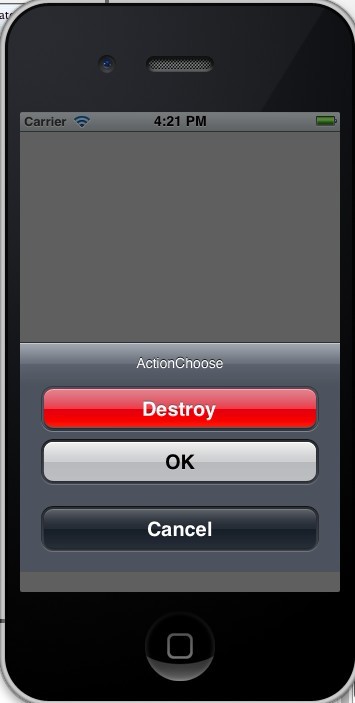
基本建立方式
UIActionSheet *mySheet = [[UIActionSheet alloc] initWithTitle:@"ActionChoose"
                                                     delegate:self
                                            cancelButtonTitle:@"Cancel"
                                       destructiveButtonTitle:@"Destroy"
                                            otherButtonTitles:@"OK", nil];

[mySheet showInView:self.view];
處理按鈕點擊
與 UIAlertView 類似,實際的按鈕行為都在代理方法中處理。記得在承接類別宣告 UIActionSheetDelegate:
- (void)actionSheetCancel:(UIActionSheet *)actionSheet {
    //
}

- (void)actionSheet:(UIActionSheet *)actionSheet clickedButtonAtIndex:(NSInteger)buttonIndex {
    //
}

- (void)actionSheet:(UIActionSheet *)actionSheet didDismissWithButtonIndex:(NSInteger)buttonIndex {
    //
}

- (void)actionSheet:(UIActionSheet *)actionSheet willDismissWithButtonIndex:(NSInteger)buttonIndex {
    //
}
這四個方法的時機需要分辨清楚:clickedButtonAtIndex 在點擊當下觸發,willDismiss 在表單即將消失時觸發,didDismiss 則在消失動畫完成後觸發。若需要在表單關閉後才做版面或資料處理,應放在 didDismiss 而非 clicked 中。
破壞性按鈕(Destructive Button)
仔細看範例截圖,那顆紅色的按鈕就是所谓的「破壞性按鈕」。它會以紅色高亮顯示,用來對某個具風險的動作提出警示——例如永久刪除一則訊息或一份日誌。指定方式如下:
mySheet.destructiveButtonIndex = 1;
三種外觀風格
與導航列類似,操作表單也支援三種風格:
UIActionSheetStyleDefault          // 預設:灰色背景配白色文字
UIActionSheetStyleBlackTranslucent // 半透明黑底,白字(背景會透出模糊效果)
UIActionSheetStyleBlackOpaque      // 純黑底,白字
套用方式:
mySheet.actionSheetStyle = UIActionSheetStyleBlackOpaque;
常用屬性與方法
顯示表單的三種方式
// 1. 在指定視圖內顯示
[mySheet showInView:self.view];

// 2. 對齊工具列顯示
[mySheet showFromToolBar:toolbar];

// 3. 對齊標籤欄顯示
[mySheet showFromTabBar:tabbar];
選擇哪一種取決於觸發來源:從工具列或標籤欄上的按鈕叫出來的表單,就該對齊那個位置呈現,視覺上才連貫。
程式化關閉
一般情況下使用者按下任一按鈕後表單就會消失。若因特殊需求需要程式控制關閉:
[mySheet dismissWithClickedButtonIndex:1 animated:YES];
標題與樣式
@property (nonatomic, copy) NSString *title;
@property (nonatomic) UIActionSheetStyle actionSheetStyle;
按鈕相關
// 動態新增按鈕,回傳該按鈕的索引
- (NSInteger)addButtonWithTitle:(NSString *)title;

// 取得指定索引的按鈕標題
- (NSString *)buttonTitleAtIndex:(NSInteger)buttonIndex;

// 按鈕總數
@property (nonatomic, readonly) NSInteger numberOfButtons;

// 取消按鈕的索引
@property (nonatomic) NSInteger cancelButtonIndex;

// 破壞性按鈕的索引
@property (nonatomic) NSInteger destructiveButtonIndex;

// 表單目前是否可見
@property (nonatomic, readonly, getter=isVisible) BOOL visible;
各種彈出方式
- (void)showFromToolbar:(UIToolbar *)view;
- (void)showFromTabBar:(UITabBar *)view;
- (void)showFromBarButtonItem:(UIBarButtonItem *)item animated:(BOOL)animated;
- (void)showFromRect:(CGRect)rect inView:(UIView *)view animated:(BOOL)animated;
- (void)showInView:(UIView *)view;
程式化收回
- (void)dismissWithClickedButtonIndex:(NSInteger)buttonIndex animated:(BOOL)animated;
UIActionSheetDelegate 完整方法清單
// 點擊按鈕時觸發
- (void)actionSheet:(UIActionSheet *)actionSheet clickedButtonAtIndex:(NSInteger)buttonIndex;

// 表單即將彈出時觸發
- (void)willPresentActionSheet:(UIActionSheet *)actionSheet;

// 表單已經彈出後觸發
- (void)didPresentActionSheet:(UIActionSheet *)actionSheet;

// 點擊按鈕後,表單即將收回時觸發
- (void)actionSheet:(UIActionSheet *)actionSheet willDismissWithButtonIndex:(NSInteger)buttonIndex;

// 點擊按鈕後,表單已經收回時觸發
- (void)actionSheet:(UIActionSheet *)actionSheet didDismissWithButtonIndex:(NSInteger)buttonIndex;

// 按下取消鍵時觸發
- (void)actionSheetCancel:(UIActionSheet *)actionSheet;
補充一個實務提醒:在 iPhone 上 UIActionSheet 已於 iOS 8 起被 UIAlertController(preferredStyle 設為 UIAlertControllerStyleActionSheet)取代,新專案請改用後者;但在 iPad 上,Action Sheet 形式的呈現方式仍舊常見,理解這套觀念依然有用。