
用 Bash 腳本鎖住 iTunes,避免它把已越獄的 iPhone 更新掉(Mac)
聲明:這支 Bash 腳本並非本站原創。Mac 使用者請審慎評估後再使用,若出狀況請自行承擔。如果你有辦法改良,歡迎與我們聯繫。
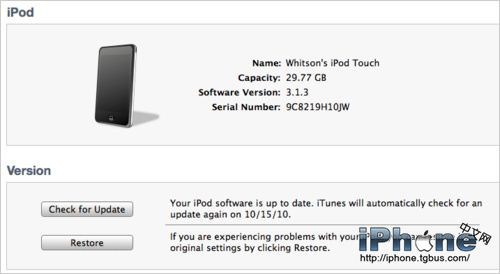
iTunes 的韌體更新功能有時候真的很討厭,一不留神就點到,而已越獄的 iPhone 一升級就失去越獄;有鎖版更慘,可能直接失去解鎖變磚。下面這支腳本的做法是修改 iTunes 預設下載路徑的權限,讓它根本無法下載韌體,藉此避開這個風險。
使用方法:把下面的內容複製進 TextEdit 存檔即可。
#!/bin/bash
clear
echo "This script will chmod the download locations for Firmware Files, So iTunes can not download firmware."
echo "AKA it will prevent iTunes from auto updating your device."
echo ""
echo ""
echo "To restore firmware just hold down option and manually select the firmware file."
echo ""
clear
echo "Made By: Wesley K"
echo "wesley@wesleyk.me"
echo "https://wesleyk.me"
echo "https://wesleyk.me/twitter"
sleep 2
read -sn 1 -p "Press any key to continue..."
clear
echo "Now I need your password to continue"
echo "Killing iTunes now"
sudo -v
sudo killall -9 iTunes
sleep 2
clear
echo "Im going to make all the folder needed to future proof a few things"
echo "If errors occur here, No big deals."
sudo mkdir ~/Library/iTunes/iPad\ Software\ Updates/
sudo mkdir ~/Library/iTunes/iPod\ Software\ Updates/
sudo mkdir ~/Library/iTunes/iPhone\ Software\ Updates/
sleep 2
clear
echo "I am going to dump all the current files in your update folders."
echo "This will prevent any updates from downloaded firmware."
sudo rm -rf ~/Library/iTunes/iPad\ Software\ Updates/*
sudo rm -rf ~/Library/iTunes/iPhone\ Software\ Updates/*
sudo rm -rf ~/Library/iTunes/iPod\ Software\ Updates/*
sleep 2
clear
echo "Now preventing iTunes from downloading new firmwares."
sudo chmod 444 ~/Library/iTunes/iPad\ Software\ Updates
sudo chmod 444 ~/Library/iTunes/iPod\ Software\ Updates
sudo chmod 444 ~/Library/iTunes/iPhone\ Software\ Updates
sleep 2
clear
echo "Made By Wesley K"
echo "Give me credit if you use it"
echo "For safe measures I would run this script after iTunes updates, It shouldn't affect it but I don't know yet."
存檔與執行
在 TextEdit 中找到 Format → Make Plain Text,然後把檔案存到一個不會被刪掉或改動的位置。檔名可以叫 blockitunesupdates.sh,或任何你喜歡的名字,重點是副檔名必須是 .sh。
接著打開終端機,用 chmod +x 檔名 給腳本執行權限。要執行時,把這個 .sh 檔拖進終端機視窗後按 Enter,並依畫面提示操作即可。
要注意的是,在升級 iTunes、升級 OS X,或用磁碟工具程式修復檔案權限之後,可能需要再跑一次這個腳本。若想取消,把腳本裡的 444 都改成 755 後再執行一次就好。對習慣 Mac 的人來說,這應該不算難。