
iTunes 更新時跳「伺服器不可連接」?六種解法
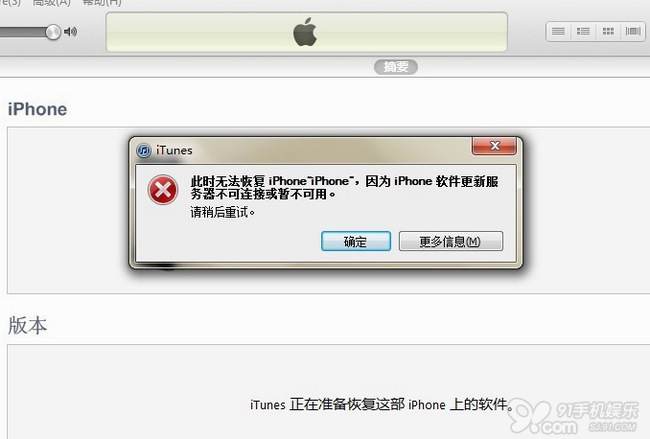
有使用者反映,用 iTunes 更新固件時會遇到「iPhone 軟體更新伺服器不可連接或暫不可用」。以下彙整網路上幾種常見解法,供參考嘗試。
方法一:先開啟說明頁面
點開 https://support.apple.com/kb/TS1814?viewlocale=en_US 並保持開啟,然後重新啟動一次 iTunes,問題往往就解決了。
方法二:檢查 hosts 檔
Windows 用戶開啟 C:\Windows\System32\drivers\etc,用記事本打開 Hosts 檔,找到 74.208.10.249 gs.apple.com 這行並刪除。若仍未解決,可把後面的 gs.apple.com 改為 phobos.apple.com 或 albert.apple.com。
方法三:查詢實際 IP 再覆寫
從「開始」選單的執行欄輸入 cmd 開啟命令提示字元,執行 nslookup gs.apple.com,取得你所在地區解析到的真實 IP 並記下來。
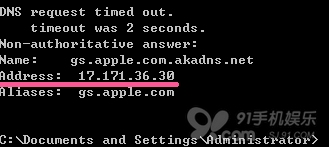
接著(以 Windows XP 為例)開啟 C:\Windows\System32\drivers\etc,右鍵用記事本或 WordPad 開啟 hosts 檔,把 74.208.10.24 gs.apple.com 換成剛記下的 IP;若檔案中沒有這行,直接在最後空白行新增,例如 17.171.36.30 gs.apple.com,儲存後退出,再開 iTunes 即可。
方法四:檢查背景服務
確認電腦的 Messenger、Telnet、Terminal Services 這三個服務是否有啟用。右鍵點「我的電腦」→ 管理 → 服務,找到後將它們開啟。
方法五:勾選自動偵測設定
Windows XP:從開始選單開啟控制台,進入「網際網路選項」控制台,點「連線」分頁,按「LAN 設定」,勾選「自動偵測設定」。
Windows Vista/7:從開始選單開啟控制台,選「網路和網際網路」→「網際網路選項」(或切換成「傳統檢視」直接開啟),同樣點「連線」→「LAN 設定」→ 勾選「自動偵測設定」。
兩個視窗各按一次「確定」,重新開啟 iTunes 並連接裝置,再執行更新或修復。
方法六:重置 hosts 檔內容
Windows 用戶開啟 C:\WINDOWS\system32\drivers\etc,找到 hosts 檔並替換為以下內容(修改前建議先備份原檔):
# Copyright (c) 1993-1999 Microsoft Corp.
#
# This is a sample HOSTS file used by Microsoft TCP/IP for Windows.
#
# This file contains the mappings of IP addresses to host names. Each
# entry should be kept on an individual line. The IP address should
# be placed in the first column followed by the corresponding host name.
# The IP address and the host name should be separated by at least one
# space.
#
# Additionally, comments (such as these) may be inserted on individual
# lines or following the machine name denoted by a '#' symbol.
#
# For example:
#
# 102.54.94.97 rhino.acme.com # source server
# 38.25.63.10 x.acme.com # x client host
127.0.0.1 localhost
修改 hosts 檔屬於系統層級操作,動手前請先複製一份備份,萬一出問題還能還原。
註:更多精彩教學請關注手機教學欄目。
- 上一篇文章: 酷玩配件:12 款造型光怪陸離的 iPhone 外殼
- 下一篇文章: iPhone 的另類玩法:在聯絡人姓名後面加表情符號