iOS如何裁剪圓形頭像
編輯:關於IOS教程
本文實例為大家介紹了iOS裁剪圓形頭像的詳細代碼,供大家參考,具體內容如下
- (void)viewDidLoad {
  [super viewDidLoad];

  //加載圖片
  UIImage *image = [UIImage imageNamed:@"菲哥"];

  //獲取圖片尺寸
  CGSize size = image.size;

  //開啟位圖上下文
  UIGraphicsBeginImageContextWithOptions(size, NO, 0);

  //創建圓形路徑
  UIBezierPath *path = [UIBezierPath bezierPathWithOvalInRect:CGRectMake(0, 0, image.size.width, image.size.height)];

  //設置為裁剪區域
  [path addClip];

  //繪制圖片
  [image drawAtPoint:CGPointZero];

  //獲取裁剪後的圖片
  _imageView.image = UIGraphicsGetImageFromCurrentImageContext();

  //關閉上下文
  UIGraphicsEndImageContext();

}
再來一張菲哥的頭像
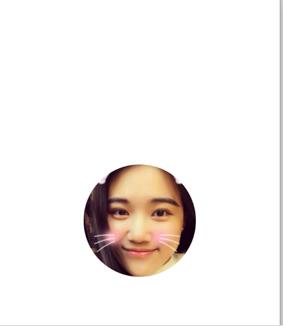
如果想要在圓形頭像外加一個邊框,思路是先繪制一個大圓,然後在這個圓尺寸范圍內繪制一個圖片大小的圓。
- (void)viewDidLoad {
  [super viewDidLoad];

  //加載圖片
  UIImage *image = [UIImage imageNamed:@"大菲哥"];

  //設置邊框寬度
  CGFloat border = 3;
  CGFloat imageWH = image.size.width;

  //計算外圓的尺寸
  CGFloat ovalWH = imageWH + 2 * border;

  //開啟上下文
  UIGraphicsBeginImageContextWithOptions(image.size, NO, 0);

  //畫一個大的圓形
  UIBezierPath *path = [UIBezierPath bezierPathWithOvalInRect:CGRectMake(0, 0, ovalWH, ovalWH)];

  [[UIColor orangeColor]set];

  [path fill];

  //設置裁剪區域
  UIBezierPath *path1 = [UIBezierPath bezierPathWithOvalInRect:CGRectMake(border, border, imageWH, imageWH)];
  [path1 addClip];

  //繪制圖片
  [image drawAtPoint:CGPointMake(border, border)];

  //從上下文中獲取圖片
  _imageView.image = UIGraphicsGetImageFromCurrentImageContext();

  //關閉上下文
  UIGraphicsEndImageContext();

}
效果如圖:

屏幕截圖代碼:
原理就是把屏幕上控件的layer渲染到上下文中
- (void)viewDidLoad {
  [super viewDidLoad];

  //開啟上下文
  UIGraphicsBeginImageContextWithOptions(self.view.bounds.size, NO, 0);

  //獲取上下文
  CGContextRef ctx = UIGraphicsGetCurrentContext();

  //把控件上的圖層渲染到上下文
  [self.view.layer renderInContext:ctx];

  //獲取上下文中的圖片
  UIImage *image = UIGraphicsGetImageFromCurrentImageContext();

  //關閉上下文
  UIGraphicsEndImageContext();

  //保存圖片到相冊
  UIImageWriteToSavedPhotosAlbum(image, nil, nil, nil);

}
以上就是本文的全部內容,希望對大家的學習有所幫助。
- 上一頁:iOS仿郵箱大師的九宮格手勢密碼解鎖
- 下一頁:iOS抽屜效果開發案例分享



相關文章
+