iOS動畫實現雨花與櫻花特效
編輯:關於IOS教程
先來看看效果圖:
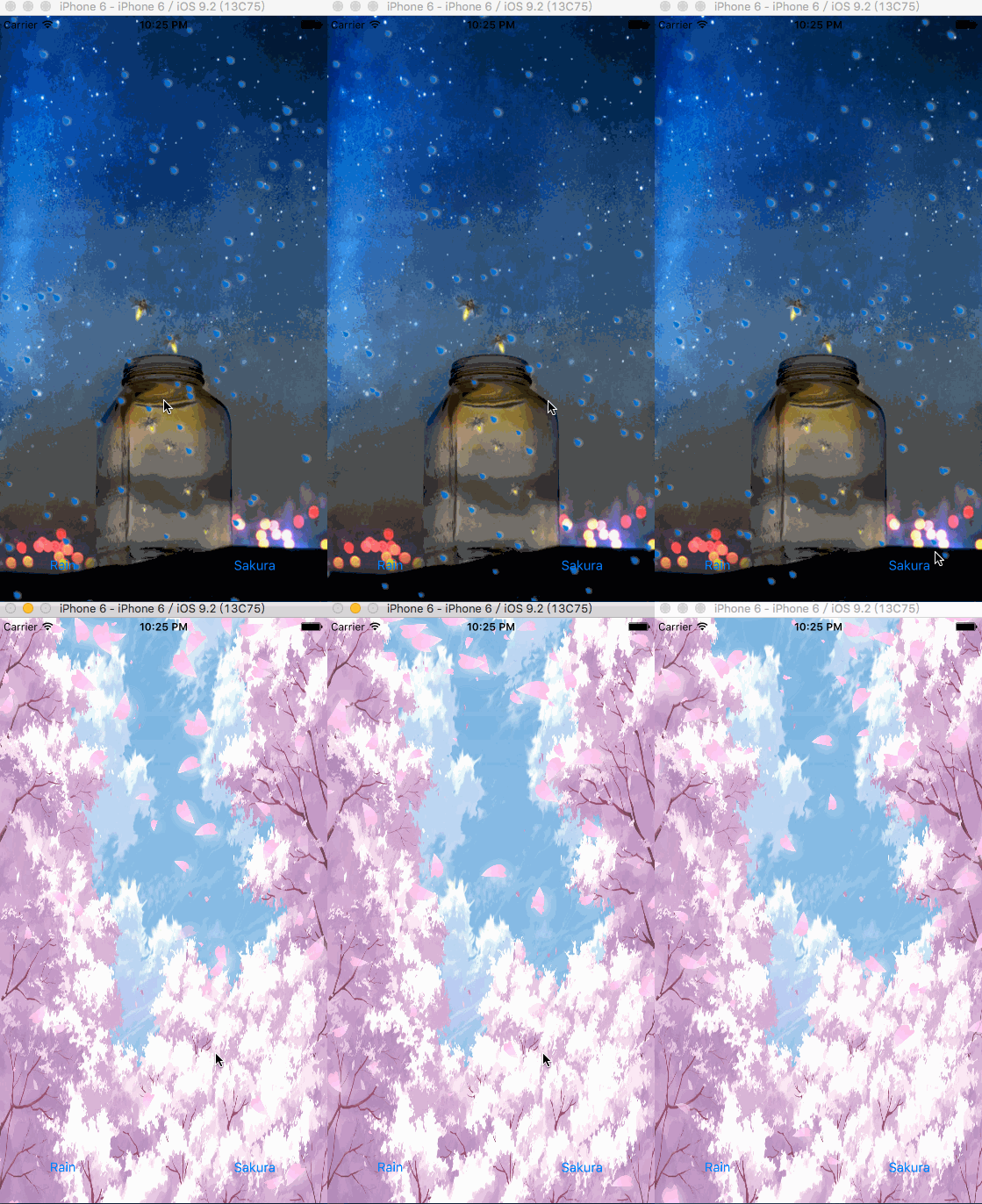
下面直接上代碼:
粒子特效的話我只服蘋果系統的,CAEmitter粒子特效提供了非常豐富的屬性來實現各種效果(雨滴、雪花、流星),用法簡單B格高。首先創建好CAEmitterLayer粒子發射器圖層,CAEmitterCell粒子單元,然後根據需要設置somany粒子單元的屬性就OK了,最後注意要將粒子發射器圖層的layer添加到整個背景的sublayer上。
@interface XMWeatherView ()

@property(nonatomic,strong) CAEmitterLayer *sunshineEmitterLayer;

@property(nonatomic,strong) CAEmitterLayer *rainDropEmitterLayer;

@property(nonatomic,strong) UIImageView *backgroundView;

@end
每個屬性都有詳細注釋,最後就發揮您的想象力,愛怎麼玩怎麼玩吧!
#pragma mark - 下雨特效
-(void)addRainningEffect{

  self.backgroundView.image=[UIImage imageNamed:@"rainning.jpeg"];

  //粒子發射器圖層
  self.rainDropEmitterLayer=[CAEmitterLayer layer];

  //粒子發射器位置
  _rainDropEmitterLayer.emitterPosition=CGPointMake(100, -30);

  //粒子發射器的范圍
  _rainDropEmitterLayer.emitterSize=CGSizeMake(self.bounds.size.width*4, 0);

  //發射模式
  _rainDropEmitterLayer.emitterMode=kCAEmitterLayerOutline;

  //粒子模式
  _rainDropEmitterLayer.emitterShape=kCAEmitterLayerLine;

  //創建粒子
  CAEmitterCell *emitterCell=[CAEmitterCell emitterCell];

  //設置粒子內容
  emitterCell.contents=(__bridge id)([UIImage imageNamed:@"42-Raindrop"].CGImage);

  //設置粒子縮放比例
  emitterCell.scale=0.9;

  //縮放范圍
  emitterCell.scaleRange=0.5;

  //每秒粒子產生數量
  emitterCell.birthRate=130;

  //粒子生命周期
  emitterCell.lifetime=5;

  //粒子透明速度
  emitterCell.alphaSpeed=-0.1;

  //粒子速度
  emitterCell.velocity=280;
  emitterCell.velocityRange=100;

  //設置發射角度
  emitterCell.emissionLongitude=-M_PI;
//  emitterCell.emissionRange=M_PI;

  //設置粒子旋轉角速度
//  emitterCell.spin=M_PI_4;

  //設置layer陰影
  _rainDropEmitterLayer.shadowOpacity=1.0;

  //設置圓角
  _rainDropEmitterLayer.shadowRadius=2;

  //設置偏移
  _rainDropEmitterLayer.shadowOffset=CGSizeMake(1, 1);

  //設置顏色
  _rainDropEmitterLayer.shadowColor=[UIColor whiteColor].CGColor
  ;

  //設置layer的粒子
  _rainDropEmitterLayer.emitterCells=@[emitterCell];

  _rainDropEmitterLayer.transform=CATransform3DMakeRotation(-M_PI/4, 0, 0, 1);

  [self.layer addSublayer:_rainDropEmitterLayer];
}
櫻花的代碼大同小異,請自行腦補。
這一篇就到這裡了,大家有什麼意見和問題記得及時反饋哦,希望本文對大家開發iOS有所幫助。
- 上一頁:掃描二維碼控件的封裝iOS實現
- 下一頁:iOS動畫之向右拉的抽屜3D效果

相關文章
+