iOS開發之手動布局子視圖
編輯:關於IOS教程
手動布局子視圖;
下面先看下效果圖,我們今天要實現的效果:
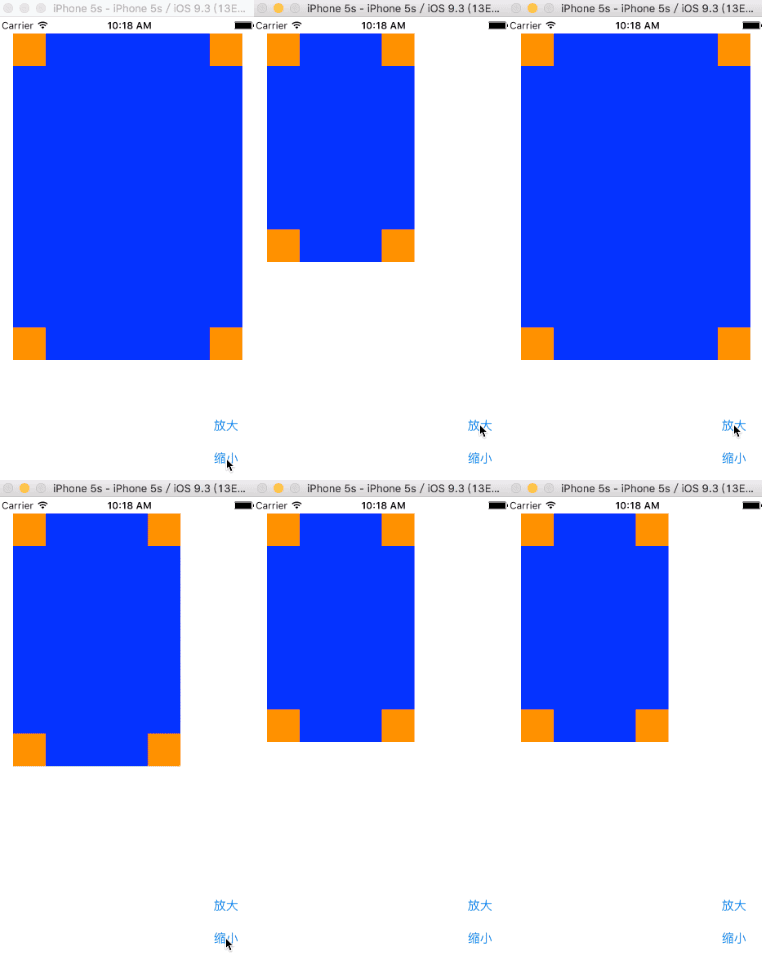
這裡我們默認用storyboard啟動:
首先我們要在白色的屏幕上面創建一個父視圖SuperView(藍色的背景),在父視圖裡面創建四個小視圖(橘黃色的背景)
下面看代碼,
在SuperView.h文件裡面:
#import <UIKit/UIKit.h>

@interface SuperView : UIView{

 UIView * _view01;
 UIView * _view02;
 UIView * _view03;
 UIView * _view04;

}

//聲明創建視圖函數
-(void) createSubViews;

@end

在SuperView.m文件裡面:


#import "SuperView.h"

@interface SuperView ()

@end

@implementation SuperView

-(void) createSubViews{

 //左上角視圖
 _view01 = [[UIView alloc] init];
 _view01.frame=CGRectMake(0, 0, 40, 40);

 //右上角視圖
 _view02 = [[UIView alloc] init];
 _view02.frame=CGRectMake(self.bounds.size.width-40, 0, 40, 40);

 //右下角視圖
 _view03 = [[UIView alloc] init];
 _view03.frame=CGRectMake(self.bounds.size.width-40, self.bounds.size.height-40, 40, 40);

 //左下角視圖
 _view04 = [[UIView alloc] init];
 _view04.frame=CGRectMake(0, self.bounds.size.height-40, 40, 40);

 _view01.backgroundColor=[UIColor orangeColor];
 _view02.backgroundColor=[UIColor orangeColor];
 _view03.backgroundColor=[UIColor orangeColor];
 _view04.backgroundColor=[UIColor orangeColor];

 [self addSubview:_view01];
 [self addSubview:_view02];
 [self addSubview:_view03];
 [self addSubview:_view04];

}

//當需要重新布局時調用此函數
//通過此函數重新設定子視圖的位置
//手動調整子視圖的位置
-(void)layoutSubviews{

 [UIView beginAnimations:nil context:nil];
 [UIView setAnimationDuration:1];

 _view01.frame=CGRectMake(0, 0, 40, 40);
 _view02.frame=CGRectMake(self.bounds.size.width-40, 0, 40, 40);
 _view03.frame=CGRectMake(self.bounds.size.width-40, self.bounds.size.height-40, 40, 40);
 _view04.frame=CGRectMake(0, self.bounds.size.height-40, 40, 40);

 [UIView commitAnimations];

}


@end
在ViewController.m文件裡面:
#import "ViewController.h"
#import "SuperView.h"

@interface ViewController ()

@end

@implementation ViewController

- (void)viewDidLoad {
 [super viewDidLoad];
 // Do any additional setup after loading the view, typically from a nib.

 //創建一個父視圖
 SuperView * sView = [[SuperView alloc]init];
 sView.frame = CGRectMake(20, 20, 180, 280);

 //父視圖調用函數創建四個小視圖
 [sView createSubViews];

 sView.backgroundColor = [UIColor blueColor];
 [self.view addSubview:sView];

 UIButton * btn01 = [UIButton buttonWithType:UIButtonTypeRoundedRect];
 btn01.frame = CGRectMake(240, 480, 80, 40);
 [btn01 setTitle:@"放大" forState:UIControlStateNormal];
 [btn01 addTarget:self action:@selector(pressLarge) forControlEvents:UIControlEventTouchUpInside];
 [self.view addSubview:btn01];

 UIButton * btn02 = [UIButton buttonWithType:UIButtonTypeRoundedRect];
 btn02.frame = CGRectMake(240, 520, 80, 40);
 [btn02 setTitle:@"縮小" forState:UIControlStateNormal];
 [btn02 addTarget:self action:@selector(pressSmall) forControlEvents:UIControlEventTouchUpInside];
 [self.view addSubview:btn02];

 sView.tag = 101;


}

//放大父視圖
-(void) pressLarge{
 SuperView * sView = (SuperView*)[self.view viewWithTag:101];
 [UIView beginAnimations:nil context:nil];
 [UIView setAnimationDuration:1];
 sView.frame=CGRectMake(20, 20, 280, 400);
 [UIView commitAnimations];

}

//縮小父視圖

-(void) pressSmall{
 SuperView * sView = (SuperView*)[self.view viewWithTag:101];
 [UIView beginAnimations:nil context:nil];
 [UIView setAnimationDuration:1];
 sView.frame=CGRectMake(20, 20, 180, 280);
 [UIView commitAnimations];
}


- (void)didReceiveMemoryWarning {
 [super didReceiveMemoryWarning];
 // Dispose of any resources that can be recreated.
}

@end
以上代碼書寫完畢,就達到了上面視圖的效果,希望對大家的學習有所幫助,也希望大家多多支持腳本之家。


相關文章
+